With two-step sign-in, your password alone is not enough: after it, the sign-in asks for a code from an app on your phone or from an e-mail. Turn it on for every account that can publish or change settings.
Who can do this
Every signed-in user whose role has user2fa/setup, on a site where the two-step sign-in extension is active (it is
in a new installation). Have an authenticator app on your phone, such as an open source one or the one your
organization uses.
Steps
Steps
- Open My account (click Change information in the right toolbar).
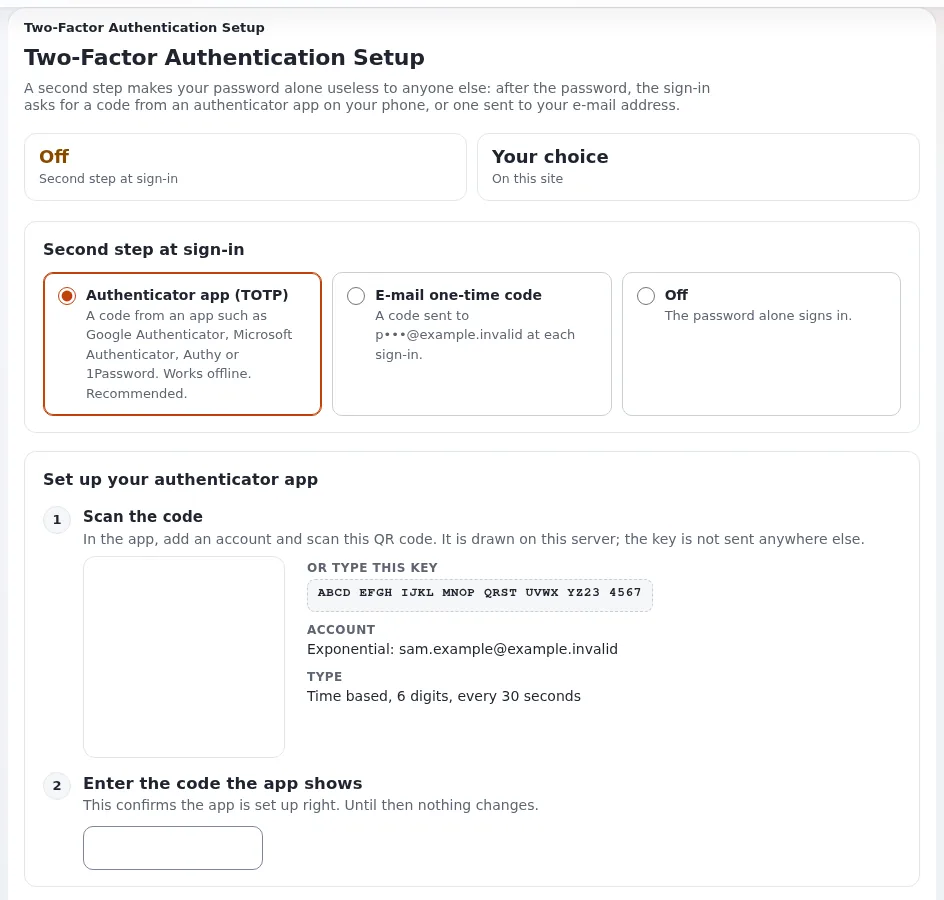
- Under Two-step sign-in, click Turn on. The page Two-Factor Authentication Setup opens.
- Under Second step at sign-in, choose Authenticator app (TOTP).
- Under Scan the code, add an account in your app and scan the QR code, or type the key shown next to it.
- Under Enter the code the app shows, type the 6-digit code from the app.
- Click Save settings. From your next sign-in, the code is asked after your password.
Result
What can go wrong
- "The code is wrong." The phone's time is off. Turn on automatic time on the phone and try a new code.
- No phone at hand. Choose E-mail one-time code instead: the code is then sent to your e-mail address at each sign-in.
- You lost the phone. You cannot sign in alone. Ask an administrator: see A user lost their phone: how do they sign in again?
- Changing or turning it off asks for a code. That is on purpose, so that nobody at an unattended computer can weaken your account.
Related pages
Become an Exponential Partner. Partners share their information, provide funding, contribute back and develop the products with us, and that is how Exponential grows. A partner website and dashboard are planned for mid-2027: please become a partner today to speed up our growth rate and land new features faster. Start with Partners: start here and How to apply.