The layouts editor
This page is for editors and site builders who arrange pages with Exponential Layouts. A layout decides what a page is made of and where each part goes; the content items still hold the text and images.
The Layouts tab is shown only to roles that may work with layouts. If you do not see it, ask an administrator.
Layouts, zones and blocks
- A layout is the plan of a page, for example Landing Page / Home.
- It has zones: areas such as left and right, or header, main and footer. The layout type (1 column, 2 columns, Sidebar left, Hero + 3 columns ...) decides which zones there are.
- Each zone holds blocks, one under the other: a title, a piece of rich text, an image, a list of articles, a gallery, a hero banner and many more.
- A mapping (also called a rule) decides on which pages a layout is used, for example the page Fit & Healthy or every recipe below it.
- A shared layout holds blocks that many pages use, such as a header and footer. Other layouts link a zone to it instead of copying the blocks.
Find a layout
The Layouts tab opens the Layouts Dashboard: the numbers of layouts, zones, blocks and mappings, the recently changed layouts, and buttons to New layout, Layouts and Rules (the mappings).

Layouts lists every layout with its identifier, type, date and number of mappings. Each has Open (edit it in the editor), Preview and Delete. Sort by and Order arrange the list.
Create a layout
Press New layout, choose a Layout type, give it a Name (the Identifier and Description are optional) and press Create layout. The editor opens with the empty zones of that type.

The editor
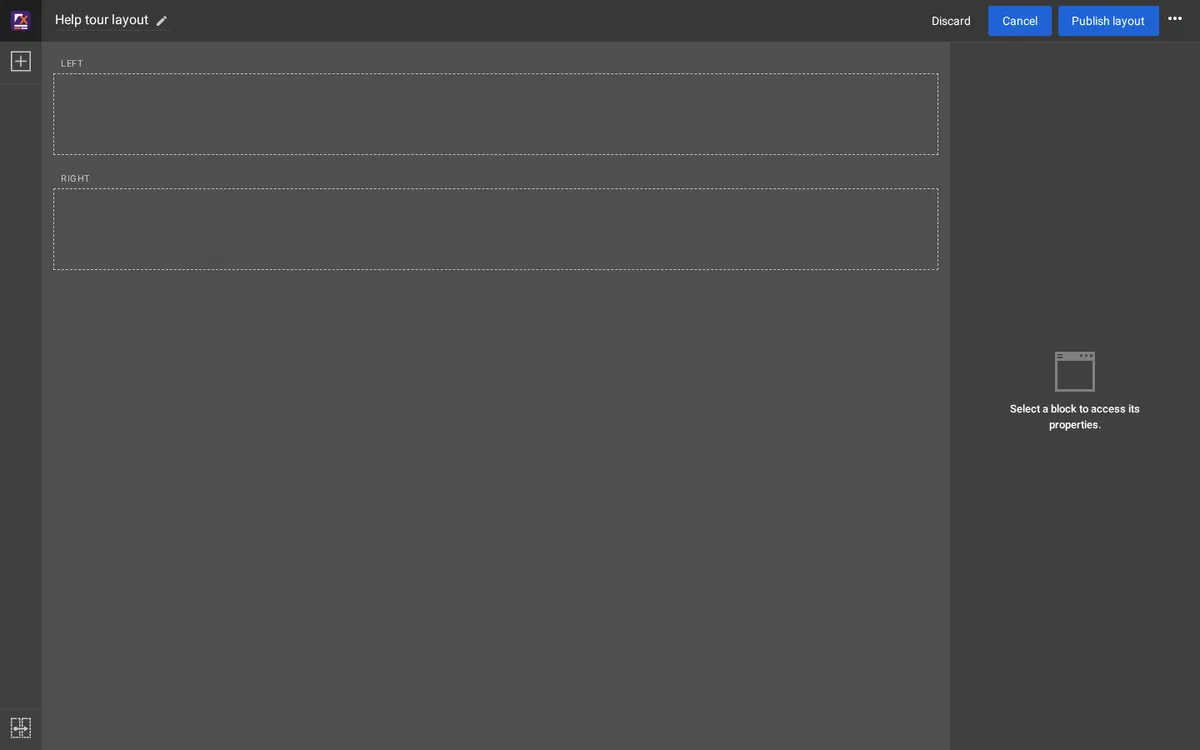
- At the top: the layout's name (click the pencil to rename it), Discard, Cancel, Publish layout, and the menu with three dots: Publish and continue editing and Save draft and close.
- On the left: the plus button, Add a block, opens the list of block types; the button at the bottom links a zone to a zone of a shared layout.
- In the middle: the zones, with their names (LEFT, RIGHT ...) and their blocks.
- On the right: the properties of the selected block. Nothing is selected at first: Select a block to access its properties.
You always work on a draft of the layout. Opening a published layout makes a draft of it; the site keeps showing the published layout until you publish.
Add a block
- Press Add a block (the plus button). The block types appear in groups: Basic (Title, Text, Button / Link, Rich text, Image, Markdown ...), Components, Listing, Gallery, Containers and Placeholders.
- Drag a block type into a zone, to the place where it should go.

Change a block
Click a block to select it. On the right, its properties appear in two tabs:
- Content: what the block shows, for example the text of a title, or which items a list shows and how many.
- Design: how it looks, for example the view type and style.
Changes are shown in the block in the middle. The menu with three dots on a block has Duplicate block and Delete block. To move a block, drag it by its handle to another place or zone.

Publish, keep or throw away
| Button | What it does |
|---|---|
| Publish layout | Publishes the draft and closes the editor. Pages that use the layout show it at once. |
| Publish and continue editing | Publishes and keeps the editor open with a new draft. |
| Save draft and close | Keeps the draft for later and closes the editor; the published layout is unchanged. |
| Discard | Throws the draft away, after you confirm, and closes the editor. |
| Cancel | Leaves the editor and goes back to where you came from; the draft stays. |
Where a site does not clear its caches by itself after a publish, the editor asks whether to clear them; choose Clear caches so visitors see the change.
Which pages use a layout
Rules (on the dashboard; Layout mappings in the menu) lists the mappings: each says its layout, whether it is Enabled, its Targets (a location, a subtree, a module page) and its Conditions (for example a content type or a siteaccess). The first enabled mapping by priority whose targets and conditions match a page wins. Edit layout opens the layout of a mapping; New mapping adds one.

Changing mappings decides what whole parts of the site look like. If you are not sure, ask a site builder.
Learn more
- Exponential Layouts in the administration, for the layouts that arrange the administration itself.
- A tour of the administration
Become an Exponential Partner
Partners share their information, provide funding, contribute back and develop the products with us, and that is how Exponential grows. A partner website and dashboard are planned for mid-2027: please become a partner today to speed up our growth rate and land new features faster.