Creating and editing content
This page is for editors. It explains how to create a new item, how to change an existing one, what the parts of the edit form do, and how to move, copy or change many items at once. Publishing, drafts and versions have a page of their own: Publishing, versions and the trash.
Create a new item
- Open the place where the new item belongs, for example a folder (see Searching or the tree in the left column).
- Under Sub items, press Create new. A list of the content types you may create here opens, in groups.
- Choose the type, for example Article or Folder. The edit form opens with an empty draft.
- Fill in the fields and press Send for publishing.

Other ways to the same result:
- The menu of an item in the tree (click the icon in front of its name) has Create here, with the same list.
- Create multiple new opens one form in which you fill in several new items below the same place at once.

If you leave the form with Discard draft, the new item is not created at all.
Edit an item
- Open the item.
- If the item exists in more than one language, choose the language in the list next to Edit first.
- Press Edit. The edit form opens with a new draft, a copy of the published version.
- Change what you need and press Send for publishing.

You can also choose Edit in from the item's menu in the tree, or tick items in a list and choose Edit selected (see Many items at once).
When someone else is editing
If you or someone else already has a draft of the item, the page Possible edit conflict appears first. It lists the drafts with their creator and time. You can continue one of your drafts (select it and press Edit selected), start a New draft from the published version, or Cancel. A draft of someone else cannot be edited; talk to that person, or make a new draft.

The edit form

- The buttons at the top: Send for publishing publishes the draft; Store draft and exit keeps the draft and leaves the form; Discard draft throws the draft away (after you confirm) and keeps the published version as it was. Some sites also offer Publish without notification, which publishes without e-mailing the people who follow that part of the site.
- The title line names the item and its type, and the language you are editing, for example English (American).
- The field bar: one button per field (Title, Short title, Intro ...); a click jumps to that field. A red
*marks a required field: the draft cannot be published while it is empty. - The fields follow, each with its type in the corner (Text, Rich text, People, Relation ...). If a field is wrong when you publish, the form comes back with a message at the top and at the field.
- The left column shows the item's numbers and dates, the draft you are working on, Manage versions and Preview (see the draft as it will look), the existing translations, and the section the item belongs to.

The draft is saved automatically every few minutes while you work, so a closed browser tab costs little. Pressing Enter in a one-line field is the same as pressing Send for publishing.
Rich text
Rich text fields (such as Intro and Body) have an editor with a toolbar: paragraph styles, bold, italic, lists, links, tables, special characters, Embed object (an image or another item inside the text), Fullscreen and Source code. Under the field you can switch between the editors your site offers, for example TinyMCE 8 and Tiptap. The Help button of TinyMCE lists its keyboard shortcuts.

Relations and images
A field of the type Relation (such as Image of an article) links to other items. Its buttons:
- Add existing (or Add an existing object) opens a browser in which you pick an item that is already there;
- Upload new (or Upload a file) uploads a file from your computer, creates an item from it, and links it.

Images need an alternative text, a short description for people who cannot see the image. Where the site requires it, the image field is marked Alternative image text (required) and the upload dialogs ask for it.
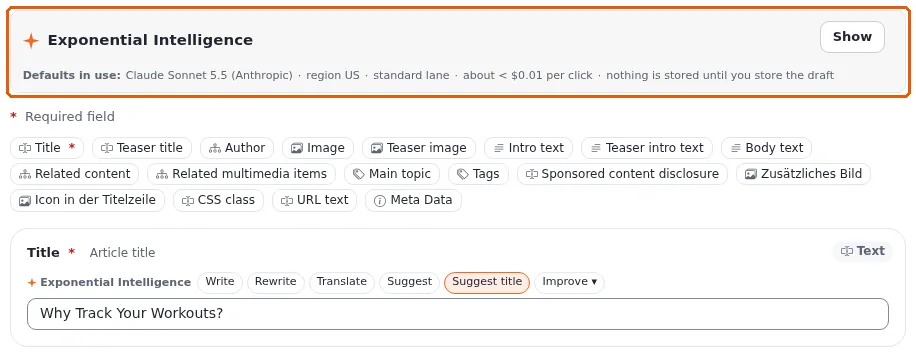
Exponential Intelligence
If your site has the writing assistant switched on, each text field shows Exponential Intelligence with buttons such as Write, Rewrite, Translate, Suggest and Improve. Its suggestions change nothing until you accept them and store the draft. The box at the top of the form says which service it uses and what a click costs.
Move, copy and remove
On the item's page:
- Move places the item somewhere else: choose the new parent in the browser that opens.
- Copy makes a copy of the item in a place you choose. The item's menu in the tree also has Copy subtree, which copies the item with everything below it.
- Remove moves the item to the trash, after a confirmation. See Publishing, versions and the trash.


A button you may not use is grayed out; pointing at it says why.
Many items at once
In the Sub items list of a folder, tick the items with the checkboxes (or use Select to select all, none or the opposite), then open More actions:

- Edit selected: one form with all the selected items; publish them together;
- Remove selected, Move selected, Copy selected;
- Hide selected and Unhide selected;
- Add a location: the items also appear in another place, without being copied.

Table options chooses, orders and saves the columns of the list, sets how many rows a page shows (10, 25, 50 or 100) and exports the visible columns as a CSV file. When the list is sorted by priority, the grip at the start of each row changes the order by dragging (or with the keyboard, see Keyboard shortcuts).
Learn more
- The content model and editing content, the full guide for editors and site builders.
- Publishing, versions and the trash
- Images, media and uploads
- Languages, for translating an item.
Become an Exponential Partner
Partners share their information, provide funding, contribute back and develop the products with us, and that is how Exponential grows. A partner website and dashboard are planned for mid-2027: please become a partner today to speed up our growth rate and land new features faster.