Notifications mail you when content you follow changes. You choose what you follow and how often the mail comes.
Who can do this
Users whose role has notification/use.
Steps
Steps
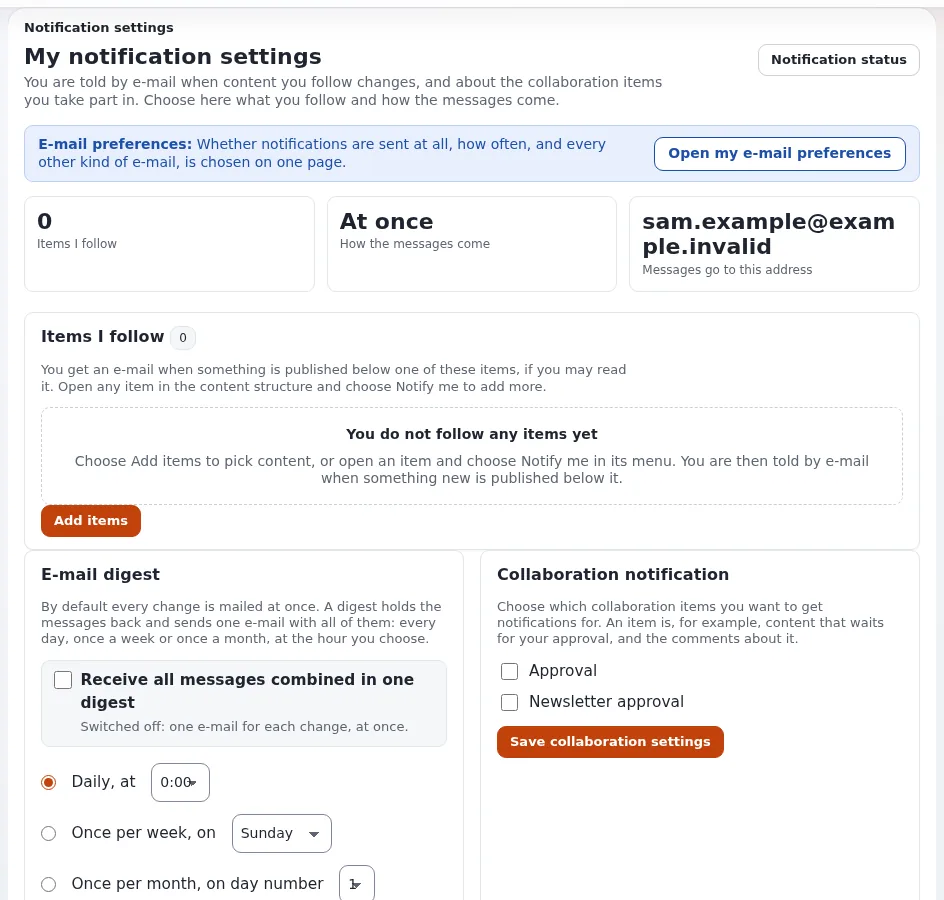
- Open Dashboard in the top menu and choose My notification settings, or click Notification settings on My account. The page My notification settings opens.
- Under Items I follow, see what you follow. Tick items and click Remove selected to stop following them.
- Under E-mail digest, tick Receive all messages combined in one digest and choose Daily, Once per week or Once per month, with the hour. Click Save digest settings. Without the tick, each change mails you at once.
- Under Collaboration notification, tick the kinds of items that should mail you (for example Approval) and click Save collaboration settings.
- To stop optional e-mail altogether, open My e-mail preferences and click Turn off all optional e-mail, or untick categories and click Save my choices.
Result
What can go wrong
- No mail arrives. The notification cronjob has not run yet, your e-mail preferences turn the category off, or the mail went to spam. See "Why did I not get a mail?" in the notifications guide.
- Too much mail. Choose a digest instead of at once, or follow a smaller part of the tree.
- An item says "Content no longer exists". It was deleted. Remove it from the list.
Related pages
- How do I follow a part of the site?
- Notifications: the user's guide
- E-mail preferences: the user's guide
- User manual
Become an Exponential Partner. Partners share their information, provide funding, contribute back and develop the products with us, and that is how Exponential grows. A partner website and dashboard are planned for mid-2027: please become a partner today to speed up our growth rate and land new features faster. Start with Partners: start here and How to apply.