Bookmarking system pages
Bookmarks used to point only to content: an article, a folder, an image. Since Exponential 6.0.15 you can also bookmark the pages of the administration itself, the system pages: System information, the cache page, the help dashboard, the audit trail filtered to one user, the trash, a list opened at a page, and a search with its search text. They sit in the same folders as your content bookmarks, in the Bookmarks box at the side of every page and on the My bookmarks page.
This page shows, step by step, how to bookmark a system page, how to find it again, how to rename, move and remove it, and what a greyed bookmark means. It is for everybody who works in the administration; you need the right to use bookmarks (the policy content/bookmark, which editors and administrators have).
Every step has a screenshot of the default administration design (admin4) in light mode. Under it, the same step is linked in dark mode, in the classic design (admin, which has a light theme only) and in the editor interface (the editor siteaccess), so you can see it the way your administration looks.
Help · Related: the bookmarks guide · Bookmarks of system pages (feature) · A tour of the administration
In short
- On every system page there is a Bookmark this page button above the page, on the right of the breadcrumb, and the same button in the Bookmarks box of the right column.
- The button opens a small form: the name (the page's title, which you can change) and the folder. Choose Add bookmark and you are back on the page; the button now says Bookmarked.
- The bookmark keeps the page's address with its parameters (
/content/bookmark/(folder)/top,/audit/console/(user)/14) and, for a search, the search text (/content/search?SearchText=news). It does not keep the host name or the siteaccess, so it opens on every host and in every administration of the installation. - System page bookmarks have the icon of their area: a toolbox for Setup, a magnifier for a search, a shield for roles, a question mark for the help. Content bookmarks keep the icon of their class.
- A system page you cannot open where you are now is greyed, without a link, and says why: switched off in this siteaccess, no role allows it, the page no longer exists. You can still rename, move or remove it.
1. Bookmark a page
Open the page you want to come back to, for example Setup > System information. (In the editor interface, which has no Setup, the screenshots use the Trash.)
Look at the top of the page, on the right of the breadcrumb: the Bookmark this page button.

The top of the System information page with the Bookmark this page button on the right Other views: admin4, dark · classic · editor, light · editor, dark
Choose Bookmark this page. A small form opens under the button:

The open form under the button: Name, Folder, the address of the page, Add bookmark and My bookmarks Other views: admin4, dark · classic · editor, light · editor, dark
- Name: filled in with the page's title, as the browser tab shows it. Change it to whatever helps you, for example System information (server).
- Folder: No folder (top level), or one of your bookmark folders. Folders are made on the My bookmarks page (see the bookmarks guide).
- Under the fields the form shows the address the bookmark keeps.
Choose Add bookmark. The page reloads and the button now reads Bookmarked:

The same page after adding: the button reads Bookmarked and is highlighted Other views: admin4, dark · classic · editor, light · editor, dark








The form works without JavaScript; it is a part of the page that opens and closes. Choose the button again to close it without saving.
From the Bookmarks box. The Bookmarks box in the right column offers the same button on every system page, under your bookmarks. It opens the same form. On a content page the box keeps its Add to bookmarks button for the item, as before.
Change the name or the folder later. Open the page again and choose Bookmarked. The form shows the saved name and folder; change them and choose Save bookmark. A page is bookmarked only once: saving again never makes a second bookmark of the same address.
2. Save a search
A search is a system page too, and its bookmark keeps what you searched for, so opening it runs the same search again.
Search with the search field at the top of the administration, for example for Exponential.
On the results page, choose Bookmark this page. The address under the fields ends in
?SearchText=Exponential: the search text is part of the bookmark.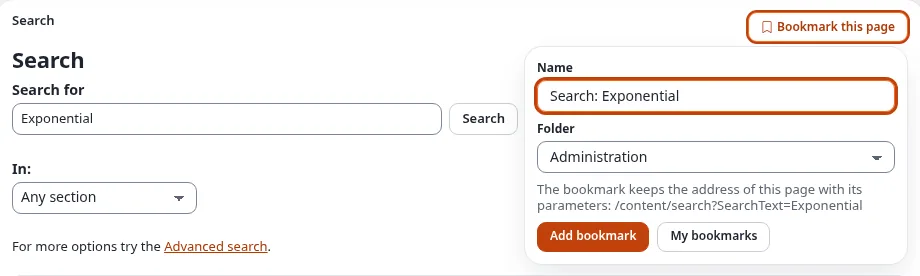
The search results page with the form open: the name Search: Exponential, the folder Administration and the address /content/search?SearchText=Exponential Other views: admin4, dark · classic · editor, light · editor, dark
Give it a name, such as Search: Exponential, pick a folder and choose Add bookmark.

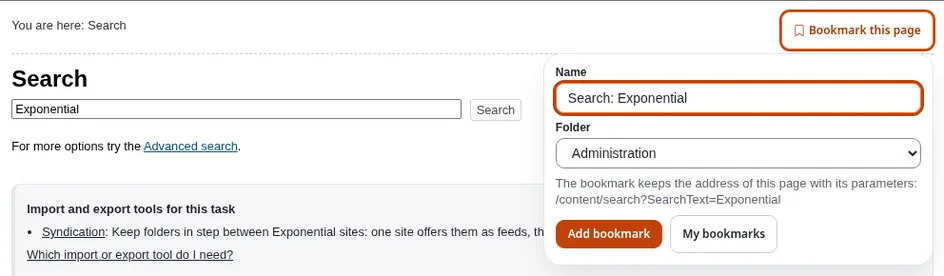


The bookmark keeps the search text, the section and the place you searched in, nothing else. Saved searches have a magnifier icon and the type Search on My bookmarks.
3. Find it again
The Bookmarks box lists your bookmarks in their folders, on every page. Each system page has the icon of its area; a page you cannot open here is greyed:

Other views: admin4, dark · classic · editor, light · editor, dark


Choose the name to open the page. Content bookmarks and system pages are listed together, in your order:

Other views: admin4, dark · classic · editor, light · editor, dark


On My bookmarks (Dashboard > My bookmarks) the overview counts your System pages, and a line above it says how to add one:

Other views: admin4, dark · classic · editor, light · editor, dark




Each system page has a card like a content bookmark. It shows the icon, the name, the type (System page, or Search for a saved search), the address and the module and view the page belongs to, Open, Move up and Move down, and Rename:

Other views: admin4, dark · classic · editor, light · editor, dark


Find a bookmark on that page also searches the addresses, so systemupgrade, audit/ or SearchText finds the
system pages with that address. In the order Type, system pages are sorted under System page and saved searches
under Search, next to the class names of your content bookmarks.
4. Rename, move, remove
Rename (system pages only):
On My bookmarks, find the card and choose Rename under its address.
Type the new name and choose Save name (or press Enter in the field).

The card of the Help bookmark with Rename open, the new name Help for my team typed in and Save name Other views: admin4, dark · classic · editor, light · editor, dark
The page says The bookmark was renamed to "…". The Bookmarks box shows the new name at once.


A content bookmark always shows the current name of its item, so it has no Rename.
Move to another folder: tick the card and use Move the selected bookmarks to under the list, or drag the card onto a folder of the folder list; on the page itself you can also choose Bookmarked and pick another folder. Move up, Move down, the grip and the position field arrange system pages and content bookmarks together, in one order per folder.
Remove: tick the card, choose Remove selected and confirm. Only the bookmark is removed, never the page. A removed folder takes its system page bookmarks with it only when you choose Remove everything inside with it.
5. A greyed bookmark
Whether you may open a system page is checked every time your bookmarks are shown, with the same rules as when you open the page: your roles and policies, the rules of the siteaccess you are in, and whether the module and view still exist. When you cannot open it there, the bookmark is not a link: the Bookmarks box shows it greyed (point at it to read why), and its card on My bookmarks says No access and gives the reason:

Other views: admin4, dark · classic · editor, light · editor, dark


The reasons you can see:
| The card says | What it means | What to do |
|---|---|---|
| This page is switched off in this siteaccess (editor). Open the bookmark in a siteaccess that has it. | The page exists, but the administration you are in does not offer its module. The editor interface, for example, has no Setup, roles or audit trail. The editor screenshots above show a System information bookmark made in the full administration. | Open the bookmark in the full administration. Nothing is wrong with it. |
| None of your roles allows you to open this page. | Your roles changed, or never allowed this page. | Ask an administrator, or remove the bookmark. |
| You may not use this siteaccess. | Your account may not sign in to this administration. | Ask an administrator. |
| You may not read the content this page shows. | The page shows a content item (a version, a node's audit trail) you may not read. | Ask an administrator, or remove the bookmark. |
| This page no longer exists: its module has no such view. | The page was removed, for example by an update or an extension that was turned off. | Remove the bookmark. |
| The module of this page is not installed or not enabled here. | The extension that brought the page is not active. | Ask an administrator, or remove the bookmark. |
| This kind of page cannot be bookmarked. | An administrator added the page to the list of pages that cannot be bookmarked. | Remove the bookmark. |
When your access comes back, or you open the bookmark where the page is available, the link comes back by itself. The overview counts greyed bookmarks under No longer available.
6. What can be bookmarked, and what cannot
You can bookmark the page of every module view you can open: Setup, the help, users and roles, lists, the trash,
the audit trail, searches, the pages of extensions. A list keeps the parameters that are part of its address, such as
/(offset)/20, /(folder)/top or /(user)/14.
Bookmark this page is not offered:
- on a content item (there you use Add to bookmarks, which bookmarks the item, not the page),
- while you edit or browse, and on an error page,
- on pages that only act on a form or are pages of one moment: saving, removing, copying, signing in and out,
a confirmation, a download, the edit forms of classes, roles, sections, states and workflows. A bookmark of such a
page would open an empty page or repeat an action. Your administrator can see and extend the list
(
bookmark.ini, see the feature page).
Only addresses of this installation can be bookmarked: never another site, never a script.
7. Questions and answers
I do not see Bookmark this page. See What can be bookmarked above. It is also missing everywhere when you may
not use bookmarks (ask for the policy content/bookmark) or when the database update of Exponential 6.0.15 has not
been run on your installation (your administrator runs update/common/scripts/6.0/createbookmarkviewtable.php; see
Bookmarks of system pages).
The bookmark opens the page without my filter. The bookmark keeps the parameters that are part of the address,
such as /(folder)/top or /(user)/14, and the search text of a search. Other filters that a page keeps after a ?
in the address, or only in a form, are not part of the bookmark: they usually describe one moment. Most lists of the
administration keep their filters in the address; open the filtered list and bookmark it from there.
I bookmarked the page in another administration, or on another host name. Bookmarks keep the address without the host and without the siteaccess, so a bookmark made in one administration (for example the German one, or on another host name of the same installation) opens the same page in the one you are working in, if that administration offers it. If it does not, the bookmark is greyed there and says so.
Who sees my bookmarks? Nobody else. Bookmarks are personal, for system pages as for content.
The online editor's bookmark list does not show my system pages. It lists content you can link to or embed; system pages are not content.