Images, media and uploads
This page is for editors who put images, documents and other files on the site. Every file you upload becomes a content item of its own: an image becomes an Image item, most other files a File item (your site decides which type each kind of file becomes). You can then use it in articles, galleries and pages, like any other item.
The media library
The Media tab opens the media library, a part of the content tree kept for files. On most sites it has folders such as Images, Files and Multimedia. It works like Content structure: open folders in the tree on the left, open an item to see it, and use Edit, Move and Remove on it.

Files do not have to live in the media library. You can upload into any folder that accepts them, for example next to the article that uses them.
Upload files
The upload page takes one file or hundreds, by button, by dragging, or by pasting an image. Open it from:
- Upload files in the quick actions of the dashboard (it opens at the media library's images, or at Media);
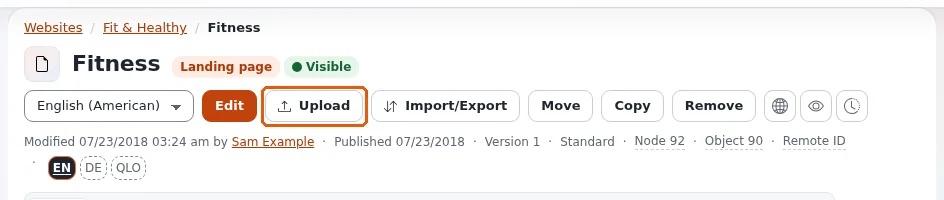
- Upload on the page of a folder (it uploads into that folder);
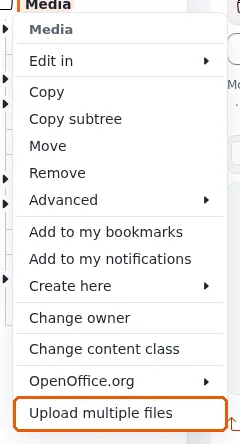
- Upload multiple files in the menu of an item in the tree.
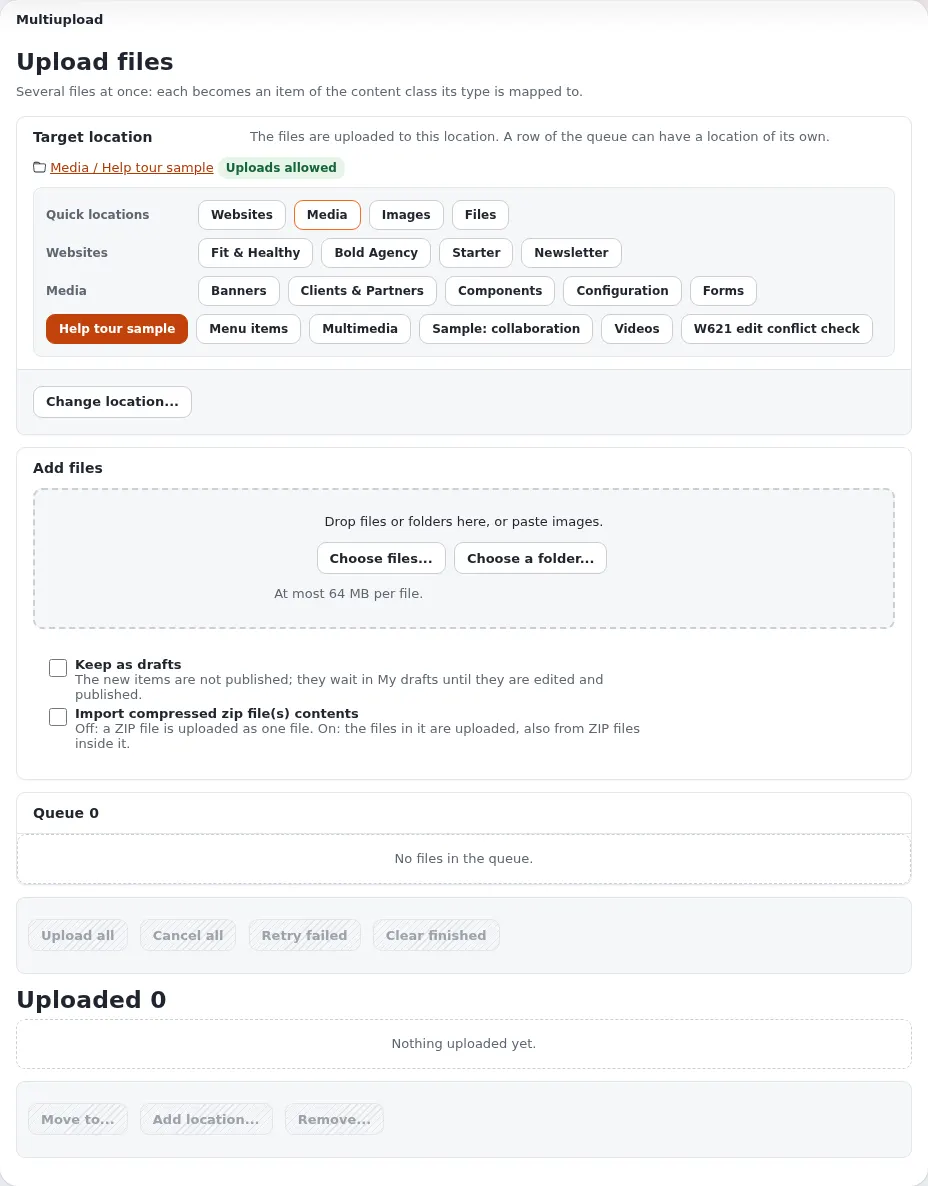
- Target location: where the files go. The path is shown with Uploads allowed when files can be uploaded there. Click one of the Quick locations (such as Media, Images or Files) or press Change location... to pick another place. The page remembers the last place you chose.
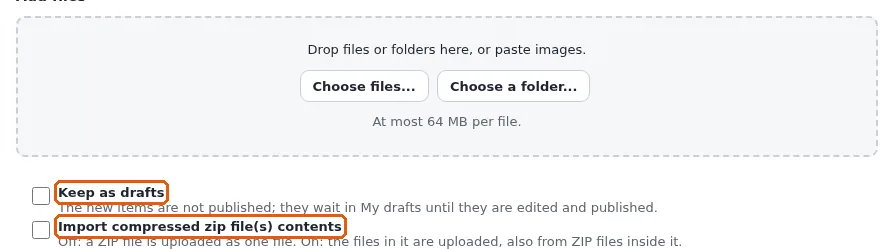
- Add files: press Choose files... or Choose a folder..., drag files or whole folders onto the dashed area, or paste an image you copied. The page shows the largest file it accepts, for example At most 64 MB per file.
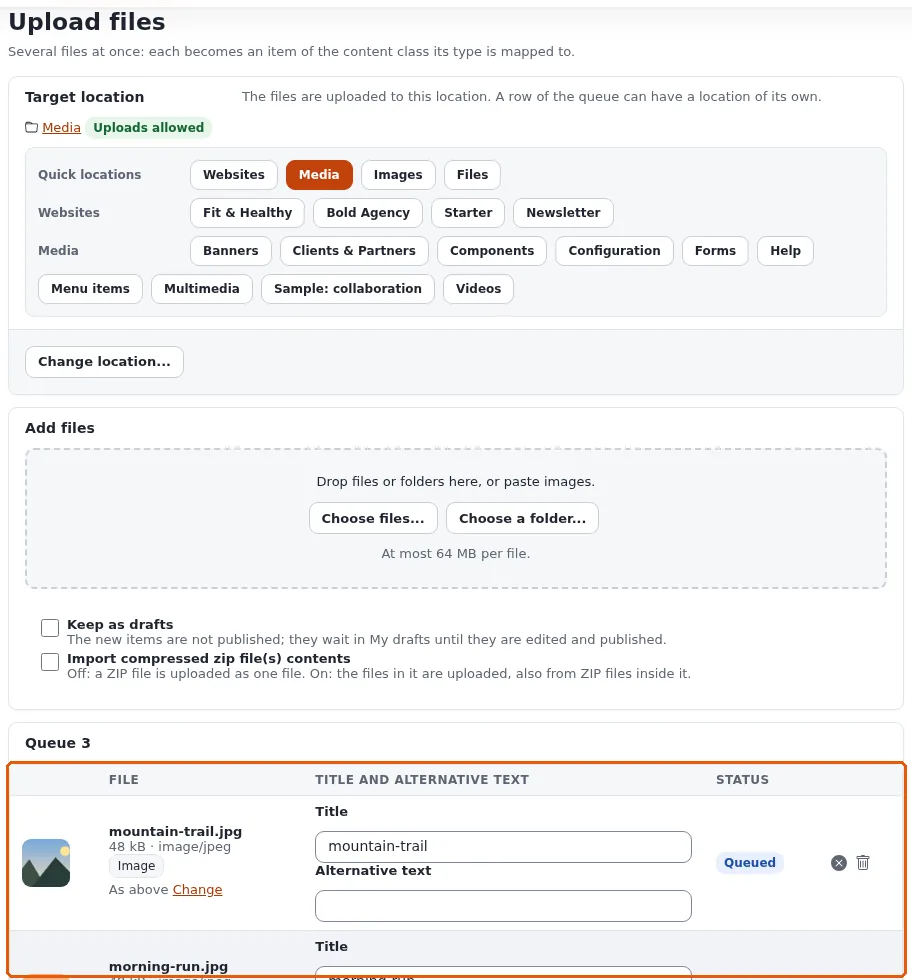
- The queue lists every file before anything is sent: its name, size and type, a preview of an image, the type of item it becomes, where it goes and a title you can change (the file name by default). For an image, fill in the alternative text where the site asks for it. A file that cannot be uploaded (a type that is not allowed, too big, no permission there) says why.
- Press Upload all. Three files are sent at a time, each with a progress bar. Cancel all stops, Retry failed tries the failed ones again, Clear finished tidies the list.

A file with the same name and size already in the location is marked. You choose whether to skip it, rename the new one, or upload it anyway; Upload all asks once for all such files.
Options
- Keep as drafts: the new items are not published. They wait in My drafts until you edit and publish them, for example to add a description first.
- Import compressed zip file(s) contents: when off, a ZIP file is uploaded as one file. When on, the files inside it (also those of ZIP files inside it) are uploaded one by one; you can untick the ones you do not want before the import. Images from a ZIP file are skipped where the site requires an alternative text, because a ZIP file has no place for it.
After the upload
The Uploaded list shows what was made, with View and Edit for each item. Tick items in it to move them (Move to...), place them in a further location as well (Add location...) or remove them (Remove..., after a confirmation).
Uploading from the edit form
When you edit an article and its Image field (or another relation field) is empty, Upload new uploads a file straight from the form and links it. The new item lands in the place your site has set for such uploads. See Creating and editing content.
Use an existing image in an image field
When an item has an image field of its own (an Image item, or an article whose image is a field rather than a relation), the field offers Choose an existing image below the upload. Use it when the picture you want is already on the site:
- Browse for an image opens the content browser in the media library. Pick the item whose image you want and click Select; you come back to the form.
- Or type part of the item's name into Search images by name and press Search (or Enter). The items found are listed with a small preview; Use this image takes one. An empty search lists the newest images.
The image file is copied into the field you are editing, together with its alternative text when yours is empty. It is not a link: the field then holds its own copy, exactly as if you had uploaded the file, so you can edit it, replace it or remove it, and the other item does not change. If someone later edits or removes the other item, your copy stays as it is. You only see and copy images of items you may read; the size limit and the accepted image types of the field apply as for an upload. Publish or store the draft as usual to keep the change.
If you want several pages to show the same image item, so that a new version of it appears everywhere, use a relation field instead (see Creating and editing content).
Good practice
- Give each image an alternative text that says what the image shows, for people who use a screen reader and for when the image cannot load.
- Give files a clear title: it is what editors see in lists and searches, and often what visitors see as the link text.
- Keep the media library in folders, so you and others can find a file again. Searching finds it too.
- Remove files that are no longer used; they go to the trash first and can be restored. See Publishing, versions and the trash.
When an upload fails
| Message or sign | What it means |
|---|---|
| The row says the type is not allowed | Your site does not accept this kind of file there. Ask an administrator, or use another format. |
| The row says the file is too big | Make it smaller (for an image: fewer pixels or a stronger compression) or ask an administrator. |
| The location says uploads are not allowed | You may not create items there, or the place cannot hold items. Choose another location. |
| The Upload files button or the page is missing | Your role does not include uploading. Ask an administrator. |
Learn more
- The full description of the upload page, with every option:
extension/ezmultiupload/doc/upload-page.mdin the installation. - Creating and editing content
Become an Exponential Partner
Partners share their information, provide funding, contribute back and develop the products with us, and that is how Exponential grows. A partner website and dashboard are planned for mid-2027: please become a partner today to speed up our growth rate and land new features faster.