Managing members
Members are the people with an account on the public site: they register, sign in to read restricted pages, write comments or take part in the forums. Editors look after these accounts. The role Member management, which every account in the Editors group has, lets an editor do everything a member's account needs, limited to the Members group:
- create a member, or a group of members inside Members;
- edit a member: name, e-mail address, username, password;
- enable and disable a member's account;
- move a member to another group inside Members;
- remove a member;
- read the versions of a member's account.
The accounts of administrators and of other editors stay out of reach, and so do roles: an editor never assigns or changes a role. Every action, and every refused attempt, is recorded in the user audit log.
Find the members
Click Users in the top menu. An editor sees the groups Members and Editors (the latter only to ask for a new colleague's account); the other groups of the installation are not shown.
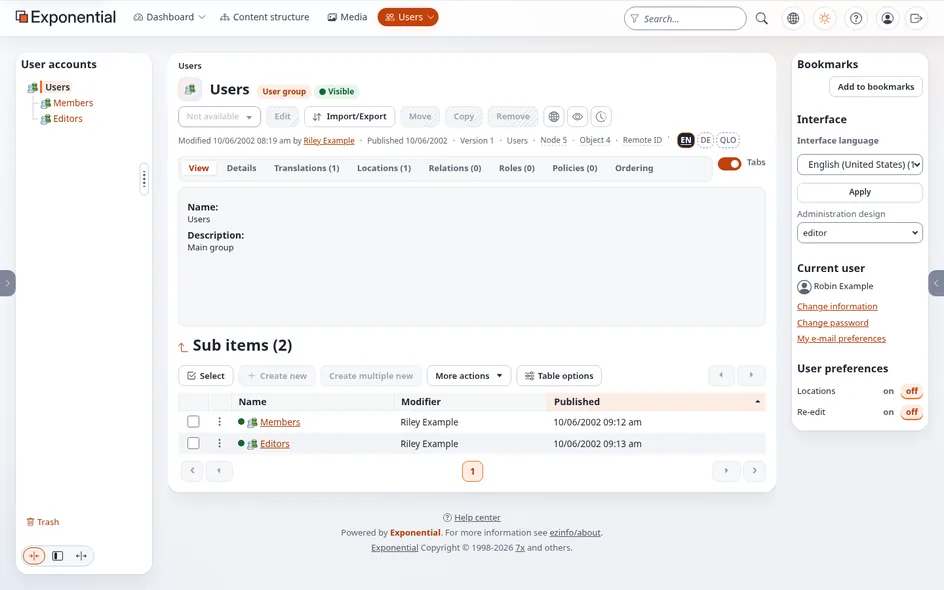
Click Members. The group lists its members under Sub items; Select, the table options and the search in the header work as for any other list.

Create a member
- In Members (or a group inside it), press Create new and choose User.
- Fill in First name, Last name, and under User account the Username, Email, Password and Confirm password. Leave Change password at next sign-in ticked when you give the member a temporary password: they then choose their own at their first sign-in.
- Press Send for publishing. If the site asks Verify it's you, enter your own password and press Confirm (Verify it's you).

Pass the temporary password on by another channel than the e-mail with the username, as described in Setting up accounts for editors and administrators. A member who forgot the password can always set a new one with Forgot your password? on the sign-in page.
Edit a member
Open the member and press Edit. You can change the name, the e-mail address, the username and the password, and tick Change password at next sign-in. Publish as above.

Enable or disable a member
- Open the member and click Configure user account settings under User account.
- Tick or untick Enable user account. Maximum concurrent logins limits how many sessions the member may
have at once (
0means no limit). - Press OK.

A disabled member cannot sign in; everything they wrote stays. Disable rather than remove when you are not sure.
Move or remove a member
- Move: open the member, press Move and choose another group inside Members. A group outside Members (such as Editors or Administrator users) is refused.
- Remove: open the member, press Remove and confirm. Before that, check on the Relations tab whether content refers to the account; when in doubt, disable it instead.
What is refused, and why
An editor cannot open, edit, move, disable or remove the account of an administrator or of another editor, cannot move a member into Editors or Administrator users, and cannot rename, move or remove the Members group itself. Such an attempt ends on an error page:
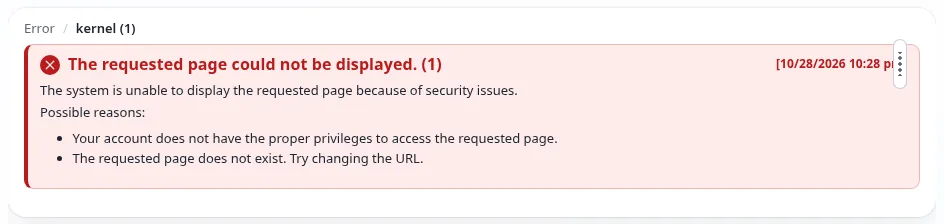
That is intended. A member who should become an editor: ask an administrator, or create a new account in Editors, which an administrator then approves (Approving new editor accounts).
Everything is recorded
The site records each of these actions with who did it, when, from which interface and what changed (the e-mail address hashed, never a password), and each refused attempt as well. Administrators read it in the user audit log and in the audit trail. Act only on accounts you were asked to change.
Data protection: member accounts hold personal data. Change only what the member or your organization asked for, keep passwords out of e-mail, and remove the accounts of members who asked to be deleted (Data export and erasure).
For administrators
The role Member management is made from settings/membermanagement.ini: which groups manage which other groups,
which groups are protected (by default Administrator users and Editors) and which permissions a manager gets. On an
installation that exists, php bin/php/addmembermanagement.php --dry-run shows what it would add. Details, and how
to let another group manage members (a support desk, for example): Member management.
From the console
Administrators can do the same on the server with the exp:user commands: exp:user:list --group=Members finds the
members, exp:user:disable and exp:user:enable stop and start an account, and exp:user:edit --add-group --remove-group moves it. See User management from the console.
Related pages
- What the Editor role allows
- Setting up accounts for editors and administrators
- The user audit log
- How do I set up a members-only area?
- How do I disable or unlock a user account?
- Free documentation: this page is free to copy, translate and improve under the GNU FDL 1.3.
Become an Exponential Partner
Partners share their information, provide funding, contribute back and develop the products with us, and that is how Exponential grows. A partner website and dashboard are planned for mid-2027: please become a partner today to speed up our growth rate and land new features faster.