Change the administrator password
This page is for administrators and for the people who run an Exponential installation. It covers every supported way
to change the password of the administrator account (login admin) or of any other account: in the administration,
for another user, and on the command line. It explains how passwords are stored and checked, what happens to open
sessions after a change, and what to do when nobody can sign in any more.
For the password a fresh installation starts with, see The default administrator password. For the wider picture, see Security hardening.
Important
Every new installation must get a new administrator password at once, and should get a personal administrator account for daily work. See Account hygiene below.
Contents
- Change your own password in the administration
- Change another user's password as an administrator
- Change a password on the command line
- How passwords are stored: HashType
- Password rules
- What happens after a change: sessions and mail
- Forgot your password?
- Locked out: when no administrator can sign in
- Two-step sign-in and a lost phone
- Velocity and PHP-FPM
- Account hygiene
- What not to do any more
- Sources and credits
Change your own password in the administration
The page is user/password: /admin/user/password with the default URL access (the part before /user/password is
your administration siteaccess). It is the same page in every design; only the way to it differs.
| Design | Where to find it |
|---|---|
| Admin 4 and Admin 4 L (the same header) | The user menu (the button with your name in the header) > Change password. Or My account > the Password card > Change password. |
Classic (admin) | The Current user box > Change password. |
| AdminUI | The user panel in the sidebar > Change password. |
| The public site | Change password on your profile page, at /user/password. |
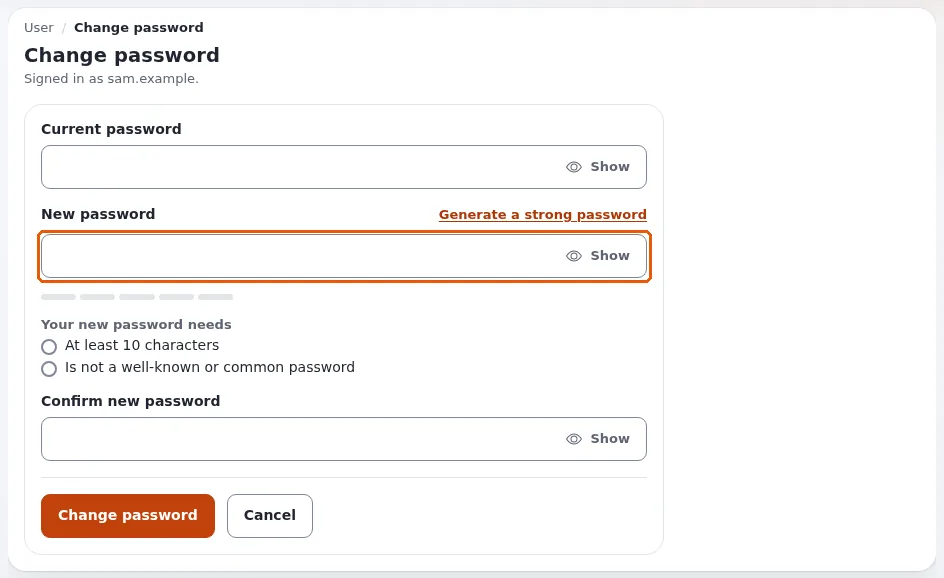
- Enter your Current password.
- Enter the New password and the same again in Confirm new password. The page lists what the new password needs (for example At least 10 characters) and ticks each requirement off while you type. Generate a strong password makes one for you; Show reveals what you typed.
- Press Change password.
You stay signed in, with a new session id. Your sessions in other browsers and on other devices are signed out at their next request, and an e-mail "Your password was changed" goes to the account's address. The page says how many other sessions were ended.
The link is grayed out, or missing, when your role lacks the policy user/password. The Administrator role has it.
Details of the page: Changing your password.
Change another user's password as an administrator
user/password only ever changes the password of the user who is signed in. To set a password for someone else:
- Open the user in Users (Admin 4: the Users tab, or search for the name).
- Press Edit.
- In the User account field, type the new password into Password and again into Confirm password. Leave both untouched to keep the current password: they hold a placeholder, not the password.
- Press Send for publishing (or Publish).
The same password rules apply as on user/password, and the same things follow: the user's open sessions are signed
out, the user gets the "Your password was changed" mail, and the change is in the audit trail (never the password
itself). Tell the user the new password through a separate, safe channel, and ask them to change it on their first
sign-in. Better still, let them use Forgot your password? themselves, so that you never know their password.
The Username (login) cannot be changed once an account has one. That is one reason to create a personal
administrator account rather than using admin every day (Account hygiene).
To switch an account off, or to clear its failed sign-ins, use Configure user account settings below the
User account field on the user's page (user/setting/<user id>): Enable user account, Maximum number of
failed login attempts and Reset for the failed attempts.
Change a password on the command line
The supported tool is bin/php/resetuserpassword.php, also available as the console command
exp:resetuserpassword. It sets the password through the same code as the user edit form, so the same password
rules, the same hash type and the same session handling apply. It works when nobody can sign in to the administration.
Run it from the installation's root, as the user that owns the installation, or as the operating system's root.
As the operating system root user (no Exponential sign-in needed):
# generate a strong 24-character password for "admin" and print it once
./console exp:resetuserpassword --allow-root-user -u admin -g -l 24
the same with the script itself
php bin/php/resetuserpassword.php --allow-root-user -u admin -g -l 24--allow-root-user (short -r) is refused unless you really are the operating system user root.
As another administrator of the site (no root needed):
./console exp:resetuserpassword -a <your login> -ap '<your password>' -u editor1 -gThe login given with -a must sign in with the password given with -ap, and it must hold the role named
Administrator.
| Option | Meaning | Default |
|---|---|---|
-u <login> | the account to change | admin |
-g, --generate | generate a password (also when neither -g nor -p is given) | on |
-l <length> | length of a generated password | 16 |
-p <password> | set this password instead | none |
-a <login>, -ap <password> | authorize as an administrator of the site | none |
-r, --allow-root-user | authorize as the operating system root user | off |
-s <siteaccess> | the siteaccess, and so the database, to use | the default siteaccess |
-q | print only errors and the generated password | off |
What it says, and what that means:
| Message | Meaning |
|---|---|
Password reset for user: <login> and Generated password: ... | done; the generated password is shown once |
Admin authentication required ... | give -a and -ap, or run as root with --allow-root-user |
Admin authentication failed. | the password given with -ap is wrong |
User '<login>' does not have the Administrator role. | the authorizing account is not an administrator |
Target user not found: <login> | no account has that login |
Target password does not validate. ... | the password breaks a rule, for example The password must be at least 10 characters long. |
Good practice:
- Prefer
-g. A password given with-por-apis visible to other users of the machine in the process list and stays in your shell history. If you must type one, put a space in front of the command (with Bash'sHISTCONTROL=ignorespace) or clear the history afterwards. - Change the generated password at your first sign-in, in the administration, to one only you know.
- The command changes the password and nothing else. It does not enable a disabled account, clear failed sign-in attempts, or turn off two-step sign-in; see Locked out.
- It is the right tool for every database Exponential supports (MySQL and MariaDB, PostgreSQL, SQLite, Oracle, MongoDB), because it goes through the kernel and not through SQL.
These behaviors were checked on 18 October 2026 against a throwaway account: a generated password signs in and the
old one no longer does, the stored hash is the configured type, a password shorter than MinPasswordLength is
refused, -q still prints the generated password, and an authorizing account without the Administrator role is
refused.
More: Reset a user password from the command line.
How passwords are stored: HashType
Exponential never stores a password, only a hash of it, in the table ezuser (password_hash, and the hash type
in password_hash_type). The type used for new and changed passwords is set in settings/site.ini:
[UserSettings]
HashType=php_default
UpdateHash=true
HashType | Type id | What it is | Use it? |
|---|---|---|---|
php_default | 7 | PHP's password_hash() with PASSWORD_DEFAULT: bcrypt today, salted, with a work factor (cost 12 since PHP 8.4) | yes, the default |
bcrypt | 6 | bcrypt chosen explicitly | acceptable |
md5_user | 2 | MD5 of login and password, unsalted | no: only for very old data |
md5_password | 1 | MD5 of the password, unsalted | no |
md5_site | 3 | MD5 of site name, login and password; breaks when the site name changes | no |
plaintext | 5 | the password itself | never |
(MySQL PASSWORD()) | 4 | legacy; gone since MySQL 8.0 | never |
UpdateHash=true re-hashes an older hash to the current HashType at the user's next successful sign-in. Keep both
values as shipped. An installation upgraded from an old version may still hold MD5 hashes for accounts that have not
signed in since; give those users a new password (or let them use Forgot your password?) rather than waiting.
Change these settings only in an override (settings/override/site.ini.append.php), never in the shipped file.
Password rules
The rules every form checks (user/password, registration, the user edit form, the command line) are:
[UserSettings]
MinPasswordLength=10      # shipped value; counted in bytes; 3 when the setting is missing
GeneratePasswordLength=16 # generated passwords (the page's button uses at least 12)

[PasswordSettings]        # every rule off by default, so an upgrade refuses nothing new
RequireLowercase=disabled
RequireUppercase=disabled
RequireDigit=disabled
RequireSymbol=disabled
MinCharacterClasses=0     # at least this many of the four kinds above (0 to 4)
ForbidLogin=disabled      # must not contain the login name
ForbidCurrentPassword=disabled
Since 6.0.15 every form also refuses a well-known or common password, of any length ("The new password is well-known or too common. Choose another one."): the words of the shared list and their simple variants, see The list of well-known passwords.
[UserSettings]
WeakPasswordCheck=enabled      # disabled: the rules above only, as before 6.0.15
#WeakPasswordList[]=ourcompany # more words
WeakPasswordFile=              # a file with more words, one per line
It applies when a password is set; an existing password is never refused at sign-in.
For administrators, length beats composition rules: a production policy of MinPasswordLength=15 with
ForbidLogin=enabled and ForbidCurrentPassword=enabled is recommended in
chapter 13.6 of the installation guide, which also
explains the reasons (NIST SP 800-63B-4).
Two more settings protect the sign-in itself:
[UserSettings]
MaxNumberOfFailedLogin=0  # 0: no lockout. 10 locks an account after 10 failed attempts
TrustedIPList[]           # addresses or networks that are never locked out
A lockout also lets anyone lock a known account, so it is off by default; the audit trail reports password guessing
either way (brute_force, brute_force_user). If you turn it on, put the office or VPN network in TrustedIPList[]
so that your own administrators keep a way in.
What happens after a change: sessions and mail
Set in site.ini [PasswordSettings], both on by default:

EndOtherSessions=enabled: a sign-in stores a stamp of the password in the session; when the password changes, every other session of that user no longer matches and is signed out at its next request, with every session handler. The session that made the change gets a new session id. This is what makes a password change useful after an account was taken over: whoever holds a stolen session cookie is signed out. It applies to every way of changing a password:user/password, the user edit form, Forgot your password? and the command line.ChangeNotificationMail=enabled: the user gets "Your password was changed" (category Account security, which nobody can switch off; the mail never contains the password). It is how a user learns of a change they did not make.
To end all sessions of everyone (after a suspected compromise), use Setup > Sessions > Remove all sessions with the database session handler, or see Sessions. A new site secret also signs everyone out once.
Forgot your password?
The sign-in page offers Forgot your password? (user/forgotpassword), for every account including administrators:
- The user enters the e-mail address of the account.
- Exponential sends a mail with a link. The page answers the same whether or not an account has that address, so it cannot be used to find out who has an account.
- The link works once, and only for one hour (
site.ini [UserSettings] ForgotPasswordKeyLifetime=3600, in seconds; the mail says how long). Opening it gives the account a new generated password (GeneratePasswordLengthcharacters) and mails it to the same address. The user signs in and changes it at once. - A link opened too late shows "This link has expired." with a way to ask for a new one; the old link is removed.
Unused links are removed when they expire.
ForgotPasswordKeyLifetime=0keeps a link working until it is used, the behavior before 6.0.15; a shorter value (900, a quarter of an hour) narrows the window for a mailbox that was read by someone else.
It only works when the account has a real e-mail address and the site can send mail. Give the administrator account a real, monitored address right after installing (chapter 10.1). Every request and reset is recorded in the audit trail (never the key or the password).
Locked out: when no administrator can sign in
Work through these in order; each one is a supported way. You need shell access to the server.
Another administrator changes your password (see above) or presses Reset for your failed sign-ins on Configure user account settings.
Forgot your password?, if your account's e-mail address works.
The command line, as the operating system's root user:
./console exp:resetuserpassword --allow-root-user -u admin -g -l 24Use
-u <your login>for a personal administrator account.The account was locked by failed sign-ins (
MaxNumberOfFailedLogin), and no other administrator can press Reset: sign in from an address in[UserSettings] TrustedIPList[], or setMaxNumberOfFailedLogin=0insettings/override/site.ini.append.phpfor the moment, clear the INI cache and deploy (below), sign in, press Reset, and put the setting back.The account is disabled (Enable user account off): another administrator switches it on again. When there is none, use the break-glass account of Account hygiene.
Two-step sign-in and the phone is gone: see the next section.
After any of these: change the password to one only you know, check the audit trail
(./console exp:audit tail --channel=access --lines=50) for what happened before, and find out why you were locked
out. A lockout you did not cause can be an attack.
If the database itself is all you have (no PHP on the command line, for example), see the last resort in What not to do any more.
Two-step sign-in and a lost phone
With the extension sevenx_authentication_2fa active, a password alone no longer signs in
(Two-step sign-in). A new password does not change the second step.
- Another administrator opens the user's object, sets the Two-step sign-in field to E-mail one-time code or Disabled, and publishes. The user signs in and sets up the app again.
- No other administrator can sign in (the only administrator lost the phone): the second step is asked by the
login handler
sevenxUser2fa. As a break-glass measure, take it out of[UserSettings] LoginHandler[]insettings/override/site.ini.append.php(keepstandard), clear the INI cache and deploy, sign in with the password, switch the account's Two-step sign-in field to Disabled or e-mail codes, then put the handler back and deploy again. While it is out, every account signs in with its password alone: do it in a short window, ideally with the administration restricted to your own address (chapter 13.5) or the site in maintenance mode, and note it in your change log. Then set up the app again.
The extension's own recovery details are in its README.md and doc/two-factor-pages.md.
Velocity and PHP-FPM
A password change is a change in the database: it works at once, under Apache with PHP-FPM, nginx, FrankenPHP and Exponential Velocity alike. Nothing needs a restart or a cache clear.
A change of settings (
HashType,MinPasswordLength,[PasswordSettings],MaxNumberOfFailedLogin,LoginHandler[]) needs the INI cache cleared, and Velocity's workers started again, whichexp:velocity deploydoes in the right order:php bin/php/ezcache.php --clear-tag=ini --allow-root-user ./console exp:velocity deploy --allow-root-user # Velocity; reload PHP-FPM yourself without itRun the command-line tools as the user that owns the installation (or as root with
--allow-root-userwhere the documentation says so). Files a root run creates invar/must stay writable for the web server's user (chapter 13.11).
Account hygiene
The account admin exists on every installation, so its login name is the first one an attacker tries. Do not use
it for daily work:

Create a personal administrator account. In Users > Administrator users, create a User with a login of your own (not
admin, notadministrator, not your public e-mail address if you can avoid it), a real e-mail address and a strong password. Accounts in Administrator users get the Administrator role through the group; check it under Roles and policies > Administrator > Assignments. One account per person, so the audit trail says who did what.Turn on two-step sign-in for it, and require it for administrators (Two-step sign-in).
Sign in with the new account and check that it can do everything you need.
Retire
adminas a sign-in. Two supported ways; choose one:- Disable it. Open the
adminuser > Configure user account settings > clear Enable user account > OK. A disabled account cannot sign in, its open sessions end at their next request, and it has no rights. Before you do this, set[UserSettings] UserCreatorIDinsettings/override/site.ini.append.phpto the object id of an enabled administrator account (your personal one, or a dedicated service account): the shipped value14isadmin, and command-line tools such as the trash purge, the subtree removal and the content jobs, and self-registration, act as that account. Then clear the INI cache and deploy, and run one of those tools once to check. - Keep it enabled, but unusable. Give it a long random password that nobody keeps
(
./console exp:resetuserpassword --allow-root-user -u admin -g -l 64, and do not write it down), keepUserCreatorID=14, and rely on the break-glass procedure below. Choose this if you cannot changeUserCreatorID.
The Deactivate and move action of Check user accounts (
user/deactivate, see Check user accounts) is meant for ordinary accounts: it refuses the anonymous user,UserCreatorID, theadminaccount and yourself on purpose, so it is not the way to retireadmin.- Disable it. Open the
Keep a break-glass procedure, written down and tested. For example: the root shell of the server, plus
./console exp:resetuserpassword --allow-root-user -u <login> -g -l 24for any administrator account; for a disabledadmin, another administrator switches it on. Keep the procedure (not a password) where the people on call can find it, and test it once a year on a copy of the site.Review accounts regularly: Users > Check user accounts lists accounts that never signed in, have not been seen for months, are disabled or locked, or share a login or e-mail address. Review the assignments of the Administrator role as well; the audit trail alerts on new administrator role assignments (
admin_role_granted).
What not to do any more
Older guides, including the community wiki article this page replaces, list ways that are wrong, unsafe or no longer work in Exponential 6:
- Do not compute an MD5 hash in SQL (
MD5(CONCAT(...)),MD5("admin\npassword")), and do not reset a password to the well-known hash ofpublish. MD5 hashes are unsalted and fast to crack; the well-known hash is the first thing an attacker tries. - Do not edit
eZUser::authenticateHash()to accept any password, not even for a minute. Every account then signs in with any password, for everybody who tries. - Do not set
CheckValidity=trueto "run the setup again". On an installed site the setup wizard now only shows "This site is already installed"; running it again is a reinstall that writes over the database. - Do not leave the password in a file: delete
var/log/initial-admin-passwordafter the first sign-in, and never keep a password inkickstart.ini, a shell history or a ticket.
Last resort, the database only. If PHP on the command line is not available and you must set a hash by hand, compute a bcrypt hash outside the database and store it with type 7:
# reads the password from the keyboard without echo; prints only the hash
read -rs P && printf '%s' "$P" | php -r 'echo password_hash(stream_get_contents(STDIN), PASSWORD_DEFAULT), PHP_EOL;'; unset P
UPDATE ezuser SET password_hash = '<the hash>', password_hash_type = 7 WHERE login = 'admin';Take a backup first. Then clear the user cache (php bin/php/ezcache.php --clear-id=user_info_cache --allow-root-user) so that other sessions of that account end, sign in, and change the password once more in the
administration so that the mail, the audit record and the session handling run as they should. The account also needs
its row in ezuser_setting with is_enabled = 1: an account without that row cannot sign in.
Sources and credits
Parts of this page, the list of older reset methods and the database-only procedure, are adapted from the community
wiki article "Reseting the admin password in eZ publish"
on eZpedia, written by kracker, xavier, Graham Brookins and other contributors since 2006, and distributed under the
GNU Free Documentation License. The adapted text was rewritten and corrected for Exponential 6 and is distributed under
the GNU Free Documentation License 1.3 or any later version, like the rest of this documentation
(https://www.gnu.org/licenses/fdl-1.3.html; the copyright and permission notice is doc/eng-us/README-LICENSE.md).
Everything else on this page was written from the Exponential 6 source code.
Demo mode. On a public demo (environment variable EXP_DEMO_MODE=1, a Demo mode banner in the administration) none of the ways on this page works for an administrator: the page, the forgot-password link, the edit form, exp:resetuserpassword and the web services all refuse with "This installation is a public demo: the passwords of administrators cannot be changed or reset." To change it, the server's owner removes the variable first. Demo mode.
Related pages
- The default administrator password
- Security hardening
- Your account and signing in
- Changing your password, Reset a user password from the command line
- Chapter 10.1: First login and the administrator password, chapter 13: Security hardening for production
- Two-step sign-in, Sessions, Check user accounts, Audit
Become an Exponential Partner
Partners share their information, provide funding, contribute back and develop the products with us, and that is how Exponential grows. A partner website and dashboard are planned for mid-2027: please become a partner today to speed up our growth rate and land new features faster.