Publishing, versions and the trash
This page is for editors. It explains what happens between pressing Edit and a change being on the site, how to go back to an earlier version, how to hide an item without removing it, and how to get a removed item back.
Drafts and versions
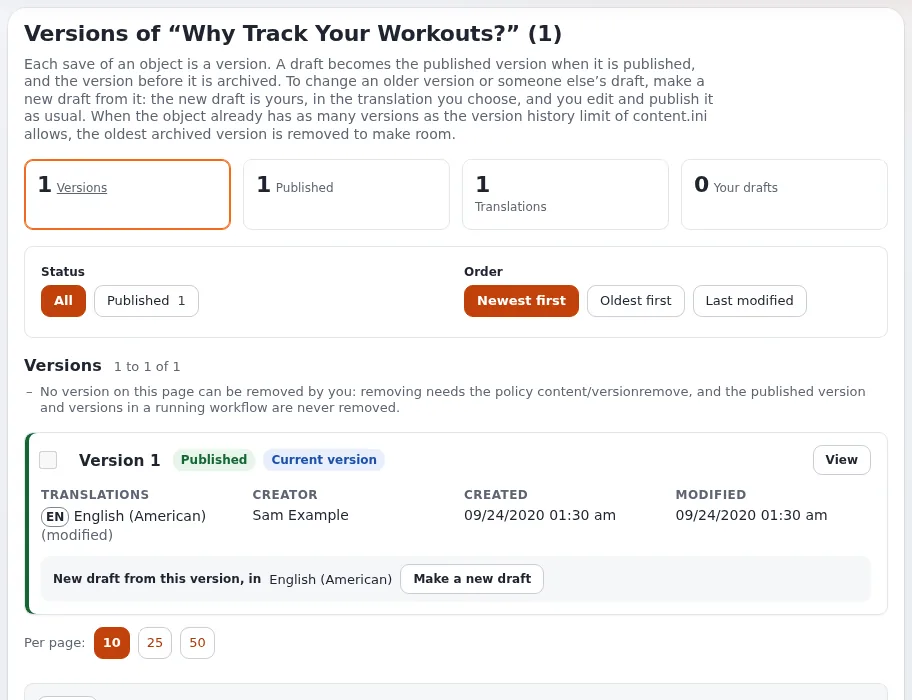
Every save of an item is a version. When you press Edit, a new version is made as a draft: only you see it, and the site keeps showing the published version until you publish.
| State | What it means |
|---|---|
| Draft | Being written. Only its creator sees and edits it. |
| Pending | Sent for publishing, but a workflow holds it, usually an approval. |
| Published | The version the site shows. An item has one published version at a time. |
| Archived | An earlier published version. It is kept so you can go back to it. |
When a draft is published, the version that was published before becomes archived. A site keeps a limited number of versions per item; when the limit is reached, the oldest archived version is removed to make room.
Publish
In the edit form, press Send for publishing. On most sites the change is on the site at once. If your site uses an approval for your role or that part of the site, the version becomes pending instead and is published when someone approves it.

To stop without publishing:
- Store draft and exit keeps the draft for later;
- Discard draft throws it away, after a confirmation.
My drafts
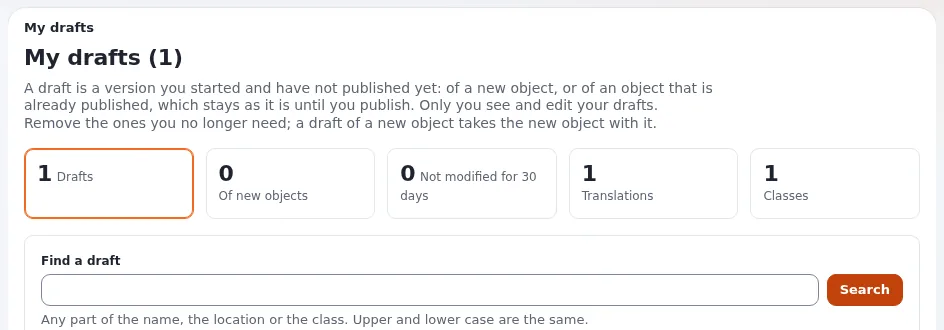
My drafts (on the dashboard and in the left column of the dashboard) lists the drafts you started and have not published. Open one to continue it, or remove the ones you no longer need. Removing the draft of a new item also removes that new item, which was never published.
My pending items
My pending items lists the versions you sent for publishing that a workflow still holds and, if you approve content, the versions waiting for your approval. Open the approval to read its comments or to approve.

See My drafts and my pending items for every detail.
Go back to an earlier version
On the item's page press Manage versions (the round button with a clock), or choose Manage versions in the edit form's left column. The versions page opens:
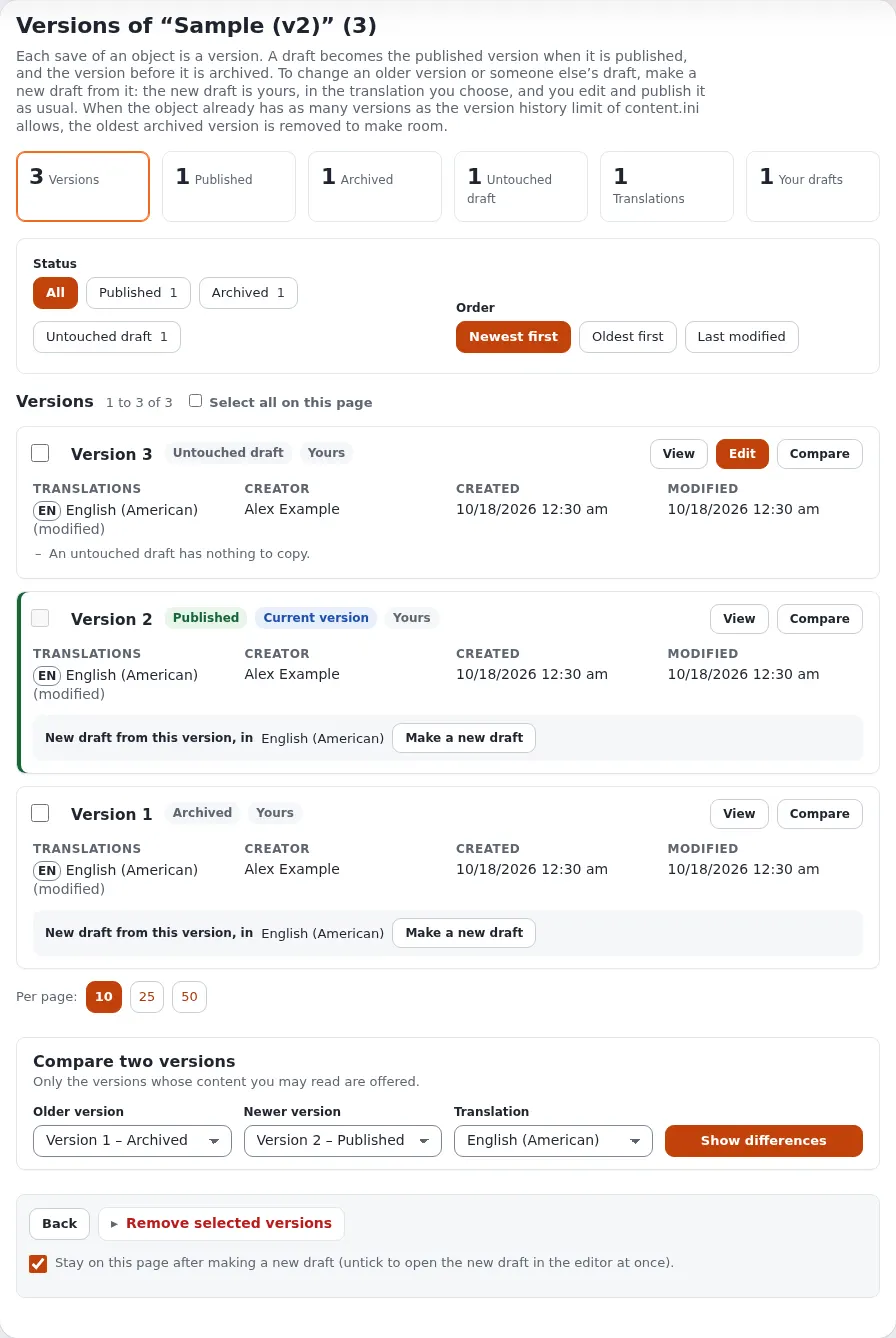

- Overview: how many versions there are, published, archived and your drafts.
- Filter and order: show all versions or only one status, newest or oldest first.
- Each version has View (see its content), Compare and Make a new draft.
- Compare two versions: choose an older and a newer version and a translation, then press Show differences. Changes are marked field by field.
To bring an older text back, choose its translation under New draft from this version, in and press Make a new draft. A new draft is made from that version; check it and publish it as usual. The current version is not changed until you publish. The same works for someone else's draft: the new draft is yours.
Versions you no longer need can be selected and removed with Remove selected versions. The published version can never be removed this way.
See Versions of an object for every detail.
Hide an item
A hidden item stays in the administration but is not shown on the site, and nor is anything below it. Use it for content that is not ready, or not needed for a while.
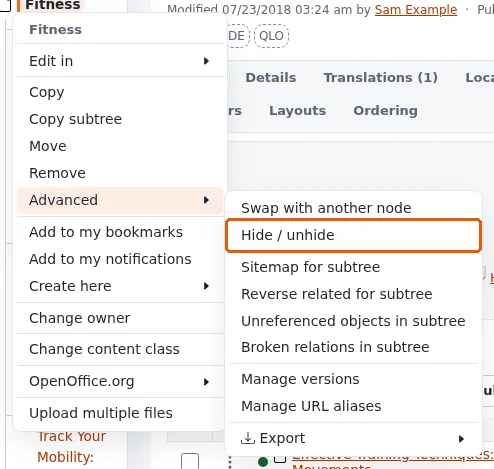
- In the tree, open the item's menu and choose Advanced > Hide / unhide.
- In a Sub items list, tick items and choose More actions > Hide selected or Unhide selected.
Hidden items are marked in the tree and in lists, and the badge next to the type on the item's page shows its visibility.

Remove and restore
Remove on an item's page (or in its menu, or Remove selected for several items) asks for a confirmation and then moves the item, with everything below it, to the trash. Items in the trash are not on the site.
When an item has more than one location, removing one location keeps the item in its other places; it goes to the trash only when its last location is removed.
The trash
Trash is at the bottom of the tree in the left column. It lists the removed items with who removed them, when, and where they were. Filters narrow the list by who removed them, their type and the date.

- Restore puts an item back. If its original place still exists, it goes back there; if that place is in the trash too, restore the parent first; otherwise you choose a new place.
- Remove selected deletes items for good. Empty trash deletes everything in it. Neither can be undone.
Your role decides whether you may restore or delete from the trash.
Learn more
Become an Exponential Partner
Partners share their information, provide funding, contribute back and develop the products with us, and that is how Exponential grows. A partner website and dashboard are planned for mid-2027: please become a partner today to speed up our growth rate and land new features faster.