There are two different kinds of language in Exponential, and this page explains both:
- Content languages: the languages your items are written in. An article can exist in English and in German; each is a translation of the same item.
- The interface language: the language of the administration's menus, buttons and messages. You choose it for yourself; it changes nothing in the content.
See which translations an item has
On an item's page, the line under the buttons shows a small badge per language of the site. A filled badge, such as EN, is a translation that exists; a dashed badge, such as DE, is one that does not exist yet. Point at a badge to read it, for example English (American) – main language or Translate into German.

The Translations tab of the item lists its translations in full.
Translate an item
- Open the item.
- Click the dashed badge of the language, or choose New translation in the language list next to Edit and press Edit.
- If the page asks, choose the language under New translation and, under Translate based on, the existing translation to start from (its text is copied into the form), or None for empty fields.
- Translate the fields and press Send for publishing.

To change an existing translation, choose that language in the list next to Edit, then press Edit. The edit form names the language it is editing next to the title.
Each translation is published on its own: publishing the German text does not change the English one.
The main language
One translation of each item is its main language, marked as such on its badge. It is the language the item was created in, and the one shown where a translation is missing, if the item is set to be always available.
Remove a translation
The Translations tab lists the translations with a checkbox each; removing one needs the right permission and cannot remove the main language. Ask an administrator if you are not sure.
The language of the administration
The right column has the box Interface with the list Interface language.
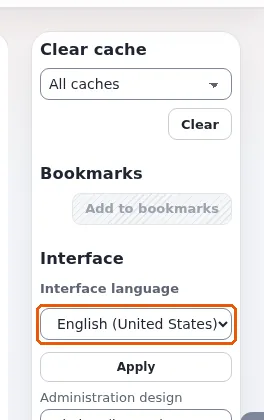
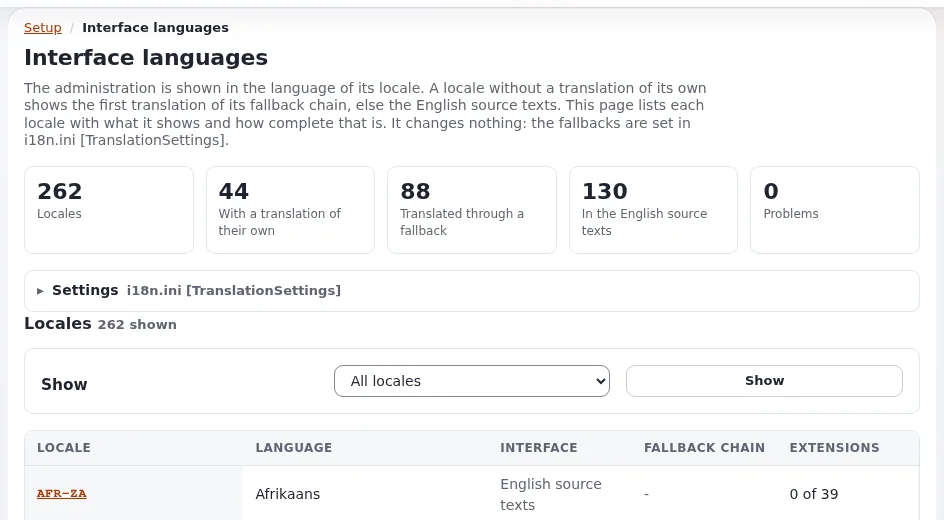
- Open the list. It shows the most used languages first, in groups, then every language from A to Z. Each entry shows the language's own name, its name in the current interface language, and how complete its translation is, for example Deutsch (Deutschland) — German (Germany) (100%). With the list focused, typing the first letters of a name jumps to it.
- Choose a language and press Apply. The page loads again in that language.
What changes: the menus, buttons and messages, and the format of dates, times and numbers. A language marked no translation yet keeps English texts but uses its own date and number formats.
What does not change: the content (you still edit the translation you open), other users, and other parts of the installation. The choice lasts until you sign out. Choosing the site's own language again returns to it.
The box is not shown while you edit an item, and not to roles without the permission. When allowed, the same box also offers the Administration design.
Learn more
- Content languages, the full guide, including adding a language to the site.
- Interface language and the UI switch
- Reading the help in your language: the help follows the interface language.
Become an Exponential Partner. Partners share their information, provide funding, contribute back and develop the products with us, and that is how Exponential grows. A partner website and dashboard are planned for mid-2027: please become a partner today to speed up our growth rate and land new features faster. Start with Partners: start here and How to apply.