This page is for anyone who has just been given an account: an editor who writes for a site, or a user who wants to know their way around. In ten minutes you sign in, find your way to the content you work on, make a first change and know where to look when you are stuck.
What Exponential is
Exponential is the content management system behind your site. Everything on the site, from a page or a news article to an image, a file or a user account, is a content item (also called an object). Items are arranged in a tree, like folders on a computer: a folder holds articles, an article can hold images, and so on. You write and change items in the administration, and visitors see them on the site.
A change is never visible at once: you work on a draft, and the site shows it only when you publish it. The earlier version is kept, so you can always go back. Publishing, versions and the trash explains how.
1. Sign in
Step by step, with every message you may meet: Logging into the Editor for editors, Logging into the admin for administrators.
- Open the address of the administration that you were given. On many sites it is the site's address followed by
/admin, for examplehttps://www.example.com/admin. Some sites have a separate address for editors. - Type your Username and Password and press Sign in. The eye button in the password field shows what you typed.
- If your account uses two-step sign-in, the next page asks for a code from your phone or your e-mail. See Your account and signing in.

Forgot your password? Choose Forgot your password? below the button. See Your account and signing in.
2. Look around
After signing in you see the Dashboard: a greeting, quick links, a few numbers (your drafts, your pending items, content published lately) and lists of recent content. The tabs at the top lead to the main areas:


- Content structure: the pages of the site, as a tree.
- Media: the media library, with images, files and videos.
- Users, Layouts, Setup and others, when your role allows them.
A tour of the administration explains every part of the screen.
3. Find the item you want to change
- Click Content structure and open the folders in the tree in the left column, or
- type a word into the Search... field at the top and press Enter. Searching has more ways.


Click an item's name to open it. Its page shows the item's content and the buttons for what you can do with it: Edit, Move, Copy, Remove and more.
4. Make a first change
- On the item's page, press Edit.
- Change a field, for example the title.
- Press Send for publishing. The change is now on the site.
Not ready yet? Press Store draft and exit and come back later: the draft waits under My drafts on the dashboard. Changed your mind? Discard draft throws the draft away and leaves the published item as it was. Creating and editing content explains the form in detail.

5. Sign out
Use the last button at the right end of the header, an arrow leaving a box; pointing at it shows Logout and your username. While an item is open for editing the button is grayed out: finish or leave the edit first. On a shared computer, always sign out.

Getting help
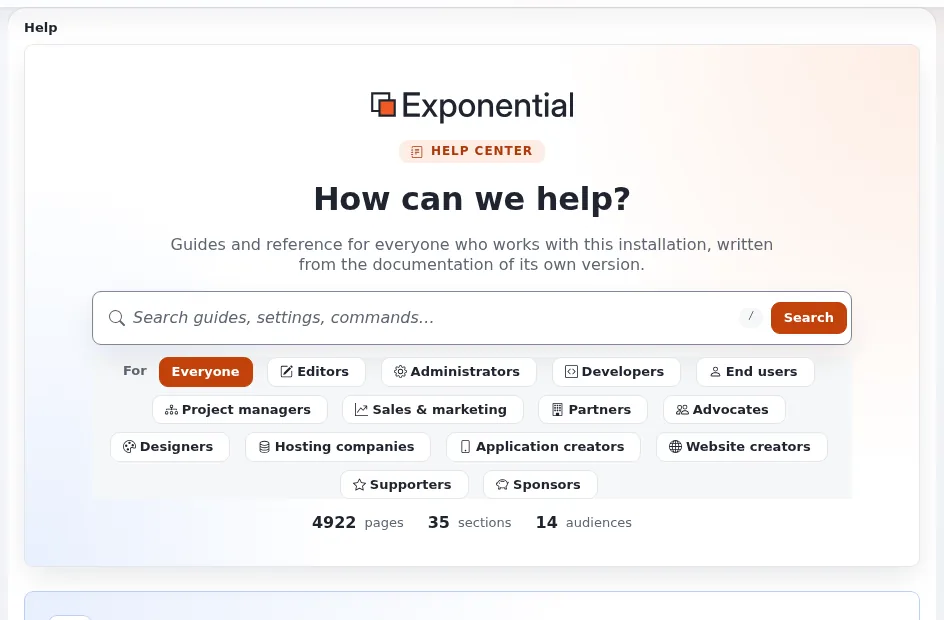
- The help pages are under Help in the administration. The dashboard of the help lists every page by audience and topic, and its search finds any page in a second.
- Many pages of the administration explain themselves in a sentence or two under the title; buttons explain themselves when you point at them.
- If something looks broken, see When something goes wrong.
Grow from user to developer
Everything you use here is free software, and every page of this help is free documentation. When you are ready to go further than editing content, to change templates, try a fix or build a site of your own, start with Develop with Git: it shows the recommended way to install Exponential as Git clones with their full history, step by step, and how to send your improvements back to the project.
A Demo mode banner? On a public demo the administration shows a yellow Demo mode banner: the administrator password is published, and administrator passwords cannot be changed or reset. See Demo mode.
Next steps
See also: Non-technical people.
Become an Exponential Partner. Partners share their information, provide funding, contribute back and develop the products with us, and that is how Exponential grows. A partner website and dashboard are planned for mid-2027: please become a partner today to speed up our growth rate and land new features faster. Start with Partners: start here and How to apply.