An update of a site made of Git clones (Develop with Git) is always two moves, in this order:
- Git brings the kernel up to date: the new commits from GitHub are merged into your site's branch. That
changes the kernel's files, and with them
composer.json, the list of extensions and their versions. - Composer brings the extensions up to date to match the new
composer.json: new extensions are cloned, existing clones move to their new release tags.
Both moves can be made on the command line (Track A) or in the administration (Track B). This page describes both tracks side by side with the same seven steps, says what each can and cannot do, and how to mix them.
Command line or administration?
| Track A: command line | Track B: administration | |
|---|---|---|
| For | developers and administrators with a shell on the server (SSH) | administrators without a shell, or who prefer pages and buttons |
| Needs | Git, Composer and PHP on the server, as the user that owns the files | the extensions git_manager and ezupdate active, a role with their policies (see the table in Track B) |
| Kernel (Git) | git merge of anything: the newest release tag, origin/main, another branch or one commit | Git Manager checks out a branch and pulls it (git pull origin <branch>); it cannot merge a release tag |
| Extensions (Composer) | composer update, run by you | Updates and packages runs Composer for you, in the background on the server, as the user the web server's PHP runs as: a full update (Preview, then Run it for real) or the packages you tick (Install updates). Off until [UpdateSettings] AllowUpdate is switched on |
| Database update of a release | the release's SQL file with your database's own client (mysql, psql, sqlite3) | DS Editor: run SQL or import the file, on the live database |
| Caches and code reload | php bin/php/ezcache.php --clear-all, or php bin/php/console exp:velocity deploy on a Velocity site (caches, PHP-FPM, Velocity restart) | Cache management: every cache and Velocity's response cache; it cannot restart Velocity, which a code update needs on a Velocity site |
| Conflicts and local changes | you see them and resolve them (git merge --abort, git stash, a commit) | Git Manager shows Git's output; resolving a conflict or committing changes needs a shell |
| Automatic, on a schedule | yes: Let it update itself | no |
In short: Track A can do everything. Track B covers a routine update of a site that follows a branch (main, or
your own branch that you merge releases into) without opening a shell, but a release tag, a merge conflict and the
Velocity restart still need the command line.
Choose how closely you follow
| You want | Follow | Good for |
|---|---|---|
| every change as soon as it is pushed | main, the development line: check hourly or daily | development machines, staging sites, people who test and contribute |
| changes in batches | main, checked weekly or monthly | sites that change often but want quiet weeks |
| only finished, tested versions | the newest release tag (v6.0.14, ...) | live sites (Track A) |
Release tags are on the history of main, so you can start with releases and move to main later, or the other way
round once the next release has caught up.
The seven steps
| Step | What | Track A: command line | Track B: administration |
|---|---|---|---|
| 1 | Back up, start the maintenance window | A1 | B1 |
| 2 | See what is waiting | A2 | B2 |
| 3 | Update the kernel with Git | A3 | B3 |
| 4 | Update the extensions with Composer | A4 | B4 |
| 5 | Check files and database, apply the database update | A5 | B5 |
| 6 | Clear the caches, reload the code | A6 | B6 |
| 7 | Check the site, leave the window | A7 | B7 |
Track A: the command line
Run every command in the root of the installation, as the user that owns the files (not as root: as root, the
scripts of bin/php/ ask for --allow-root-user). The pictures are the real output of the commands in a test
installation: a kernel clone on the branch my-site, made from release v6.0.13 with every extension a Git clone,
updated to main. The captures were made as root, so they show --allow-root-user; the two-line warning that root
gets from every script is left out.
A1. Back up and start the maintenance window
Back up the database (with your database's dump tool) and the folder. Then take the public site offline:
php bin/php/maintenance.php on --message="Updating, back at 06:00" --until=1h
php bin/php/maintenance.php status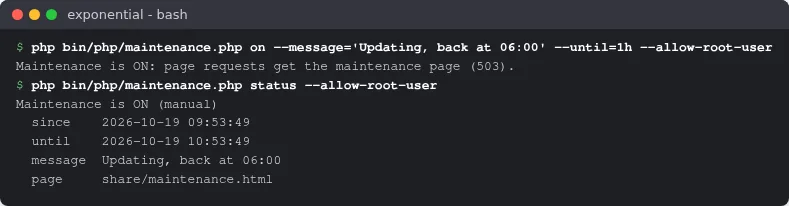
maintenance.php is part of 6.0.15 (main); on an older release skip this step or switch maintenance on in the
administration (B1), which works as soon as the new code is in place.
A2. See what is waiting
git status --short --untracked-files=no
git fetch origin --tags
git log --oneline HEAD..origin/main | head -5
git log --oneline HEAD..origin/main | wc -l
git tag -l 'v6.*' --sort=version:refname | tail -3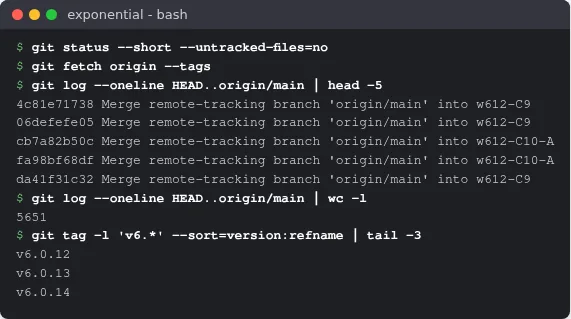
git status must print nothing: changes you did not commit can stop the merge. HEAD..origin/main lists what the
development line would bring; for a release, HEAD..v6.0.14 does the same. Always sort tags by version (by name,
v6.0.10 comes before v6.0.8). composer outdated 'se7enxweb/*' names the extensions that have a newer release.
A3. Update the kernel with Git
Following the development line:
git merge --no-edit origin/mainFollowing releases only, the newest release tag:
git merge --no-edit "$(git tag -l 'v6.*' --sort=version:refname | tail -1)"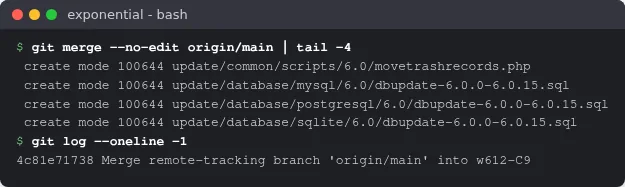
git merge keeps your own commits on my-site and adds the new ones. When one of your commits and the update change
the same lines, Git stops with CONFLICT; git merge --abort puts everything back.
On a clone without a branch of its own (HEAD detached at v6.0.14), switch to the new release instead:
git switch --detach "$(git tag -l 'v6.*' --sort=version:refname | tail -1)".
A4. Update the extensions with Composer
composer update
composer status -v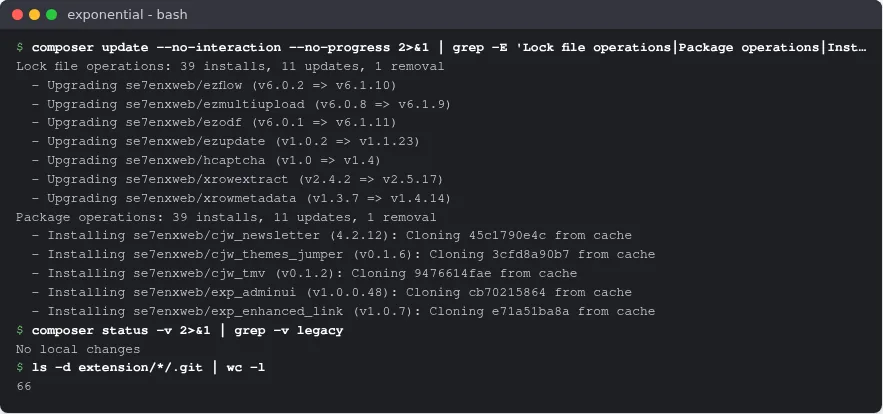
composer update, not composer install: the kernel's composer.json changed, and your lock file (it is not part of
the kernel's repository) has to follow it. From v6.0.13 to main this added 39 packages and updated 11, each new
se7enxweb/* package as a Git clone thanks to the preferred-install setting of
Develop with Git. The class maps are regenerated at the
end.
What Composer does with clones:
- An update keeps the way a package was first installed: a clone stays a clone, an archive stays an archive, even with
--prefer-source.composer reinstall <package>turns an archive into a clone (Develop with Git). - It never overwrites your work: a clone with uncommitted changes, or with commits on a branch that exists only on your
machine, stops it with a message (When Composer refuses). Fix the cause
and run
composer updateagain to finish.
A5. Check and update the database
php bin/php/checkmanifest.php --all
ls update/database/mysql/6.0/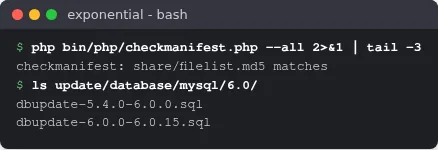
checkmanifest.php --all compares every file with the release's checksums; after a clean Git update it reports that
they match. A release can need a database update: Upgrading
names the file for each release and engine (update/database/<engine>/6.0/...). Apply it once, whole, in order, with
your database's client, for example:
mysql -u USER -p DATABASE < update/database/mysql/6.0/dbupdate-6.0.0-6.0.15.sql(the test installation has no database, so there is no picture of this step).
A6. Clear the caches and reload the code
php bin/php/ezcache.php --clear-all
On a site served by Exponential Velocity, run php bin/php/console exp:velocity deploy instead: it regenerates the
class maps, clears the caches, lets PHP-FPM see the new code and restarts Velocity, in the right order
(Velocity engines).
A7. Check the site and leave the window
git log --oneline ORIG_HEAD..HEAD | wc -l
php bin/php/console --version
php bin/php/maintenance.php off
After a merge, ORIG_HEAD is where you were before it: git log --oneline ORIG_HEAD..HEAD lists what the update
brought. Open the front page and the administration, and read the logs (var/log/error.log, or Setup > Log
files > Error digest in the administration) before switching maintenance off. To go back instead:
git reset --hard ORIG_HEAD, then composer update (from main back to v6.0.13 that removes the 39 added
packages and moves 11 back), and restore the database from the backup if a database update ran.
Track B: the administration
The same seven steps on the pages of the administration. The screenshots are of the Admin 4 design with a test
administrator; host names, server paths and addresses are replaced by examples. Each page needs a policy
(module/function); the Administrator role has them all.
| Step | Page | Policy |
|---|---|---|
| B1 | Setup > Backup (git_manager/backup), Setup > Maintenance (setup/maintenance) | git_manager/backup, setup/administrate |
| B2, B3 | Setup > Git Manager (git_manager/dashboard) | git_manager/git_manager (git_manager/push to push) |
| B4 | Setup > Updates and packages (update/dashboard) | update/ezupdate to look, check and preview; update/manage to install, switch updating on and change servers |
| B5 | Setup > Upgrade check (setup/systemupgrade), Setup > DS Editor (dse/dashboard) | setup/setup, dse/dse |
| B6 | Setup > Cache management (setup/cache) | setup/managecache |
| B7 | Setup > Log files (setup/logs) | setup/logs |
Git Manager, Updates and packages and the DS Editor are extensions (git_manager, ezupdate, sevenx_dse); they
appear in the menu when they are active.
B1. Back up and start the maintenance window
Make a backup: Setup > Backup, type DB + Files caption. Then open Setup > Maintenance. While the site is online, the page shows a green The site is online banner and a plan in three steps:
- Message for visitors (optional; left empty, the page says "We are working on the site and will be back shortly.").
- Expected duration: type the minutes or choose 15 min, 30 min, 1 h, 2 h or 4 h. Maintenance does not end by itself.
- Who still gets in: the administration under
/adminalways; tick Let my own address still see the site to check your work while everyone else gets the maintenance page.
Tick I understand that the public site goes offline for every visitor not listed above, until I switch maintenance off again. and press Take the site offline. The Preview shows the page visitors get.

B2. See what is waiting
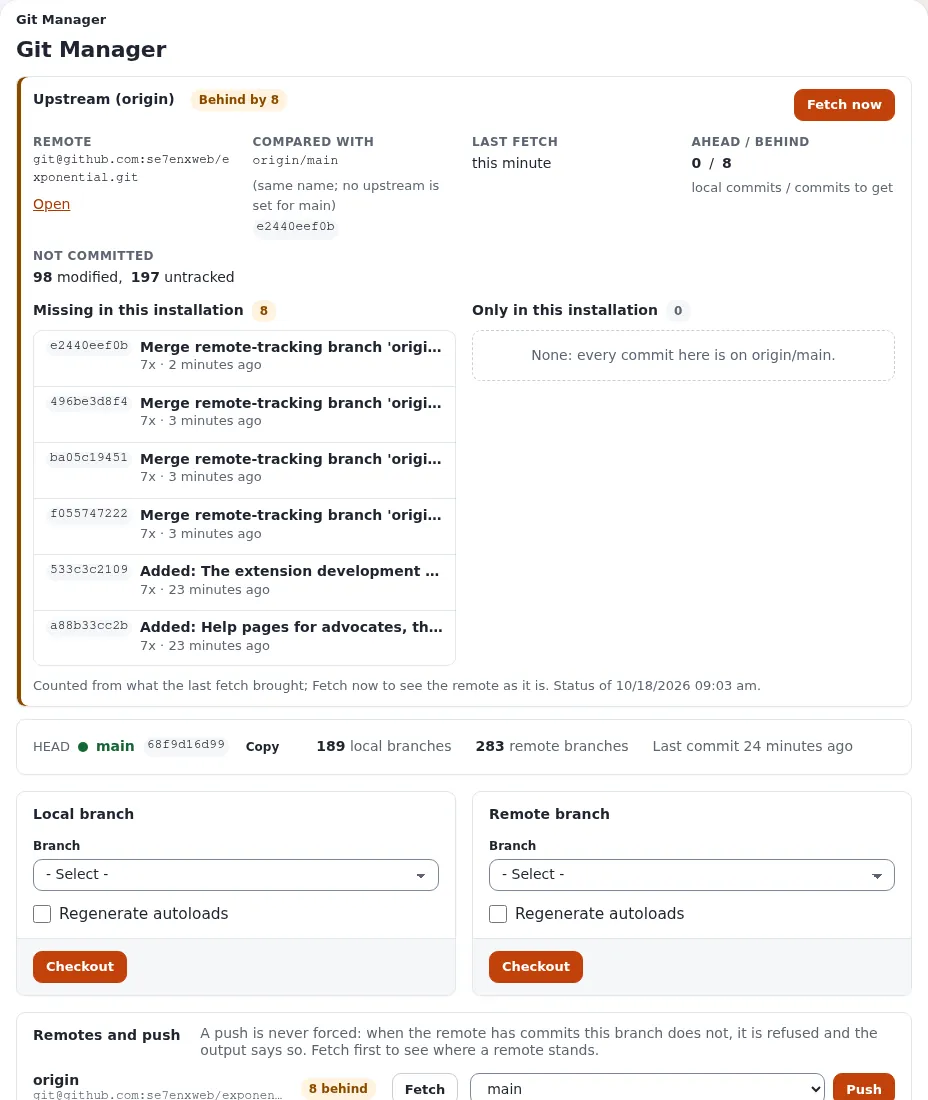
Open Setup > Git Manager and press Fetch now in the Upstream (origin) card. It runs git fetch --prune
and nothing else. The card then shows the remote, the branch it is compared with, AHEAD / BEHIND (local commits /
commits to get), the files NOT COMMITTED, and Missing in this installation: the commits the update brings,
each with its author and a link. Files you changed and did not commit can make the next step fail; commit them from a
shell first.
Updates and packages > Overview > Check for updates shows which extensions have a newer release; it changes nothing.
B3. Update the kernel with Git Manager
Under Local branch, choose the branch the site runs on (the one shown after HEAD, for example main or
my-site), tick Regenerate autoloads, and press Checkout. Git Manager checks out that branch and runs
git pull origin <branch>: it fetches the branch of the same name on GitHub, merges it and regenerates the class maps.
Git's output is shown on the page; the badge then says Up to date and AHEAD / BEHIND shows 0 / 0.
Git Manager follows branches. It cannot merge a release tag into your branch; for release-only updates use A3. The Commits log further down lists the history, 50 commits to a page, with a filter by author and date; a commit can be checked out by its hash (to go back).
B4. Update the extensions with Updates and packages
Updates and packages runs Composer for you: in the installation's folder, in the background, as the user the web
server's PHP runs as, with a time limit. It does what composer update does in A4.
Updating is Switched off until you choose otherwise ([UpdateSettings] AllowUpdate), because Composer rewrites
vendor/ and the files of every package it updates.
- Fetch from:
auto,dist (archives)orsource (git, with history). Choosesourceso that new extensions arrive as Git clones; packages already installed keep the way they were installed. - Preview (dry run) runs
composer update --dry-runand shows what would change. It opens the run's page. - To change anything, updating must be on: Switch on updates (it writes
AllowUpdate=enabledintosettings/override/ezupdate.ini.append.php). - A full update, the one that follows the kernel's new
composer.json: on the dry run's page (with updating switched on, it offers Run it for real next to Run again), tick A backup of files and database exists and press Run it for real. Install updates on the Overview instead updates only the packages you tick after Check for updates. - The page follows Composer's output as it runs. Afterwards the class maps are regenerated and the INI, template and content caches cleared. A notice says The installation is up to date! or what changed. Switch updating off again.


The other tabs help you check before and after:
- Installed packages puts side by side what
composer.jsonrequires, whatcomposer.lockresolved, what is on disk and which extensions are switched on; Needs attention shows what does not agree, Git clones which packages are clones. - Find packages searches packagist.org and marks what is installed.
- Package servers lists the Composer servers (packagist.org can be switched off) and the
.ezpkgpackage servers. - Funding lists who is behind the installed packages and how to support them.


B5. Check and update the database
Setup > Upgrade check has two checks; both only read. Check file consistency compares every file with the release's checksums (after a clean Git update, every file matches). Check database consistency compares the tables with the schema of the new code and shows the SQL that would bring the database in line; Download SQL saves it.

A release can need a database update: Upgrading names the file. Without a shell, Setup > DS Editor opens the site's database in AdminNeo after a warning page you confirm (I have taken a full backup and accept full responsibility., Proceed to the database); there you can run SQL or import the release's file. It works on the live data, past every check of the administration. Run Check database consistency again afterwards.

B6. Clear the caches
Setup > Cache management: Clear all caches… and confirm. On a site served by Exponential Velocity, also
Clear Velocity's response cache (group Pages, queries and the server). The administration cannot restart
Velocity: after an update that changes PHP code, Velocity's workers keep the old classes until
php bin/php/console exp:velocity restart (or exp:velocity deploy) runs on the command line; the page says so where
it matters. A site served by Apache or nginx with PHP-FPM normally picks up the new code by itself (OPcache revalidates the files).

B7. Check the site and leave the window
Open the front page and a few typical pages (with Let my own address still see the site ticked you see the site, everyone else the maintenance page), and an item in the administration. Then Setup > Log files: Error digest lists the distinct errors and warnings of the last 24 hours, most frequent first; Log health shows the logs that grow fastest and the files the web server cannot write. New errors since the update are the ones to look at.


Only when everything passes: Setup > Maintenance > Bring the site back online. If something does not pass, go back first: in Git Manager, check out the commit the site ran before from the Commits log, run the full update in Updates and packages again, and restore the database from the backup if a database update ran.
Checklist
- To do: Backup made (Setup > Backup)
- To do: Maintenance on (Setup > Maintenance > Take the site offline)
- To do: Kernel updated (Git Manager: Fetch now, Checkout of the site's branch with Regenerate autoloads; badge Up to date)
- To do: Extensions updated (Updates and packages: Preview (dry run), Run it for real; updating switched off again)
- To do: Upgrade check: files and database consistent; the release's database update applied
- To do: Caches cleared (Cache management > Clear all caches…; Velocity's response cache, and a Velocity restart from a shell)
- To do: Front page, a few pages and the administration work
- To do: Log files > Error digest: no new errors
- To do: Maintenance off (Bring the site back online)
Mixing the two tracks
The tracks work on the same files, so they can be mixed, for example Git Manager for the kernel and Composer on the command line for the extensions. The rules:
- Always in the order of the steps: Git first, then Composer, then the database, then the caches. Composer reads
the
composer.jsonthe kernel has, so running it before the kernel moved updates to the old list. - One Composer at a time. Do not start
composer updateon the command line while a run of Updates and packages is still going (its Overview shows it under Recent runs), or the other way round. - The same user. Updates and packages runs Composer as the web server's user; on the command line, run Git and
Composer as that same user (
sudo -u www-data composer update, with your web server's user) so that the files do not end up owned by two users, which the web server then cannot overwrite. - Restart Velocity from the command line after either track changed PHP code on a Velocity site.
Safe combinations:
| Kernel | Extensions | Notes |
|---|---|---|
| Git Manager (B3) | composer update on the command line (A4) | Run Composer only after Git Manager's checkout finished; then ezcache.php or exp:velocity deploy (A6) |
git merge on the command line (A3) | Updates and packages (B4) | The way to take a release tag and still update the extensions in the administration |
| Either | Either | Maintenance, the upgrade check, the database update and the caches can be done in either track |
Let it update itself
When you have done the update by hand a few times and trust it, a small script can do it on your schedule. Test it by hand on a staging copy first, and keep the live site on releases. An automatic update never runs database updates, and it stops instead of guessing when something needs a person.
Save this as /usr/local/bin/exp-update and make it executable (chmod +x /usr/local/bin/exp-update):
#!/bin/sh
# exp-update: bring an Exponential installation made of Git clones up to date.
#   exp-update release   the newest release tag of the 6.x line (v6.*)
#   exp-update main      the development line, origin/main
# Stops without changing anything when the kernel has uncommitted changes or the merge needs a hand.
set -eu
SITE=${EXP_SITE:-/var/www/exponential}
MODE=${1:-release}
cd "$SITE"
if [ -n "$(git status --porcelain --untracked-files=no)" ]; then
    echo "exp-update: the kernel has uncommitted changes; commit or stash them first" >&2
    exit 1
fi
git fetch --quiet origin --tags
if [ "$MODE" = main ]; then
    TARGET=origin/main
else
    TARGET=$(git tag -l 'v6.*' --sort=version:refname | tail -1)
fi
if git merge-base --is-ancestor "$TARGET" HEAD; then
    echo "exp-update: already up to date with $TARGET"
    exit 0
fi
if ! git merge --no-edit "$TARGET"; then
    git merge --abort
    echo "exp-update: merging $TARGET needs a hand; nothing was changed" >&2
    exit 1
fi
composer update --no-interaction --no-progress
php bin/php/ezcache.php --clear-all
echo "exp-update: now at $(git describe --tags --always)"
Set EXP_SITE to your installation's folder. What it does, as tested:
| Situation | What exp-update does |
|---|---|
| nothing new | prints already up to date with v6.0.14 (or origin/main) and stops |
| something new | merges it, runs composer update and clears the caches, then prints now at ... |
| the kernel has uncommitted changes | changes nothing and exits with an error |
| a merge conflict with your own commits | aborts the merge, changes nothing and exits with an error |
| Composer refuses an extension (local changes, unpushed commits) | stops with Composer's message; run composer update by hand once the cause is fixed |
On a site served by Velocity, replace the ezcache.php line with php bin/php/console exp:velocity deploy.
With cron
Edit the crontab of the user that owns the files (crontab -e) and add one of these lines:
# every hour, the development line
5 * * * *   EXP_SITE=/var/www/exponential /usr/local/bin/exp-update main >> $HOME/exp-update.log 2>&1
# every day at 04:15, the development line
15 4 * * *  EXP_SITE=/var/www/exponential /usr/local/bin/exp-update main >> $HOME/exp-update.log 2>&1
# every Monday at 04:15, the development line
15 4 * * 1  EXP_SITE=/var/www/exponential /usr/local/bin/exp-update main >> $HOME/exp-update.log 2>&1
# on the first of every month at 04:15, the development line
15 4 1 * *  EXP_SITE=/var/www/exponential /usr/local/bin/exp-update main >> $HOME/exp-update.log 2>&1
# every day at 04:15, but only when a new release has been published
15 4 * * *  EXP_SITE=/var/www/exponential /usr/local/bin/exp-update release >> $HOME/exp-update.log 2>&1
Checking daily in release mode updates only on the day a new release appears; on every other day it prints
already up to date.
With a systemd timer
Two files in /etc/systemd/system/. exp-update.service:
[Unit]
Description=Update the Exponential installation from GitHub
Wants=network-online.target
After=network-online.target

[Service]
Type=oneshot
User=www-data
Environment=EXP_SITE=/var/www/exponential
ExecStart=/usr/local/bin/exp-update release
and exp-update.timer:
[Unit]
Description=Update the Exponential installation from GitHub, daily

[Timer]
OnCalendar=daily
RandomizedDelaySec=30min
Persistent=true

[Install]
WantedBy=timers.target
Use the user that owns your files in User=, and main in ExecStart= to follow the development line.
OnCalendar= takes hourly, daily, weekly (Mondays), monthly (the first of the month) or a time such as
*-*-* 04:15:00; systemd-analyze calendar weekly shows when it would run. Then:
systemctl daemon-reload
systemctl enable --now exp-update.timer
systemctl list-timers exp-update.timer
journalctl -u exp-update.service
The last two show when it runs next and what it said last time.
Where to go next
- Develop with Git: installing as clones, working on a branch, sending fixes back.
- Contribute extensions back: publish your own extensions so everyone can use them, and what the GPL requires when you distribute one.
- Upgrading: the database and settings steps of each release.
- The upgrade check and git_manager.
- The project on GitHub: se7enxweb/exponential and its releases.
Become an Exponential Partner. Partners share their information, provide funding, contribute back and develop the products with us, and that is how Exponential grows. A partner website and dashboard are planned for mid-2027: please become a partner today to speed up our growth rate and land new features faster. Start with Partners: start here and How to apply.