Logging into the admin
This page is for administrators and for everyone who works in the full administration of an installation. The administration has every tab: content, media, users, layouts, setup and more, as far as your role allows. Editors who only write and publish often use the Editor instead; both work on the same content.
The address
The administration is a part of the installation of its own (a siteaccess), reached at its own address. The installation decides which; the usual forms are:
| Form | Example |
|---|---|
/admin after the site's address (the default of a new installation) | https://www.example.com/admin |
| A host name of its own | https://admin.example.com |
An installation can offer both, and more than one administration (for example one in another design or language). Setup > System information > Site addresses lists every address the installation answers to.
Sign in
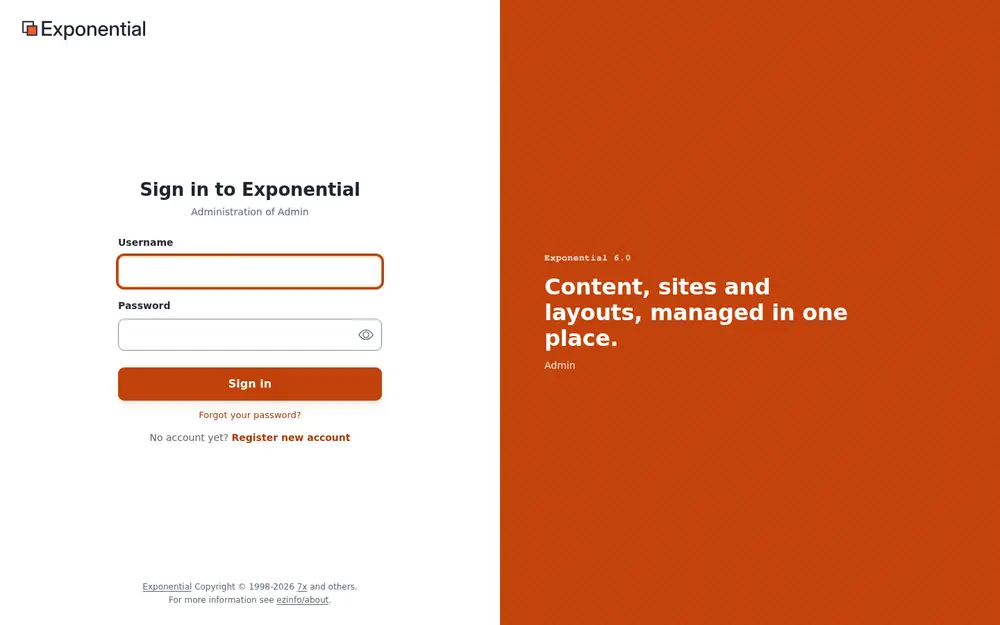
- Type your Username, or the e-mail address of your account. Both work with the shipped settings
(
site.ini [UserSettings] AuthenticateMatch=login;email), because every account's e-mail address is unique. - Type your Password; the eye button shows it to check it.
- Press Sign in (or Enter). The button says Signing in… while it works.
Under the title, Administration of ... names the siteaccess you sign in to. Where the site allows it, the page
also offers Forgot your password? and Register new account; a Remember me box appears when the site
has set a remember-me time ([Session] RememberMeTimeout, shipped 31104000 seconds, 360 days); it is checked by
default.
Two-step sign-in
With two-step sign-in on, a second page follows the password: Confirm it is you. Enter the code your authenticator app shows for the site (or the one in the e-mail; it is also in the subject) and press Verify and sign in. Each code works once. After too many wrong codes the page says Too many wrong codes and the sign-in ends; sign in with your password again. A sign-in that waited too long says This sign-in has ended.
Administrators should always use it. Turning it on: Your account and signing in; making it required for everyone: Two-step sign-in.
After signing in
The administration opens on the Dashboard. The tabs at the top (Dashboard, Content structure, Media, Users, Layouts, Setup and others) depend on your role and the installed extensions.
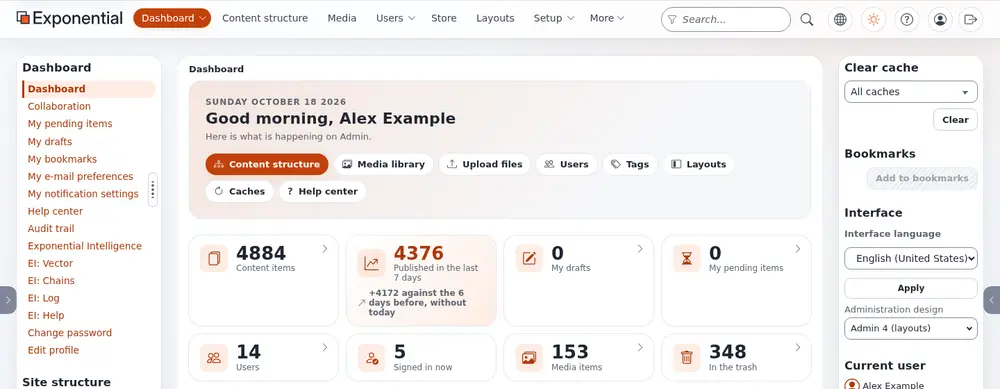
A tour of the administration explains every part of the screen.
Who may sign in where
Whether an account may sign in to a siteaccess is the policy user/login of its role, which can be limited to some siteaccesses. An account without it for the administration sees Access denied! You do not have permission to access ... after a correct password. The usual setup:
| Role | Administration | Editor |
|---|---|---|
| Administrator | everything | everything the Editor offers |
| Editor | the content, media and dashboard tabs, without settings, users and setup | the same |
| Member (registered visitors) | no | no |
Roles are edited under Users > Roles and policies; see Roles and policies.
The design and the interface language
The right column holds the Interface box:
- Interface language: the language of the menus and buttons, for you only, until you sign out. See Languages.
- Administration design: for roles with the permission, the design you work in, for example
Admin 4 (layouts) (
admin4l), Admin 4 (admin4), AdminUI, Admin 3 or Classic (admin). The choice is yours alone and lasts for the session. See Choosing the administration design.
Failed sign-ins and lockout
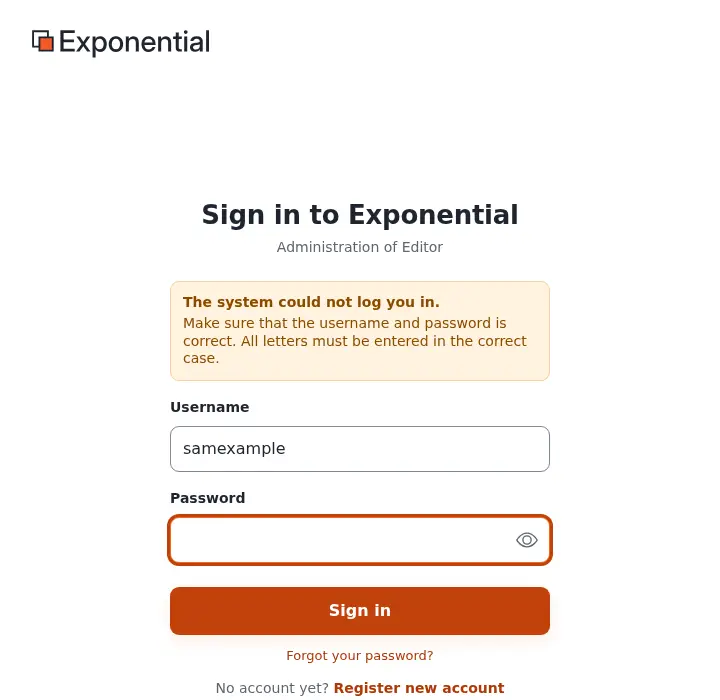
A wrong username or password shows The system could not log you in. Make sure that the username and password is correct. All letters must be entered in the correct case. The page never says which of the two was wrong.
An installation can lock an account after a number of wrong passwords (site.ini [UserSettings] MaxNumberOfFailedLogin; 0, the shipped value, never locks). The sign-in page then says how many attempts are
allowed, and a locked account sees ... is not allowed to log in because failed login attempts by this user exceeded
allowable number of failed login attempts! An administrator unlocks it on the user's page, under
Configure user account settings > Reset for the failed attempts. Addresses in TrustedIPList[] are never
locked out.
Locked out as the only administrator? See Locked out: when no administrator can sign in.
Forgot your password?
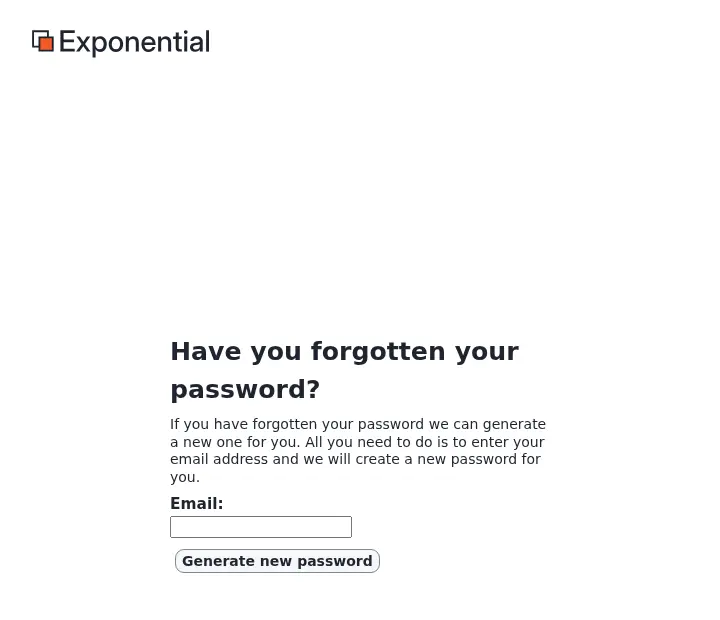
- Choose Forgot your password? on the sign-in page.
- Enter the e-mail address of the account and press Generate new password. The page answers the same whether or not an account has that address.
- The mail holds a link that works once and for one hour by default (
[UserSettings] ForgotPasswordKeyLifetime, in seconds); a link opened too late says This link has expired. - Opening the link gives the account a new password, sent in a second mail. Sign in and change it at once.
It works only when the account has a real e-mail address and the site can send mail. Details: Forgot your password?.
Staying signed in and signing out
- A sign-in belongs to one browser and one siteaccess: signing in to the administration does not sign you in to the
Editor or the public site (
[Session] SessionNamePerSiteAccess=enabled). - A session unused for a long time ends (
[Session] SessionTimeout, 360 days as shipped), and you sign in again. - A password change signs out every other session of the account.
To sign out, press the last button of the header, an arrow leaving a box (Logout and your username). While an
item is open for editing it is grayed out: store or discard the draft first. Where you land afterwards is set by
[UserSettings] LogoutRedirect, usually the site's front page.
When signing in does not work
| Sign | Cause and remedy |
|---|---|
| Back at the sign-in form right after signing in, with no message | The browser blocks the session cookie. Allow cookies for the site, or try a private window. |
| Access denied! You do not have permission to access ... | The role has no user/login for this siteaccess. Grant it, or use the Editor. |
| A small browser window asks for a user name and password before any page appears | An extra password of the web server (HTTP basic authentication), common on staging and test servers. It is not an Exponential account; ask whoever runs the server. |
| The page loads without styles, or the button does nothing | A browser extension or a stale copy; reload without the cache (Ctrl+Shift+R, or Cmd+Shift+R on a Mac). |
| Everything else | See When something goes wrong. |
Keep administrator accounts safe
- Work with a personal account, never the shared account named
adminof a new installation. Give yourself the Administrator role on your own account, and keepadminfor emergencies with a long, unique password, or switch it off. Then the audit trail and the version history name the person who did something. - Turn on two-step sign-in for every administrator.
- Use long, unique passwords: the site refuses short (
MinPasswordLength, 10 as shipped) and well-known ones. See Changing the administrator password. - Give accounts a real e-mail address, so that Forgot your password? and the security mails reach you.
- Sign out on shared computers, and remove accounts of people who left.
More: Security hardening.
Demo sites. A public demo publishes its administrator sign-in and runs in demo mode: you can sign in with the published password, but you cannot change or reset it, and Forgot your password? sends no mail for an administrator. Demo mode.
Learn more
- Logging into the Editor
- Your account and signing in
- A tour of the administration
- Setting up accounts for editors and administrators
- The user audit log
Become an Exponential Partner
Partners share their information, provide funding, contribute back and develop the products with us, and that is how Exponential grows. A partner website and dashboard are planned for mid-2027: please become a partner today to speed up our growth rate and land new features faster.