Lesson 7.2: The advanced search
Sometimes a word is not enough: "the image published last week", "articles with this phrase in the title". The Advanced search combines words, a type, one field of that type, a section and a time span. This lesson teaches the form.
At a glance
| Course | Editors 101 |
| Module | Module 7: Finding content |
| Duration | 30 minutes (10 presenting, 20 exercise) |
| Level | Beginner |
| Audience | New editors and authors |
| Prerequisites | Lesson 7.1 |
Learning objectives
After this lesson, learners can:
- open the Advanced search from Search scope or the results page;
- search for all of several words, or for an exact phrase;
- limit a search to one type with Class, and to one field with Class attribute after Update attributes;
- limit a search to a section with In: and to a time span with Published:.
Trainer's notes
How to present it
Source: The advanced search.
- Opening it (1 minute). Advanced search in Search scope, or For more options try the Advanced search under the search form on the results page.
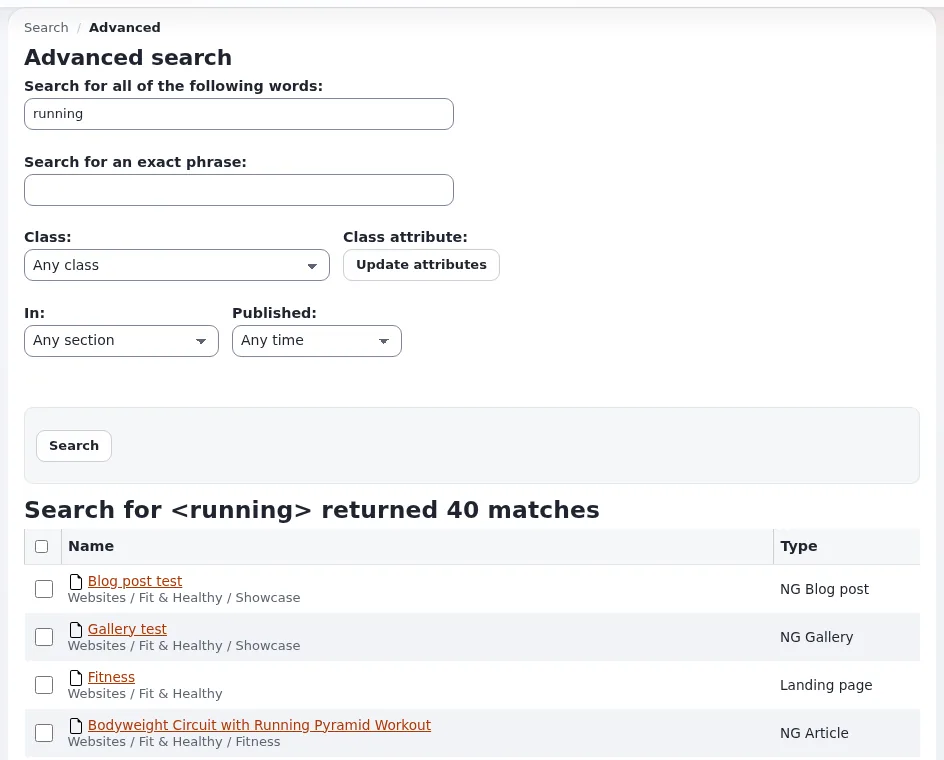
- The fields (6 minutes). Walk down the form:
- Search for all of the following words: every word must appear;
- Search for an exact phrase: the words in this order;
- Class: only items of one type, such as Article or Image (Any class by default);
- Class attribute: only one field of that type; press Update attributes after choosing the class, so the list shows that type's fields;
- In: one section (Any section by default);
- Published: Any time, Last day, Last week, Last month, Last three months or Last year.
- An example (3 minutes). Find the images published in the last week: Class: Image, Published: Last week, and a word all the learners' image titles share.
Common questions
Why is the Class list so long? It lists every content type of the installation, including those of extensions. Type the first letters of a name to jump to it.
Why does Class attribute show nothing useful? Press Update attributes after choosing the class.
Can I save a search? The form does not save searches; bookmark the results page in your browser if you need it again.
Pitfalls
- Forgetting Update attributes. The field list then belongs to the previous class.
- Too many limits at once. A search with a phrase, a class, a field, a section and a date often finds nothing. Add one limit at a time.
Hands-on exercise
Use the training installation and the items you created in this course.
- Open Search scope with the funnel button in the search field and choose Advanced search.
- In Search for an exact phrase:, type
My first articleand search. Write down the number of matches. - Clear the phrase. In Search for all of the following words:, type
Training(or the word your image titles share from lesson 5.2). - In Class:, choose Image. In Published:, choose Last week. Search.
- Check that your three images from lesson 5.2 are in the results.
- Change Class: to Article and press Update attributes. In Class attribute:, choose Title.
- Type
Newsin Search for all of the following words: and search: only articles with News in the title are found. - Set In: to Media and search again. Write down what changed and why.
Expected result
- Step 2 found every learner's My first article (one per learner on a shared site).
- Step 5 listed the learner's images.
- Step 7 found the news articles of the class, by title.
- Step 8 found nothing, because articles are not in the Media section on a standard installation.
- The trainer checks by repeating step 7 on the projector.
Quiz
- What is the difference between Search for all of the following words and Search for an exact phrase?
- You chose Article in Class:. What must you press before Class attribute: shows the article's fields?
- Which time spans does Published: offer? Name three.
- True or false: the advanced search finds drafts.
- A search with five limits finds nothing. What do you do?
Answers
- All the words must appear, in any order, versus the words together in this order.
- Update attributes (Searching).
- Any three of Any time, Last day, Last week, Last month, Last three months, Last year.
- False. It finds published content you may read.
- Remove limits and add them back one at a time.
Further reading
Related pages
- Module 7: Finding content
- Editors 101: course overview
- Trainers: start here
- Free documentation: this page is free to copy, translate and improve under the GNU FDL 1.3.
Become an Exponential Partner
Partners share their information, provide funding, contribute back and develop the products with us, and that is how Exponential grows. A partner website and dashboard are planned for mid-2027: please become a partner today to speed up our growth rate and land new features faster.