Lesson 2.1: Relations and embedding
Items on a site point at each other: an article shows an image, a page links to a document, a list names related articles. Exponential records these pointers as relations, and the Relations tab shows them in both directions. Knowing them is what makes editors safe when they change or remove shared content.
At a glance
| Course | Editors 201 |
| Module | Module 2: Relations, locations and embedding |
| Duration | 45 minutes (15 presenting, 30 exercise) |
| Level | Intermediate |
| Audience | Editors who publish every week |
| Prerequisites | Editors 101 (modules 4 and 5), or equivalent experience |
Learning objectives
After this lesson, learners can:
- name the three ways an item points at another: a relation field, an embed in rich text, a link in rich text;
- read Related objects and Reverse related objects in the Relations tab;
- fill a relation list field with Add existing objects and order or remove its entries;
- find what uses an item before changing it.
Trainer's notes
How to present it
Sources: Relations and images and Removing and hiding: the check of reverse relations.
Three kinds of pointer (5 minutes). Draw them:
Article --(Image field: relation)----------> Image item
Article --(embed in Body)------------------> Image item
Article --(link in Body)-------------------> File item / another article
All three are relations the site records. The check before removing (lesson 2.3) lists all of them.
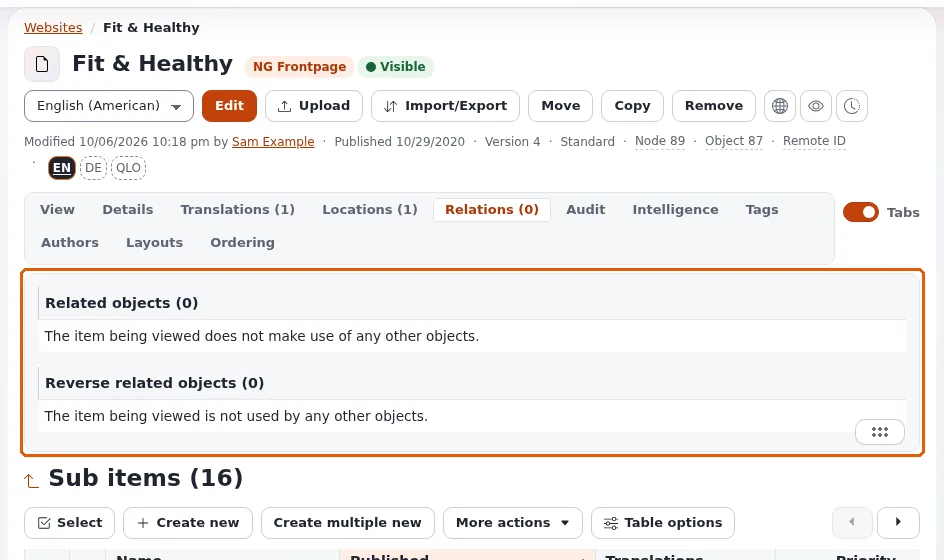
The Relations tab (4 minutes). Open an image used by an article. Relations (n) shows two tables: Related objects (n), what this item points at, and Reverse related objects (n), what points at this item. For an image, the second table is the interesting one.
Relation list fields (4 minutes). Some types have a field that holds several related items (for example "related articles"). Add existing objects opens a browser to pick several; the list can be ordered and entries removed. Show it on a type of your training installation that has such a field, or skip it if none does.
For a whole subtree (2 minutes). The item menu's Advanced > Reverse related for subtree lists what points into a folder and everything below it.
Common questions
Is a link typed as an address a relation? Only links made to an item of the site (with the link dialog's Browse, Search or Bookmarks) are recorded as relations. A pasted web address is an external link.
When does the relation appear? When the version that contains the embed, link or field is published.
Why does an image show reverse relations I do not know? Other editors' content uses it. That is exactly why the tab exists: check before changing a shared image.
Pitfalls
- Empty Relations tab on a draft. Relations are recorded from published versions; publish first.
- No relation list field on the training site. Check the classes before the class; otherwise demonstrate with a relation field only.
- Editing a shared image. Changing it changes every article in Reverse related objects.
Hands-on exercise
Use the training installation and your course folder.
- Create an article
Our teamin your course folder. In Image, use Add an existing object to choose an image from the media library. - In Body, embed a second image with the embed button, and link a phrase to one of your other articles with the link dialog's Browse tab.
- Publish the article.
- Open its Relations tab. Write down the items under Related objects and how many there are.
- Open the image you embedded in step 2. In its Relations tab, find Our team under Reverse related objects.
- Open the article you linked to in step 2 and check its Reverse related objects too.
- In the tree, open the item menu of your course folder and choose Advanced > Reverse related for subtree. Read the list.
- If your training installation has a type with a relation list field (the trainer names it), create one item of it, press Add existing objects, pick two of your articles, and publish.
Expected result
- Our team lists the main image, the embedded image and the linked article under Related objects.
- Both the embedded image and the linked article list Our team under Reverse related objects.
- Reverse related for subtree listed the items outside the course folder that point into it (possibly none).
- The trainer checks by opening the embedded image's Relations tab on the projector.
Quiz
- Name the three ways an item can point at another item.
- Which table of the Relations tab shows what uses an image? A. Related objects B. Reverse related objects C. Locations D. Details
- When is a relation recorded?
- True or false: a pasted external web address is recorded as a relation.
- Where do you see what points into a whole folder?
Answers
- A relation field, an embed in rich text, a link to an item in rich text.
- B.
- When the version containing it is published.
- False. Only links to items of the site are relations.
- The item menu's Advanced > Reverse related for subtree.
Further reading
- Removing and hiding: the check of reverse relations: why relations matter before removing.
- Creating and editing content: relation fields in the form.
- The online editor on TinyMCE 8: embeds and links.
Related pages
- Module 2: Relations, locations and embedding
- Editors 201: course overview
- Trainers: start here
- Free documentation: this page is free to copy, translate and improve under the GNU FDL 1.3.
Become an Exponential Partner
Partners share their information, provide funding, contribute back and develop the products with us, and that is how Exponential grows. A partner website and dashboard are planned for mid-2027: please become a partner today to speed up our growth rate and land new features faster.