Lesson 1.2: Finding your way: the dashboard and the editor
Exponential Layouts has two faces in the administration: form-based screens for lists, mappings and administration, and the visual editor where layouts are arranged. This lesson walks through both, without changing anything.
At a glance
| Course | Exponential Layouts |
| Module | Module 1: Introducing Exponential Layouts |
| Duration | 45 minutes (15 presenting, 30 exercise) |
| Level | Beginner |
| Audience | Editors and site builders |
| Prerequisites | Lesson 1.1; a training account that may read layouts |
Learning objectives
After this lesson, learners can:
- open the Layouts tab and read the Layouts Dashboard (Overview, Recent layouts);
- name the entries of the left menu: Layout mappings, Layouts, Shared layouts, Components, Export, Import, Template editor;
- find a layout in the Layouts list, read its identifier, type and number of mappings, and preview it;
- say which address opens the visual editor and that opening a layout there starts a draft.
Trainer's notes
How to present it
Sources: explayouts_ui and The layouts editor.
- The tab (2 minutes). Layouts in the top menu (
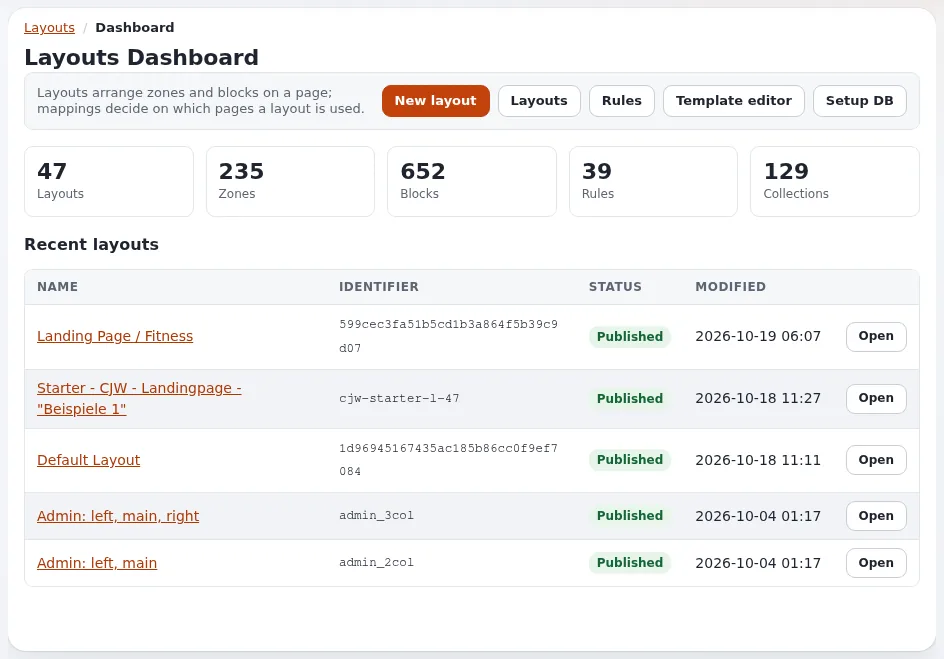
/explayouts_ui/dashboard), shown to roles with the read policy of the layouts modules. The Editor siteaccess does not offer it. - The dashboard (4 minutes). Layouts Dashboard: Layouts arrange zones and blocks on a page; mappings decide on which pages a layout is used. Buttons New layout, Layouts, Rules, and for administrators Template editor and Setup DB. Overview: the numbers of Layouts, Zones, Blocks, Rules and Collections. Recent layouts: Name, Identifier, Status, Modified and Open.
- The left menu (3 minutes): Layout mappings (the rules), Layouts, Shared layouts, Components (the component blocks and where they are used), Export, Import, Template editor. Which entries appear depends on the design and the role.
- The Layouts list (3 minutes). Sort by (Name, Description, Last modified, Layout type, Mappings) and Order; each card shows the identifier, type, date and number of mappings, with Open, Preview and Delete.
- The visual editor (3 minutes). Open goes to the visual editor (
/explayouts_ui_api/app). Warn: opening a layout there works on a draft; nothing is visible to visitors until it is published, but a draft is made. In this lesson, use Preview only.
Common questions
Why are there two interfaces? They work on the same data. The visual editor arranges blocks; the form-based screens hold the lists, the mappings and the administrative tools.
What does Preview show? The layout rendered against a representative content item, so content-driven blocks show real content (explayouts_ui).
Why is the tab missing? The role lacks the layouts policies (lesson 1.3), or you are in the Editor siteaccess.
Pitfalls
- Delete next to Preview. In the list, Delete sits next to Preview and Open. Read before clicking.
- Opening a layout "to look". It starts a draft. Teach Preview for looking.
- Many sample layouts. A training installation with sample data may list dozens of layouts; use Sort by and the search of the browser to find one.
Hands-on exercise
Use the training installation and your layouts training account. Nothing in this exercise changes anything.
- Click the Layouts tab. Read the Overview of the Layouts Dashboard and write down the numbers.
- In Recent layouts, write down the name, identifier and status of the newest layout.
- Click Layouts in the left menu. Set Sort by to Layout type and Order to Ascending.
- Find a layout with the type
layout_2and write down its number of mappings. - Press Preview on that layout and look at the result. Go back.
- Open Shared layouts in the left menu. Write down the shared layout with the most references.
- Open Layout mappings and find the mapping that uses the layout of step 4. Read its Targets and Conditions.
- Open Components and read which pages use one component.
- Hover over Open on a layout and read the address it leads to (do not click it).
Expected result
- The learner's notes have the dashboard numbers, a
layout_2layout with its mappings, the most-referenced shared layout, and one mapping's targets and conditions. - The learner saw a preview and did not open the visual editor.
- The trainer checks by asking a learner to find a named layout's mapping on the projector.
Quiz
- Which numbers does the Overview of the Layouts Dashboard show?
- Where do you find the rules that decide which page gets which layout? A. Components B. Layout mappings C. Template editor D. Import
- What happens when you press Open on a layout?
- How do you look at a layout without starting a draft?
- True or false: the Editor siteaccess offers the Layouts tab.
Answers
- Layouts, Zones, Blocks, Rules and Collections.
- B. (explayouts_ui).
- The visual editor opens the layout and you work on a draft of it.
- With Preview.
- False. Its layouts modules answer "not found" there (The setup wizard's new look, and the editor siteaccess).
Further reading
- explayouts_ui: every screen of the Layouts tab.
- explayouts_ui_api: the visual editor and its API.
- The layouts editor: finding a layout.
Related pages
- Module 1: Introducing Exponential Layouts
- Exponential Layouts: course overview
- Trainers: start here
- Free documentation: this page is free to copy, translate and improve under the GNU FDL 1.3.
Become an Exponential Partner
Partners share their information, provide funding, contribute back and develop the products with us, and that is how Exponential grows. A partner website and dashboard are planned for mid-2027: please become a partner today to speed up our growth rate and land new features faster.