Lesson 2.3: Getting around fast
Experienced editors rarely click through the tree folder by folder. They type a number or an address into the Content finder, open an item's menu straight from the tree, and use the keyboard. This lesson teaches those three shortcuts; they also make the administration usable without a mouse.
At a glance
| Course | Editors 101 |
| Module | Module 2: The content tree and navigation |
| Duration | 30 minutes (10 presenting, 20 exercise) |
| Level | Beginner |
| Audience | New editors and authors; also useful for editors who work with the keyboard only |
| Prerequisites | Lesson 2.1, Lesson 2.2 |
Learning objectives
After this lesson, learners can:
- open an item with the Content finder from its node number, its path or its address on the site;
- open the menu of an item in the tree and name its main entries;
- move through the tree with the arrow keys and open an item with
Enter; - use
/,Escand the firstTabof a page (Skip to main content).
Trainer's notes
How to present it
Sources: Searching, A tour of the administration and Keyboard shortcuts.
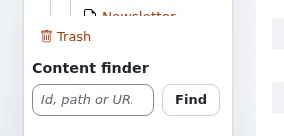
- The Content finder (3 minutes). Below the tree in the left column. It takes the node number (shown as
Node on the item's page), a path such as
media/images, or the full address of the page on the site. Type and press Find. Show all three on the projector, the last one by copying an address from the public site. - The item menu (3 minutes). Click the icon in front of a name in the tree (the tree announces it as Actions for ...). The menu has entries to edit, copy, move, remove, create here, add to bookmarks and more, and an Advanced group. Only show it; lesson 3.4 and module 6 use the entries.
- The keyboard (4 minutes). Move into the tree with
Tab, then↓and↑between items,→to open a folder,←to close it or go to the parent, letters to jump by name,Enterto open,Shift+F10or the menu key for the item's menu./jumps to the search,Esccloses a menu, and the firstTabon a page shows Skip to main content.
Common questions
Where do I find a page's node number if I only know its address? You do not need it: paste the address into the Content finder.
Does the item menu offer the same as the buttons on the item's page? Mostly, and a few more entries, such as Copy subtree. Entries your role may not use are not offered or are grayed out.
Do the keys work in every design? They work in the Admin 4 design; the other designs have most of them (Keyboard shortcuts).
Pitfalls
- Typing in the wrong field.
/is ignored while the cursor is in another field. Ask learners to click on an empty part of the page first. - Menu entries that change content. The item menu has Remove and Move close to the harmless entries.
In this lesson, open the menu and close it again with
Esc. - Addresses of another site. The Content finder knows the addresses of this installation only.
Hands-on exercise
Use the training installation and your Editor training account. Nothing in this exercise changes content.
- Open an article on the public site of the training installation and copy its address from the browser.
- In the administration, open Content structure. Paste the address into the Content finder below the tree and press Find. The article's page opens.
- Write down its Node number. Open the Dashboard, then type the node number into the Content finder and press Find. The same article opens.
- Type
media/imagesinto the Content finder and press Find. - In the tree, click the icon in front of the name of any folder. Read the entries of its menu and close it with
Esc. - Click on an empty part of the page and press
Tabuntil a tree item is focused. Move with↓and↑, open a folder with→and close it with←. - With an item focused, press
Shift+F10to open its menu; close it withEsc. - Press
Enterto open the focused item. - Reload the page and press
Tabonce: Skip to main content appears. PressEnter. - Press
/and type a word; pressEscto leave the field without searching.
Expected result
- Steps 2 and 3 opened the same article, once by address and once by node number.
- Step 4 opened the Images folder of the media library (if the training site's folder has another path, the trainer gives the right one).
- The learner opened and closed an item menu with the mouse and with
Shift+F10, and moved through the tree with the arrow keys. - The trainer checks by asking a learner to open an item named by the trainer, using the keyboard only.
Quiz
- Name the three things the Content finder accepts.
- Which key opens the menu of the item focused in the tree?
A.
F2B.Shift+F10C.Ctrl+MD.Alt+Enter - In the tree, what does
←do on an open folder? - What appears on the first
Tabof a page? - True or false: you need to know a page's node number to open it with the Content finder.
Answers
- The node number, a path such as
media/images, or the full address of the page on the site (Searching). - B.
Shift+F10or the menu key (Keyboard shortcuts). - It closes the folder.
- Skip to main content.
- False. The address works too.
Further reading
- Keyboard shortcuts: every key of the administration.
- Searching: the Content finder and the search.
- Content finder: what the finder accepts, in detail.
Related pages
- Module 2: The content tree and navigation
- Editors 101: course overview
- Trainers: start here
- Free documentation: this page is free to copy, translate and improve under the GNU FDL 1.3.
Become an Exponential Partner
Partners share their information, provide funding, contribute back and develop the products with us, and that is how Exponential grows. A partner website and dashboard are planned for mid-2027: please become a partner today to speed up our growth rate and land new features faster.