Lesson 2.2: An item's tabs and its sub items
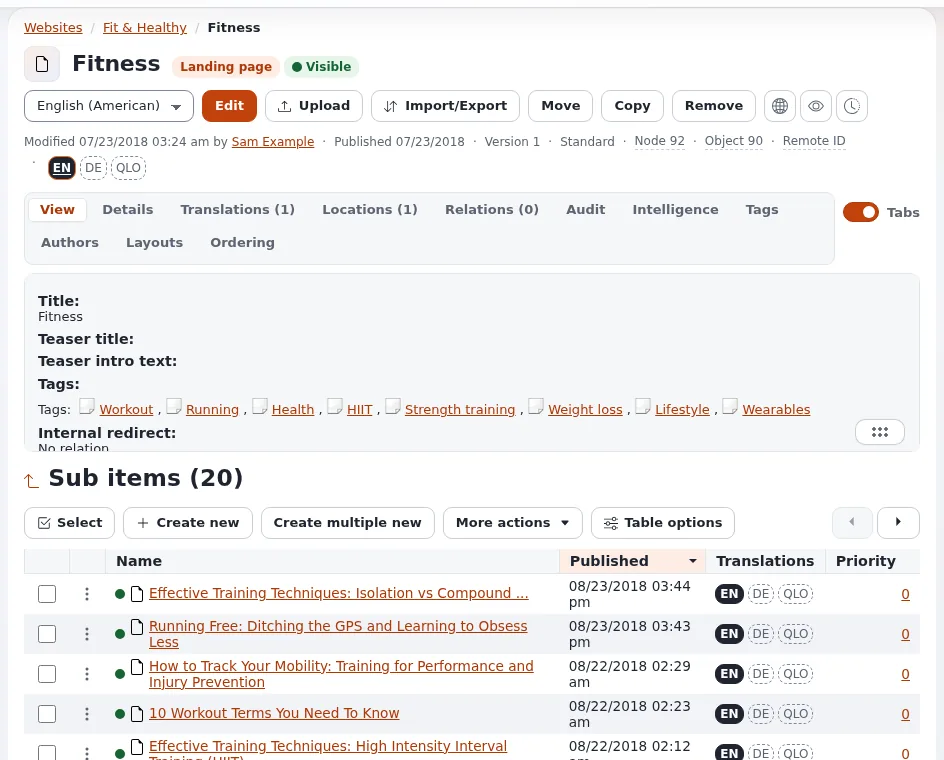
Below the buttons, an item's page has tabs with more about the item, and a folder shows the items below it in the Sub items list. Editors use both every day: the tabs to check facts about an item, the list to find and act on the items in a folder. This lesson covers reading them; acting on many items at once comes in lesson 3.4.
At a glance
| Course | Editors 101 |
| Module | Module 2: The content tree and navigation |
| Duration | 45 minutes (20 presenting, 25 exercise) |
| Level | Beginner |
| Audience | New editors and authors |
| Prerequisites | Lesson 2.1 |
Learning objectives
After this lesson, learners can:
- open the tabs View, Details, Translations, Locations and Relations and say what each shows;
- switch between tabs and one long page with the Tabs switch;
- sort the Sub items list by a column and page through it;
- choose the columns and the number of rows with Table options;
- explain that the tabs shown depend on the installation and the role.
Trainer's notes
How to present it
Source: An item's page and Many items at once.
- The tabs (8 minutes). Open a folder that has sub items and walk through the tabs:
- View: the item's content, field by field;
- Details: facts about the item, such as its creator, section and dates;
- Translations (n): the languages the item exists in (Editors 201 covers translating);
- Locations (n): the places in the tree where the item appears;
- Relations (n): the items this item links to, and the ones that link to it. The number in brackets is a count. Installations with extensions show more tabs (for example Tags, Intelligence, Layouts, Ordering in the administration); an editor in the Editor interface sees fewer. Say plainly that the set differs and that learners should not worry about tabs this course does not cover.
- The Tabs switch (2 minutes). It turns the tabs into one long page and back; some editors prefer to scroll.
- Sub items (6 minutes). The list under the tabs shows the items below the item, with its count in the heading (for example Sub items (12)). Click a column heading to sort by it. Point out the checkboxes, Create new, Select and More actions, and say that lesson 3.1 and lesson 3.4 use them.
- Table options (4 minutes). Open Table options: choose, order and save the columns, set 10, 25, 50 or 100 rows a page, and export the visible columns as a CSV file.
Common questions
Why is my Sub items list in a different order from the site's menu? The site may sort by priority or by another field. When the list is sorted by priority, the grip at the start of each row changes the order by dragging; that changes the site's order too, so it is not part of the beginners' exercise.
What is the CSV file for? A quick list of a folder's items for a report or a check, opened in a spreadsheet.
Why do I not see the Relations tab? Some designs or roles show fewer tabs. Ask your administrator if you need it.
Pitfalls
- Dragging rows by accident. In a list sorted by priority a drag changes the order on the site. Ask learners to keep the mouse off the grip, or sort the list by name first.
- Saved columns surprise. Table options saves the columns for the learner. If someone's list looks different later, it is their saved choice.
- Empty folders. Make sure the training site has at least one folder with ten or more items, or paging cannot be shown.
Hands-on exercise
Use the training installation and your Editor training account. Nothing in this exercise changes content.
- Open Media and then the folder Images (or the folder with the most items the trainer names).
- Read the heading of the list: write down the number in Sub items (n).
- Click the heading of the name column to sort the list by name; click it again to reverse the order.
- Open Table options. Set the list to 10 rows a page and confirm. Use the pager to go to the second page.
- In Table options, add one more column (for example the date it was modified) and save.
- Open an image from the list. Click the tab Details and write down the section the image belongs to.
- Click Locations and write down how many places the image has in the tree.
- Click Relations and note whether any item uses this image.
- Use the Tabs switch to show the page as one long page, then switch back.
- Go back to the folder with the path and set Table options back to the number of rows you had before.
Expected result
- The learner sorted and paged the list and changed its columns.
- Their notes have the folder's sub item count, the image's section (on most installations Media), its number of locations (usually 1) and whether anything relates to it.
- The Tabs switch showed all tabs as one page.
- The trainer checks by asking a learner to open the Details tab on the projector and read the section.
Quiz
- Which tab shows the languages an item exists in? A. Details B. Translations C. Locations D. View
- What does the number in Locations (2) tell you?
- Name two things Table options lets you do.
- True or false: every installation shows exactly the same tabs on an item's page.
- A learner dragged a row in a list sorted by priority. What may have changed?
Answers
- B. Translations.
- The item appears in two places in the tree.
- Any two of: choose and order the columns, set 10, 25, 50 or 100 rows a page, export the visible columns as CSV (Creating and editing content).
- False. Extensions add tabs, and roles and interfaces show fewer.
- The order of the items, which is also the order on the site.
Further reading
- A tour of the administration: the parts of an item's page.
- Creating and editing content: the Sub items list and its actions.
- Sub items table options: every option of the table.
Related pages
- Module 2: The content tree and navigation
- Editors 101: course overview
- Trainers: start here
- Free documentation: this page is free to copy, translate and improve under the GNU FDL 1.3.
Become an Exponential Partner
Partners share their information, provide funding, contribute back and develop the products with us, and that is how Exponential grows. A partner website and dashboard are planned for mid-2027: please become a partner today to speed up our growth rate and land new features faster.