Lesson 3.3: Sections as the editor sees them
Sections are labels that group content for permissions, the administration and designs. Editors rarely create them, but they meet them every day: a page put into the wrong section can disappear for visitors. This lesson gives editors exactly what they need: reading, setting and predicting an item's section.
At a glance
| Course | Editors 201 |
| Module | Module 3: Organizing content |
| Duration | 45 minutes (20 presenting, 25 exercise) |
| Level | Intermediate |
| Audience | Experienced editors |
| Prerequisites | Lesson 3.1 |
Learning objectives
After this lesson, learners can:
- explain what a section is and name the sections of a new installation;
- read an item's section in the Details tab and set another one with Set when their role allows;
- predict the section of a new item, a moved subtree and a copy;
- explain why content put into a new section can be hidden from visitors.
Trainer's notes
How to present it
Source: Sections.
- What a section is (4 minutes). A named group of content. Every item belongs to exactly one section. Sections are used for permissions (a role can be limited to sections), for the administration (which top tab is active) and for designs (templates can differ per section).
- The sections of a new installation (3 minutes): Standard (the content tree), Users, Media, Setup and Design. Sites add their own (for example a members area).
- Visitors (3 minutes). The Anonymous role of a new installation may read the Standard section only. That is why content in Media or Users, or in a new section, is hidden from visitors who are not signed in, unless a policy allows it.
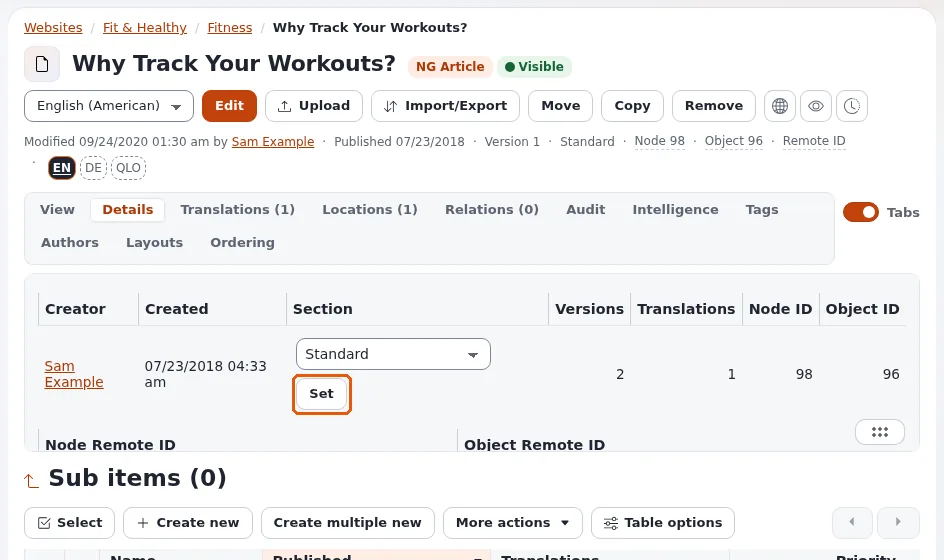
- Reading and setting (4 minutes). The Details tab shows Section with a list of the sections your role lets you assign, and Set. Setting a section changes the item and every item below it whose main location is there. The same choice is in the edit form of a draft.
- Predicting (4 minutes):
- a new item takes the section of its parent;
- moving a subtree gives the new parent's section to the items that still had the old parent's section;
- a copy takes the section of the place it is copied to;
- adding a second location changes nothing: an item has one section.
Common questions
I moved an article into the members' area and visitors still see it. It kept its own section if it had one different from the old parent's; set it on the Details tab, or ask an administrator.
Why can I not see the section list on the Details tab? Your role may not assign sections.
Who creates sections? Administrators, under Setup > Sections.
Pitfalls
- Setting a section on a big folder. It changes everything below it; on large subtrees it may run as a background job (lesson 3.4).
- Hiding by section. Learners use a section to hide content. Teach Hide for that; sections are for permissions and design.
- Training site sections. A training installation may have extra sections from packages; tell learners which to use.
Hands-on exercise
Use the training installation and your course folder. Ask the trainer which section you may set (for example a section Training the trainer created).
- Open your course folder's Details tab. Write down its Section.
- Open an image of the media library. Write down its section.
- Open the public site without signing in (a private browser window) and open your course folder's address: it is visible. Open the image's address the same way and note what you see.
- Create an article
Section testin your course folder. Before publishing, find the section in the form; then publish and read its Details tab. Predict first, then check. - Move
Section testinto a folder with another section, if the trainer prepared one, and read its section again. - On the Details tab of
Section test, choose the section the trainer named and press Set (if your role allows). - Open
Section testin the private window and note whether visitors can see it now. - Set the original section back.
Expected result
- The course folder is in Standard (usually) and the image in Media.
Section teststarted in its parent's section, as predicted.- After step 6, visitors could or could not see the article depending on the section's permissions; the trainer explains the result.
- The trainer checks by asking each learner for their prediction in step 4 and the result.
Quiz
- How many sections can one item belong to?
- Name three sections of a new installation.
- You create an article in a folder of the section Members. Which section does the article get?
- Why are items in a new section often hidden from visitors? A. Sections are always hidden B. The Anonymous role reads only Standard by default C. A section hides its items D. Nobody can see new sections
- You set a section on a folder with twenty articles. What happens to the articles?
Answers
Further reading
- Sections: the full guide, including roles and designs.
- Roles and policies: how sections limit permissions.
Related pages
- Module 3: Organizing content
- Editors 201: course overview
- Trainers: start here
- Free documentation: this page is free to copy, translate and improve under the GNU FDL 1.3.
Become an Exponential Partner
Partners share their information, provide funding, contribute back and develop the products with us, and that is how Exponential grows. A partner website and dashboard are planned for mid-2027: please become a partner today to speed up our growth rate and land new features faster.