Lesson 3.2: Sorting sub items
The order of the items in a folder is often the order of a menu or a list on the site. This lesson shows where a folder's sorting is set and how to arrange items by hand.
At a glance
| Course | Editors 201 |
| Module | Module 3: Organizing content |
| Duration | 30 minutes (10 presenting, 20 exercise) |
| Level | Intermediate |
| Audience | Editors who look after menus and lists |
| Prerequisites | Lesson 3.1 |
Learning objectives
After this lesson, learners can:
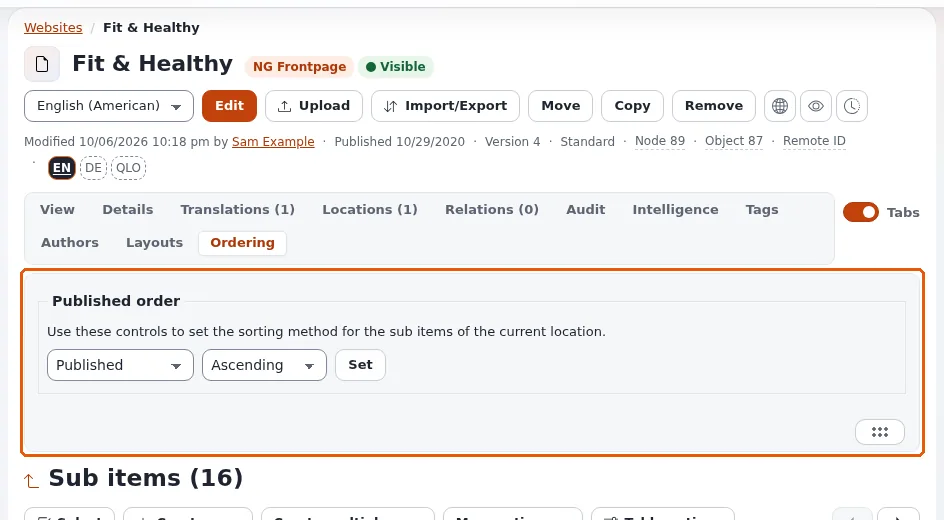
- set a folder's sorting on the Ordering tab with Sort by, Sort order and Set;
- explain that the sorting applies to the folder's sub items on the site and in the administration;
- arrange items by hand with priorities: drag the grip, or use the keyboard;
- say what they need to be allowed to change the sorting.
Trainer's notes
How to present it
Sources: Many items at once and Keyboard shortcuts.
- The Ordering tab (4 minutes). On a folder's page, the tab Ordering says Use these controls to set the sorting method for the sub items of the current location. Sort by: Priority, Published, Modified, Name, Section, Depth, Class identifier, Class name, Path String; Sort order: Ascending or Descending; then Set. Without permission to edit the item, the tab says so.
- Priorities (4 minutes). When a folder is sorted by Priority, the Sub items list shows a grip at the
start of each row. Drag a row to a new place, or use the keyboard: focus the grip,
SpaceorEnterto pick the row up,↑and↓to move it,SpaceorEnterto drop it;Alt+↑andAlt+↓move a row one place at once. The new order is saved. - The site (2 minutes). Most designs list sub items in the folder's sorting, so menus and lists change at once.
Common questions
Which sorting should a news folder use? Usually Published, Descending: newest first, nobody has to sort by hand.
Why is the grip missing? The list is not sorted by priority. Set Sort by to Priority first.
Does clicking a column heading in the Sub items list change the site's order? No. That sorts your view of the list; the Ordering tab sets the folder's order.
Pitfalls
- Changing the order of a live menu by accident. In class, use only the learners' own folders.
- Mixing up the two sortings. A column click is for you; the Ordering tab is for the site.
- Keyboard picking.
Escputs a picked-up row back; teach it.
Hands-on exercise
Use the training installation and your course folder (with at least four sub items).
- Open your course folder and its Ordering tab. Write down the current Sort by and Sort order.
- Choose Sort by: Name, Sort order: Ascending, and press Set.
- Look at the Sub items list and at the folder on the site (View on site): the items are in alphabetical order where the design lists them.
- Choose Sort by: Priority and press Set.
- In the Sub items list, drag the last row to the top with its grip.
- Focus the grip of the second row with
Tab, pressSpace, move it down with↓twice, and pressSpace. - Press
Alt+↑on a grip to move a row up one place. - Check the order on the site again.
- Click the Name column heading of the list: the list is sorted for you only. Reload the page: the priority order is back.
Expected result
- The folder is sorted by Priority, in the order the learner arranged.
- The site lists the items in the same order (in designs that list sub items).
- Step 9 showed that a column click does not change the folder's sorting.
- The trainer checks by asking a learner to move a row with the keyboard only on the projector.
Quiz
- Where do you set the order in which a folder's sub items appear on the site?
- Which sorting must a folder have before you can drag rows? A. Name B. Published C. Priority D. Modified
- Which keys pick up and drop a row on its grip?
- True or false: clicking a column heading in the Sub items list changes the order on the site.
- Suggest a sorting for a news folder and explain why.
Answers
- On the folder's Ordering tab, with Sort by, Sort order and Set.
- C.
SpaceorEnter(Keyboard shortcuts).- False. It sorts the list for you only.
- Published, Descending: the newest item first, without manual work.
Further reading
- Keyboard shortcuts: moving rows by keyboard.
- Creating and editing content: the Sub items list.
Related pages
- Module 3: Organizing content
- Editors 201: course overview
- Trainers: start here
- Free documentation: this page is free to copy, translate and improve under the GNU FDL 1.3.
Become an Exponential Partner
Partners share their information, provide funding, contribute back and develop the products with us, and that is how Exponential grows. A partner website and dashboard are planned for mid-2027: please become a partner today to speed up our growth rate and land new features faster.