Lesson 8.1: Content checks: broken relations and unreferenced files
Over the years a site collects broken references (links to removed pages, embeds of trashed images) and files nobody uses. Exponential's content checks find both. They are administration pages, usually for administrators and senior editors; this lesson teaches how to read and act on them.
At a glance
| Course | Editors 201 |
| Module | Module 8: Quality and accessibility |
| Duration | 45 minutes (15 presenting, 30 exercise) |
| Level | Intermediate |
| Audience | Senior editors and administrators who keep content tidy |
| Prerequisites | Module 2; a role with the contentcheck policies |
Learning objectives
After this lesson, learners can:
- open Broken relations and Unreferenced objects for a part of the tree from the item menu;
- choose a start location and filters, and read the findings;
- repair a broken reference by editing the source item;
- move unused assets to the trash with Move ticked objects to the trash, knowing what the check cannot know.
Trainer's notes
How to present it
Source: The content checks.
- Where (2 minutes). In the item menu: Advanced > Broken relations in subtree and Unreferenced
objects in subtree; also in the Setup menu. They work in the administration siteaccesses only, and a new
installation gives their policies (
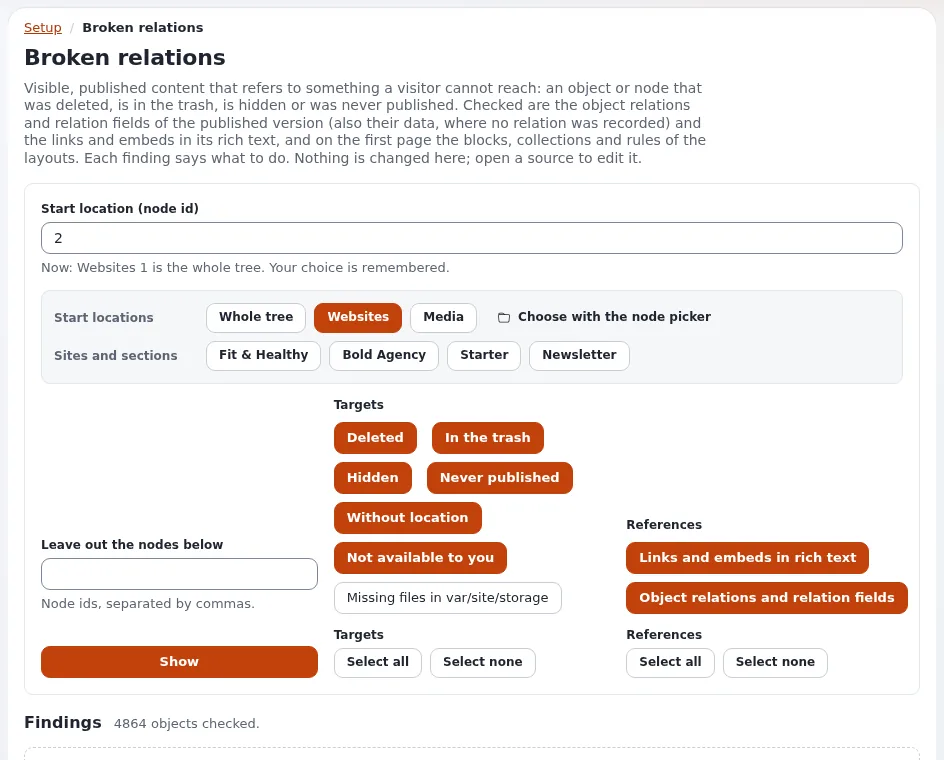
contentcheck: unreferenced, trash, brokenrelations) only to Administrator. - Broken relations (5 minutes). Visible, published content that refers to an item that was deleted, is in the trash, is hidden or was never published. Filter: Start location (Whole tree, Websites, Media, a site, or Choose with the node picker), Targets (Deleted, In the trash, Hidden, Never published, Without location, Not available to you, Missing files in var/site/storage) and References (Links and embeds in rich text, Object relations and relation fields), then Show. Each finding names the source, the field, the target, its state and what to do, with a link to edit the source. The page only reads; it changes nothing.
- Unreferenced objects (5 minutes). Published assets (images, files, media) below the start location that nothing uses: no other item, layout, setting, template, role, shop or newsletter entry. Filter by Classes, Order by and Direction, then tick and Move ticked objects to the trash after a confirmation. Pages, folders and users are never listed.
- What the check cannot know (3 minutes). A file linked from outside the site (a printed address, another site) counts as unused. That is why it moves to the trash, not to deletion: restore if someone complains.
Common questions
Why can I not open the checks? The role lacks the contentcheck policies, or you are in the Editor siteaccess.
Is it safe to trash everything the list shows? Look first. Anything used from outside the site is invisible to the check.
How often should we run them? Agree in the team; a monthly look at Broken relations for your area is a good start.
Pitfalls
- Big start locations. The whole tree on a large site takes time; start with your own folder.
- Trashing shared images. An image may be used outside the site (newsletters sent, social posts). Keep a list of what you trashed.
- Empty results on a fresh training site. Prepare a broken reference and an unused image (see the module overview).
Hands-on exercise
Use the training installation with a role that has the contentcheck policies (or follow on the projector). The
trainer prepared, in each learner's course folder, an article that embeds an image which is now in the trash, and an
image nobody uses.
- In the tree, open the item menu of your course folder and choose Advanced > Broken relations in subtree.
- Check that the start location is your folder. Under Targets, keep all; under References, keep both. Press Show.
- Read the finding: the source article, the field, the target image, its state (In the trash) and the suggested action.
- Follow the link to edit the source article. Remove the embed (or embed another image) and publish.
- Press Show again on the check: the finding is gone.
- From the item menu, choose Advanced > Unreferenced objects in subtree for your course folder.
- Read the list: the unused image is there with its Class, Size, Last modified and Location.
- Tick it and press Move ticked objects to the trash; read the confirmation and confirm.
- Open Trash and check that the image is there.
Expected result
- The broken reference was found, repaired, and is no longer listed.
- The unused image was listed and moved to the trash, where it can be restored.
- The trainer checks by running Broken relations for the Training folder on the projector: no findings left.
Quiz
- Name three target states the Broken relations check can look for.
- True or false: Broken relations changes content when you press Show.
- Which items does Unreferenced objects list? A. Every item B. Folders and pages C. Published assets that nothing uses D. Users
- Why does Unreferenced objects move to the trash rather than delete?
- Who has the content check policies on a new installation?
Answers
- Any three of: deleted, in the trash, hidden, never published, without location, not available to you, missing files (The content checks).
- False. The page only reads.
- C.
- The check cannot know uses from outside the site; the trash allows restoring.
- Only Administrator.
Further reading
- The content checks: every check, what counts as a reference, and missing files.
- Removing and hiding: the check of reverse relations: preventing broken references.
Related pages
- Module 8: Quality and accessibility
- Editors 201: course overview
- Trainers: start here
- Free documentation: this page is free to copy, translate and improve under the GNU FDL 1.3.
Become an Exponential Partner
Partners share their information, provide funding, contribute back and develop the products with us, and that is how Exponential grows. A partner website and dashboard are planned for mid-2027: please become a partner today to speed up our growth rate and land new features faster.