Lesson 2.2: Creating a layout
Now learners build. Each creates a layout of their own, named after themselves, and meets the visual editor for the first time. Nothing they do is visible to visitors yet: a layout without a rule is used nowhere.
At a glance
| Course | Exponential Layouts |
| Module | Module 2: Layouts and layout types |
| Duration | 45 minutes (15 presenting, 30 exercise) |
| Level | Beginner |
| Audience | Editors and site builders |
| Prerequisites | Lesson 2.1; a role with edit on the layouts modules |
Learning objectives
After this lesson, learners can:
- create a layout with New layout: Layout type, Name, Identifier, Description, Create layout;
- choose a good identifier and explain why it should be treated as permanent;
- name the parts of the editor: the top bar, Add a block, the zones, the properties panel;
- leave the editor without publishing with Save draft and close.
Trainer's notes
How to present it
Sources: The layouts editor and Exponential Layouts: Creating one.
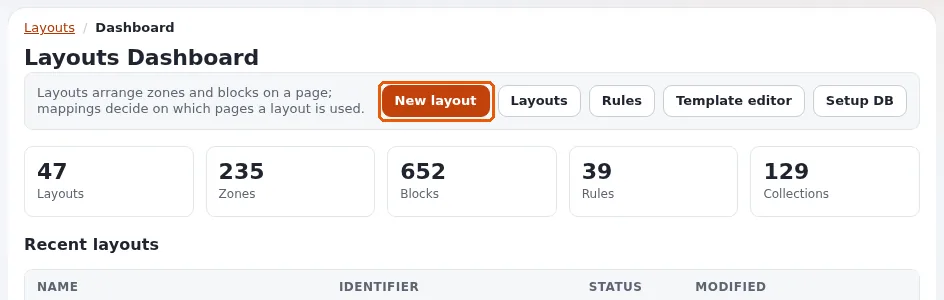
- The form (4 minutes). New layout (on the dashboard or the Layouts list) opens a form: Layout type (one choice per type, from 1 column to Header / Left / Right / Footer), Name, Identifier, Description, and Cancel or Create layout. The form-based screen marks the identifier as optional.
- The identifier (3 minutes). The machine name: lowercase, no spaces, for example
training_alex. Templates and imports find a layout by it, so treat it as permanent even though it can be edited. - The editor (5 minutes). After Create layout the editor opens with the empty zones of the type:
- at the top the layout's name (the pencil renames it), Discard, Cancel, Publish layout and the menu with three dots (Publish and continue editing, Save draft and close);
- on the left the plus button Add a block, and at the bottom Link zone with shared layout zone;
- in the middle the zones with their names in capitals (HEADER, MAIN ...);
- on the right the properties panel: Select a block to access its properties.
- Leaving (2 minutes). Save draft and close keeps the draft for later; nothing is published. Module 6 covers every way out.
Common questions
Can two layouts have the same name? Names are labels; identifiers should be unique. Use your name in both for the course.
Where is the shared layout option? Some versions of the create form have a Shared layout box; shared layouts are covered in module 5. Check whether your installation's form shows it.
Why is my new layout not on the site? No rule maps it to a page yet (module 7).
Pitfalls
- Spaces and capitals in identifiers. Agree on a pattern before the exercise:
training_<firstname>. - Choosing the wrong type. It cannot be changed; let learners delete a wrong layout and start again.
- Publishing by reflex. In this lesson, leave with Save draft and close only.
Hands-on exercise
Use the training installation and your layouts training account.
- Open the Layouts tab and press New layout.
- Choose the layout type Header / Main / Footer.
- Name:
Training - <your first name>. Identifier:training_<your first name>in lowercase. Description:Course layout of <your first name>. - Press Create layout. The editor opens.
- Write down the zone names you see in the middle.
- Click the pencil next to the layout's name, change the name to
Training - <your first name> - mainand confirm. - Read the text in the properties panel on the right.
- Open the menu with three dots at the top and choose Save draft and close.
- In Layouts > Layouts, find your layout and read its card: identifier, type, date and 0 mappings.
Expected result
- Each learner has a layout of type
layout_2with their name and identifier, saved as a draft, with zero mappings. - The editor showed the zones HEADER, POST_HEADER, MAIN, PRE_FOOTER and FOOTER, and the properties panel said Select a block to access its properties.
- The trainer checks by sorting the Layouts list by Last modified on the projector.
Quiz
- Which four fields does the New layout form have?
- Why should an identifier be treated as permanent?
- What does the properties panel say before a block is selected?
- Which choice leaves the editor and keeps your work unpublished? A. Publish layout B. Save draft and close C. Discard D. Publish and continue editing
- True or false: a new layout is shown on the site as soon as it is created.
Answers
- Layout type, Name, Identifier and Description.
- Templates and imports find a layout by its identifier (Exponential Layouts).
- Select a block to access its properties.
- B.
- False. It is used only where a rule maps it, and only once it is published.
Further reading
- The layouts editor: the parts of the editor.
- A tour of the administration: the layouts editor: a walk-through with pictures.
Related pages
- Module 2: Layouts and layout types
- Exponential Layouts: course overview
- Trainers: start here
- Free documentation: this page is free to copy, translate and improve under the GNU FDL 1.3.
Become an Exponential Partner
Partners share their information, provide funding, contribute back and develop the products with us, and that is how Exponential grows. A partner website and dashboard are planned for mid-2027: please become a partner today to speed up our growth rate and land new features faster.