Lesson 2.3: Managing layouts: preview, copy, export and delete
A site soon has dozens of layouts. This lesson teaches the housekeeping: finding and previewing, basing a new layout on an existing one, moving layouts between installations, and deleting only what nothing uses.
At a glance
| Course | Exponential Layouts |
| Module | Module 2: Layouts and layout types |
| Duration | 45 minutes (15 presenting, 30 exercise) |
| Level | Beginner |
| Audience | Editors and site builders |
| Prerequisites | Lesson 2.2 |
Learning objectives
After this lesson, learners can:
- sort the Layouts list and preview a layout with Preview;
- explain when to copy (branch) a layout instead of changing it;
- describe export and import as the way to move layouts between installations;
- check a layout's mappings before deleting it with Delete.
Trainer's notes
How to present it
Sources: Exponential Layouts: Layout-level actions, Import, export and share links and explayouts_ui.
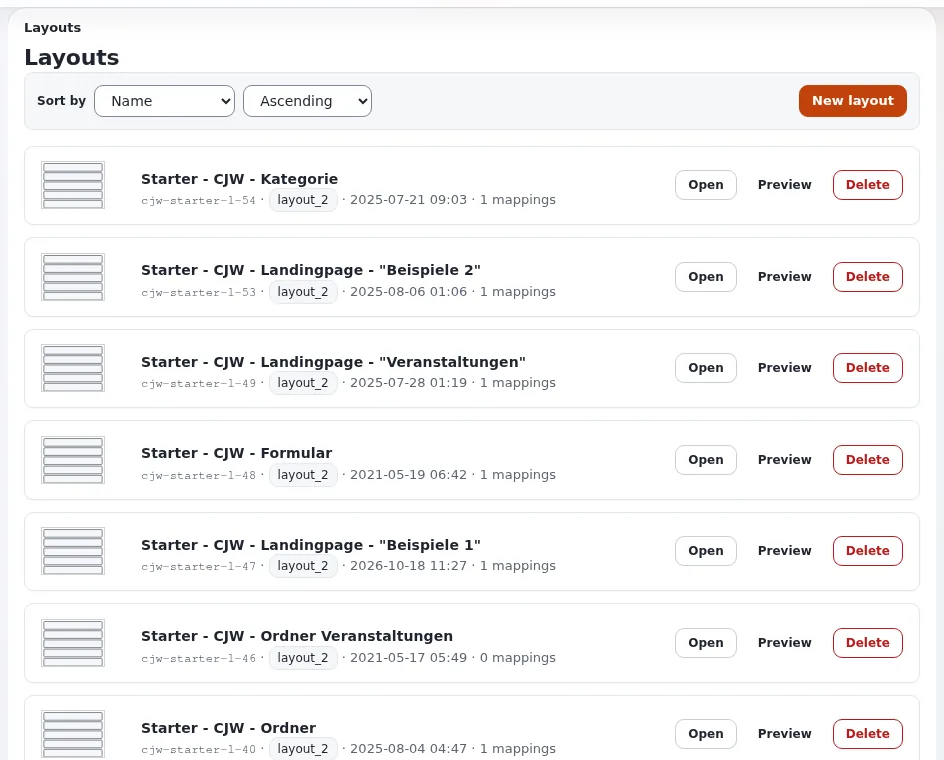
- The list (3 minutes). Sort by Name, Description, Last modified, Layout type or Mappings; Order ascending or descending. Each card shows the identifier, type, date and mappings, with Open, Preview, Delete.
- Preview (2 minutes). Renders the published layout against a representative content item.
- Branching (4 minutes). The layout actions include Copy, which duplicates a layout with its blocks. Rule of thumb from the reference: if a layout serves several sections and you want to change one, copy it, give the copy a clear identifier, and map the copy to that section with a higher priority. Branching avoids changing twenty pages while aiming at three. Show where your installation offers the copy action.
- Export and import (3 minutes). Export produces a document describing a layout with its zones, blocks, parameters and collections; Import creates a layout from it. It is the supported way to move layouts from staging to production, and a backup before a large change. Identifiers travel with the export, so importing where the identifier exists needs care. The policies are transfer_export and transfer_import.
- Deleting (3 minutes). Delete removes the layout entirely. Check first that no mapping points at it (the card's mapping count) and, for a shared layout, that no zone links to it.
Common questions
Is a deleted layout in the trash? No, layouts are not content items. Export a layout first if you might need it again.
Can I preview a draft? The preview screen takes the layout and its status in its address; the list's Preview shows the published layout. The editor shows your draft as you work.
Why do imported layouts not show? An import brings layouts and, where included, rules; check the mappings and publish state after an import.
Pitfalls
- Deleting a mapped layout. Pages fall back to another rule or to the templates. Check the mapping count.
- Copy without a new rule. A copy is used nowhere until a rule maps it.
- Import over an existing identifier. Agree with the site builder before importing.
Hands-on exercise
Use the training installation and your layouts training account.
- Open Layouts > Layouts, set Sort by to Mappings and Order to Descending. Write down the layout with the most mappings.
- Press Preview on it.
- Find your own layout from lesson 2.2. Read its mapping count (0).
- Find where your installation offers to copy a layout (in the editor or a list, as the trainer shows), and copy your
layout; name the copy
Training - <your first name> - copywith identifiertraining_<your first name>_copy. - Open Export in the left menu and read what it offers (do not export unless the trainer says so).
- Open Import and read what it asks for. Do not import.
- Back in Layouts, press Delete on your copy. If a confirmation appears, read it and confirm.
- Check that your original layout is still listed.
Expected result
- The learner found the most-mapped layout and previewed it.
- A copy of the learner's layout was created and deleted; the original remains.
- The learner can describe the export and import screens.
- The trainer checks the Layouts list on the projector: one layout per learner, no copies left.
Quiz
- How do you find the layouts that are used by the most mappings?
- When should you copy a layout instead of changing it?
- What does an export contain? A. Only the name B. The layout with its zones, blocks, parameters and collections C. The content items D. The templates
- What do you check before deleting a layout?
- True or false: a deleted layout can be restored from the trash.
Answers
- Sort the Layouts list by Mappings, descending.
- When it serves several pages or sections and you want to change only some (Exponential Layouts).
- B.
- That no mapping points at it and, for a shared layout, that no zone links to it.
- False. Layouts are not content items; export first if in doubt.
Further reading
Related pages
- Module 2: Layouts and layout types
- Exponential Layouts: course overview
- Trainers: start here
- Free documentation: this page is free to copy, translate and improve under the GNU FDL 1.3.
Become an Exponential Partner
Partners share their information, provide funding, contribute back and develop the products with us, and that is how Exponential grows. A partner website and dashboard are planned for mid-2027: please become a partner today to speed up our growth rate and land new features faster.