Lesson 1.4: The settings page
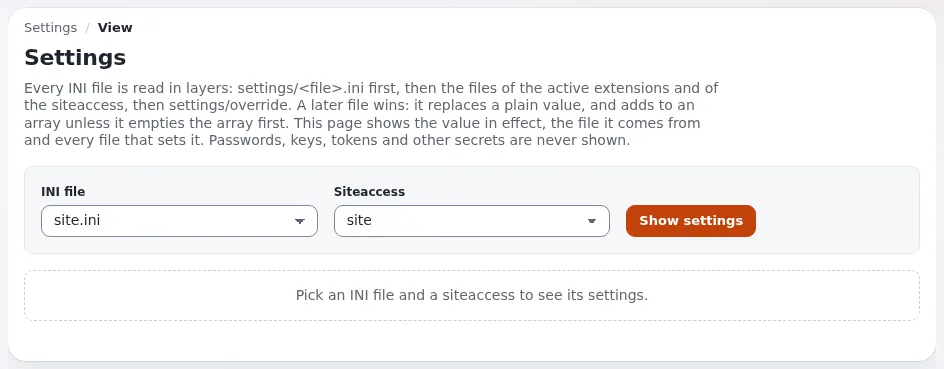
Exponential is configured with INI files, read in layers: the defaults, the siteaccess, the active extensions (which win over the siteaccess), and the global override, which wins over everything. The settings page (Setup > Ini settings) shows for each setting the value in effect, the file it comes from and every file that sets it. It is the safest way for a new administrator to look at configuration, and it can also change a setting.
At a glance
| Course | Site administration |
| Module | Module 1: Getting oriented as a site administrator |
| Duration | 40 minutes (15 presenting, 25 exercise) |
| Level | Intermediate |
| Audience | Site administrators |
| Prerequisites | Lesson 1.3; an administrator account on the training installation |
Learning objectives
After this lesson, learners can:
- open an INI file for a siteaccess and read the summary figures;
- explain the load order and which file wins for a plain value and for an array;
- find a setting in every file and list only the settings changed from the default;
- compare two siteaccesses;
- change a setting for one siteaccess and remove the change again.
Trainer's notes
How to present it
Source: The settings page.
- Layers (4 minutes). Draw the load order:
settings/<file>.ini(the default), the extensions' siteaccess directories,settings/siteaccess/<siteaccess>, the active extensions,settings/override. A later file wins: it replaces a plain value and adds to an array unless it empties the array first withName[]. - Open a file (3 minutes). Setup > Ini settings, choose an INI file and a Siteaccess, press
Show settings. The address becomes
settings/view/<siteaccess>/<file>, so it can be bookmarked. - One setting (4 minutes). Show the value in effect, where it comes from (Default, Extension, Siteaccess, Global override), the badges (changed, no default, secret, masked, Velocity restart) and the chain under "Set in N files".
- Search and compare (2 minutes). Search This file or Every file; tick Only settings changed from the default; pick a siteaccess in Compare with siteaccess.
- Change (2 minutes). Edit, choose Save it in (one siteaccess, or every siteaccess as the global
override), Save. Saving clears the INI cache. Settings marked Velocity restart need
exp:velocity restartbefore Velocity uses them.
Common questions
Why are some values shown as masked? Passwords, keys, tokens, salts and credentials are never shown; the page says only whether they are set. The search does not look into them either, so it cannot be used to guess a secret.
Should I save in an extension? Prefer the siteaccess or the global override: an update of the extension replaces its own settings file.
A colleague changed a file with an editor and nothing happened. The installation does not check file times; the
INI cache must be cleared. The page marks such settings not in effect yet. Clear the INI cache with
Setup > Cache management or php bin/php/ezcache.php --clear-tag=ini.
Why can I not remove a setting? Only settings in the installation's own files (settings/override or
settings/siteaccess/<siteaccess>) can be removed. Defaults and extension settings have no tick box.
Pitfalls
- Saving in the wrong scope. A change saved as the global override affects every siteaccess, including the administration. Read Where it is set before Save.
- Arrays. The edit field for an array starts with an empty first line, which empties the array before your elements. Removing it adds to the elements earlier files gave instead. Show both on the projector.
- Changing the admin's own settings. A wrong value in the
adminsiteaccess can lock you out of the administration. Practise on thesitesiteaccess.
Hands-on exercise
On your training installation, signed in as an administrator:
- Open Setup > Ini settings. Choose INI file
site.iniand Siteaccesssite, then press Show settings. - Read the summary figures. How many settings are changed from the default? How many files are read?
- Open The files read, in order and write down the files in their order.
- Find
SiteNamein the blockSiteSettings. Note its value and where it comes from. - Search Every file for
AdminEmail. Note the file and the value. - Tick Only settings changed from the default and look at what remains.
- Choose
adminin Compare with siteaccess and press Show. Note two settings that differ. - Back on
site.iniforsite, press Edit besideSiteName. Read Where it is set. - Type
Training site of <your name>, choose Save it in the siteaccesssiteonly, and press Save. - Read the notice: which file was written, which caches were cleared?
- Open the public site and check the new name in the page title or header.
- On the settings page, tick
SiteNameand press Remove selected. Check that the earlier value is back.
Expected result
- Step 3 lists the default file first and
settings/overridelast. - Step 9 writes
settings/siteaccess/site/site.ini.append.php; the notice names the INI caches it cleared. - The public site shows the new name after step 9 and the earlier name after step 12.
- The trainer checks by asking learners where
SiteNamecomes from before and after step 9.
Quiz
- Two files set the same plain value. Which one wins?
- What does a line
Name[]do in an INI file? A. Adds an empty element B. Empties the array C. Comments the setting out D. Marks it as secret - Which file does Save it in "Every siteaccess (global override)" write?
- What does the badge Velocity restart tell you?
- Why does the page never show the value of a password, not even to administrators?
Answers
- The one read later in the load order.
- B. What earlier files added is dropped (The settings page).
settings/override/<file>.append.php.- Velocity reads that setting only when it starts: run
exp:velocity restartafter saving it. - So that the page, a screenshot or a shared screen cannot leak it; the page only says whether a secret is set.
Further reading
- The settings page: every figure, badge and button.
- Change settings from the command line: exp:ini: the same work in a terminal (lesson 1.5).
- Multi-site INI overrides: settings for several sites in one installation.
Related pages
- Module 1: Getting oriented as a site administrator
- Site administration: course overview
- Trainers: start here
- Free documentation: this page is free to copy, translate and improve under the GNU FDL 1.3.
Become an Exponential Partner
Partners share their information, provide funding, contribute back and develop the products with us, and that is how Exponential grows. A partner website and dashboard are planned for mid-2027: please become a partner today to speed up our growth rate and land new features faster.