Lesson 3.2: Creating your first article
Articles are what most editors write most of the time. In this lesson learners create an article in their course folder, meet a required rich text field, publish, and then edit the article a second time, which shows them that every edit makes a new version.
At a glance
| Course | Editors 101 |
| Module | Module 3: Creating and editing content |
| Duration | 60 minutes (20 presenting, 40 exercise) |
| Level | Beginner |
| Audience | New editors and authors |
| Prerequisites | Lesson 3.1: each learner has a course folder |
Learning objectives
After this lesson, learners can:
- create an Article below their own folder and fill in Title, Intro and Body;
- explain what happens when a required field is empty at publishing;
- edit a published article and publish the change as a new version;
- choose the language before pressing Edit when an item has several translations.
Trainer's notes
How to present it
Source: Creating and editing content and The edit form.
- The article's fields (5 minutes). Create an article on the projector in your own folder. On a standard installation an article has Title (required), Short title, Author, Intro (rich text, required), Body (rich text), Enable comments and Image. Your training site may differ; check the form once before the class and adjust the exercise.
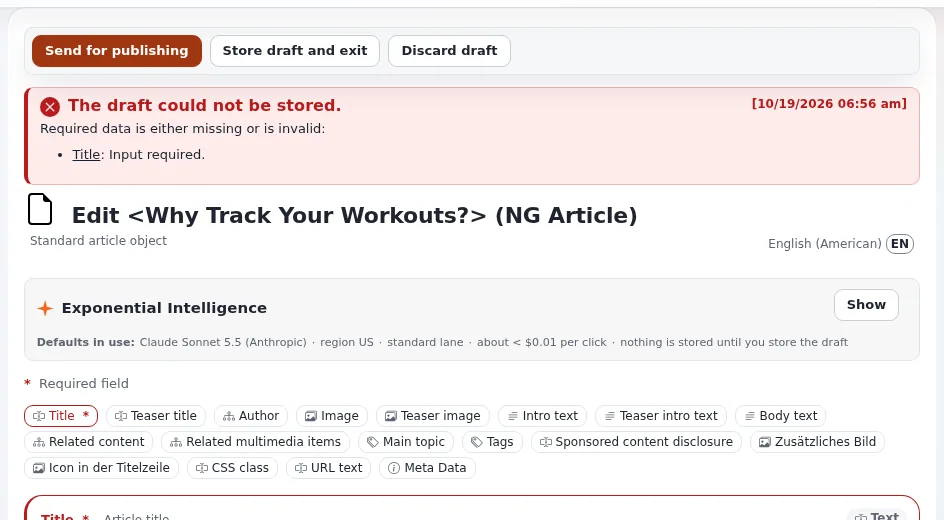
- Required fields (4 minutes). Leave Intro empty and press Send for publishing. The form comes back with a message at the top and at the field. Fill it in and publish again.
- Editing (5 minutes). On the article's page, press Edit. A new draft is made, a copy of the published version; the site keeps showing the published version until you publish. Change the title and publish: the page shows Version 2.
- Languages (2 minutes). If an item exists in more than one language, choose the language in the list next to Edit first. On a single-language training site, show the list and move on.
- Edit conflicts (4 minutes). If someone already has a draft of the item, the page Possible edit conflict appears first. Learners can continue one of their own drafts (select it and press Edit selected), start a New draft from the published version, or Cancel. A draft of someone else cannot be edited.
Common questions
What is the difference between Title and Short title? The short title, when filled in, is used as the item's name in lists and the tree on a standard installation; the title is the full heading.
Can I paste from a word processor? Yes, into the rich text fields. Lesson 4.1 shows how to check what was pasted.
What happens if my browser closes while I write? The draft is saved automatically every few minutes while you work, so a closed tab costs little. It waits under My drafts.
Why do I see Possible edit conflict on my own article? You left an earlier draft of it, for example with Store draft and exit. Continue it, or make a new draft.
Pitfalls
- The image field. Do not let learners upload images yet; lesson 5.3 covers it. Leave Image empty.
- Two drafts by mistake. A learner who presses Edit twice in two tabs gets the edit conflict page. Use it as a teaching moment.
- Writing in the wrong folder. Ask learners to check the path before Create new, as in lesson 3.1.
Hands-on exercise
Use the training installation and your Editor training account.
- Open your course folder from lesson 3.1 (below Training).
- Under Sub items, press Create new and choose Article.
- In Title, type
My first article. - Leave Intro empty and press Send for publishing. Read the message at the top of the form and at the field.
- In Intro, type two sentences about your job.
- In Body, type a short paragraph about what you want to learn in this course.
- If the form has Author, check that your name is filled in; add it if not.
- Press Send for publishing. Note the version on the article's page.
- Press Edit. Change Title to
My first article, edited. - Press Send for publishing and note the version again.
- Press Edit once more, then open the dashboard in a second browser tab and look at My drafts.
- Back in the first tab, press Discard draft and confirm. Check the article's title on its page: it is the one from step 9.
Expected result
- Step 4: the form refused to publish and named the empty required field.
- The article My first article, edited is published in the learner's folder, at Version 2.
- Step 11: My drafts listed the open draft of the article.
- After step 12 the draft is gone and the published title is unchanged.
- The trainer checks by opening one learner's article and its Manage versions page on the projector.
Quiz
- You press Edit on a published article. What do visitors see while you write?
- Which two fields of a standard article are required? A. Title and Body B. Title and Intro C. Intro and Image D. Author and Title
- What does the page Possible edit conflict let you do?
- True or false: Discard draft on an existing article deletes the article.
- An item exists in English and German. What do you do before pressing Edit to change the German text?
Answers
- The published version; the draft is visible only to you until you publish.
- B. On a standard installation; check your own installation's form.
- Continue one of your own drafts, start a New draft from the published version, or Cancel (Creating and editing content).
- False. It throws the draft away and keeps the published version as it was.
- Choose German in the language list next to Edit.
Further reading
- Creating and editing content: the edit form, conflicts and relations.
- Publishing, versions and the trash: what happens at publishing.
- My drafts and my pending items: where unfinished drafts wait.
Related pages
- Module 3: Creating and editing content
- Editors 101: course overview
- Trainers: start here
- Free documentation: this page is free to copy, translate and improve under the GNU FDL 1.3.
Become an Exponential Partner
Partners share their information, provide funding, contribute back and develop the products with us, and that is how Exponential grows. A partner website and dashboard are planned for mid-2027: please become a partner today to speed up our growth rate and land new features faster.