Lesson 2.1: Users and user groups
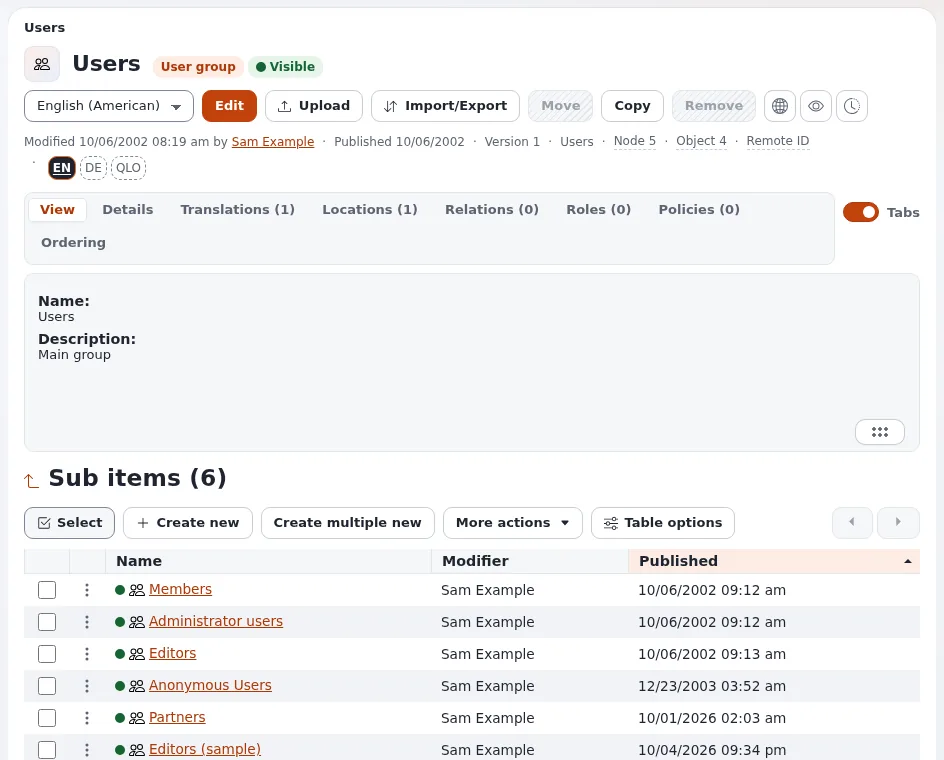
In Exponential, users and user groups are content: they live in their own part of the content tree, under Users, and are created, moved and edited like other items. A user's place in that tree decides which groups it belongs to, and the groups decide most of what it may do. This lesson builds that picture before learners create accounts.
At a glance
| Course | Site administration |
| Module | Module 2: Users and groups |
| Duration | 35 minutes (15 presenting, 20 exercise) |
| Level | Intermediate |
| Audience | Site administrators |
| Prerequisites | Module 1; an administrator account on the training installation |
Learning objectives
After this lesson, learners can:
- open the Users tree and name the user groups of a new installation;
- explain that a user belongs to every group it has a location in;
- read a group's Roles and Policies tabs;
- explain the special place of the anonymous user and the account
admin; - create a user group for a team.
Trainer's notes
How to present it
Source: Roles, policies and unactivated users and Your account and signing in.
- The Users tree (4 minutes). Press Users in the top menu. The left column shows User accounts with the top group Users and its groups (on a site installed from the 7x site packages, for example Members, Administrator users, Editors and Anonymous Users), and under Access control the entries Roles and policies, Unactivated users and Check user accounts.
- A group is an item (3 minutes). Open Administrator users. It has the tabs of any item (View, Details, Locations, Relations) plus Roles and Policies: the roles assigned to this group and the policies they give.
- Membership is location (4 minutes). A user is a member of the group it is placed in. A user with two locations (in Editors and in another group) has the roles of both. Moving a user to another group changes its rights at once.
- Two special accounts (4 minutes). The anonymous user (in Anonymous Users) is who every visitor is before
signing in: its roles decide what the public may see. The account
adminis the first administrator; it should not be the everyday account of anyone (lesson 2.3).
Common questions
Can a user be in no group? Every user object needs at least one location, and that location is below a group. A user account without a location is reported as Orphaned on Check user accounts (lesson 2.4).
Why is there a Trash entry under Users? The left column shows the trash, but user objects never go to the trash: removing a user is final. Lesson 2.4 shows how to retire accounts instead.
Can a group be inside another group? Yes. A member of an inner group also gets the roles assigned to the groups above it.
Pitfalls
- Editing the Anonymous Users group's roles. A wrong change there opens or closes the whole public site. Look, do not change, in this lesson.
- Removing a group with users in it. The users are removed with it, for good. Never remove a group in class without checking its sub items.
Hands-on exercise
On your training installation, signed in as an administrator:
- Press Users in the top menu. Write down the groups listed under User accounts.
- Open Administrator users and its Roles tab. Note the role assigned and whether it has a limitation.
- Open the Policies tab of the same group and read the policies it lists.
- Open Anonymous Users, then its Roles tab. Note the role.
- Open the top group Users. Under Sub items, press Create new and choose User group.
- Name the group
Training teamand give it a short description. - Press Send for publishing.
- Open the new group's Roles tab. It is empty: no role is assigned yet.
- Open your own account (the user menu with your name in the header leads to it, or find it in Administrator users) and open its Locations tab. Which group is it in?
Expected result
- Learners name four or more groups and the role of Administrator users and Anonymous Users.
- A group
Training teamexists directly below Users, with no roles. - Step 9: the learner's account is located in Administrator users.
- The trainer checks by opening Users on one learner's screen and the new group's Roles tab.
Quiz
- What decides which groups a user belongs to? A. A field on the user B. Its locations in the Users tree C. The role list D. The siteaccess
- Which account is every visitor before signing in?
- Name the two tabs a user group has that an ordinary folder does not.
- A user is in an inner group. Does it get the roles of the groups above it?
- True or false: a removed user can be restored from the trash.
Answers
- B. Membership is the user's location.
- The anonymous user, in Anonymous Users; its roles decide what the public may see.
- Roles and Policies.
- Yes, the roles of the groups above it apply too.
- False. User objects never go to the trash; removing one is final (Check user accounts).
Further reading
- Roles, policies and unactivated users: roles and how they reach users.
- Your account and signing in: what users see of their own account.
- Check user accounts: the account checks of lesson 2.4.
Related pages
- Module 2: Users and groups
- Site administration: course overview
- Trainers: start here
- Free documentation: this page is free to copy, translate and improve under the GNU FDL 1.3.
Become an Exponential Partner
Partners share their information, provide funding, contribute back and develop the products with us, and that is how Exponential grows. A partner website and dashboard are planned for mid-2027: please become a partner today to speed up our growth rate and land new features faster.