Migrations: the status and the history
Setup > Migrations shows the migrations of the installation: what is done, what is pending, every run with its captions and its record, and the log of each run. This page explains the three pages that only show (status, history, the page of a run) and the dashboard block. Running, the dry run and the rollback are on Run, dry run and rollback.
What a migration is, and how they are written, is explained in the guide Migrations.
Who may see these pages: users with the policy migration/read. In a new installation only the Administrator
role has it (its policy on every module). Seeing never asks for "Verify it's you".
Contents
- Opening the migrations
- The status
- The history
- The page of a run
- The dashboard block
- When something is wrong
- Related pages
Opening the migrations
Open Setup in the top menu and choose Migrations in the left column (group System). The address is
/migration/status. The ? button in the header opens this page from any of the three pages.
- Choose Setup in the top menu.
- Choose Migrations in the left column. The status opens.
- Use the tabs to move between the pages.
Each page of Setup > Migrations has the same row of tabs: Status, History, Dry run, Remotes and
Deploys, and, for users with the policies, Run (migration/run), Rollback (migration/rollback),
Recording and Editor (migration/edit). A tour of all of them:
A tour of Setup > Migrations.

The status
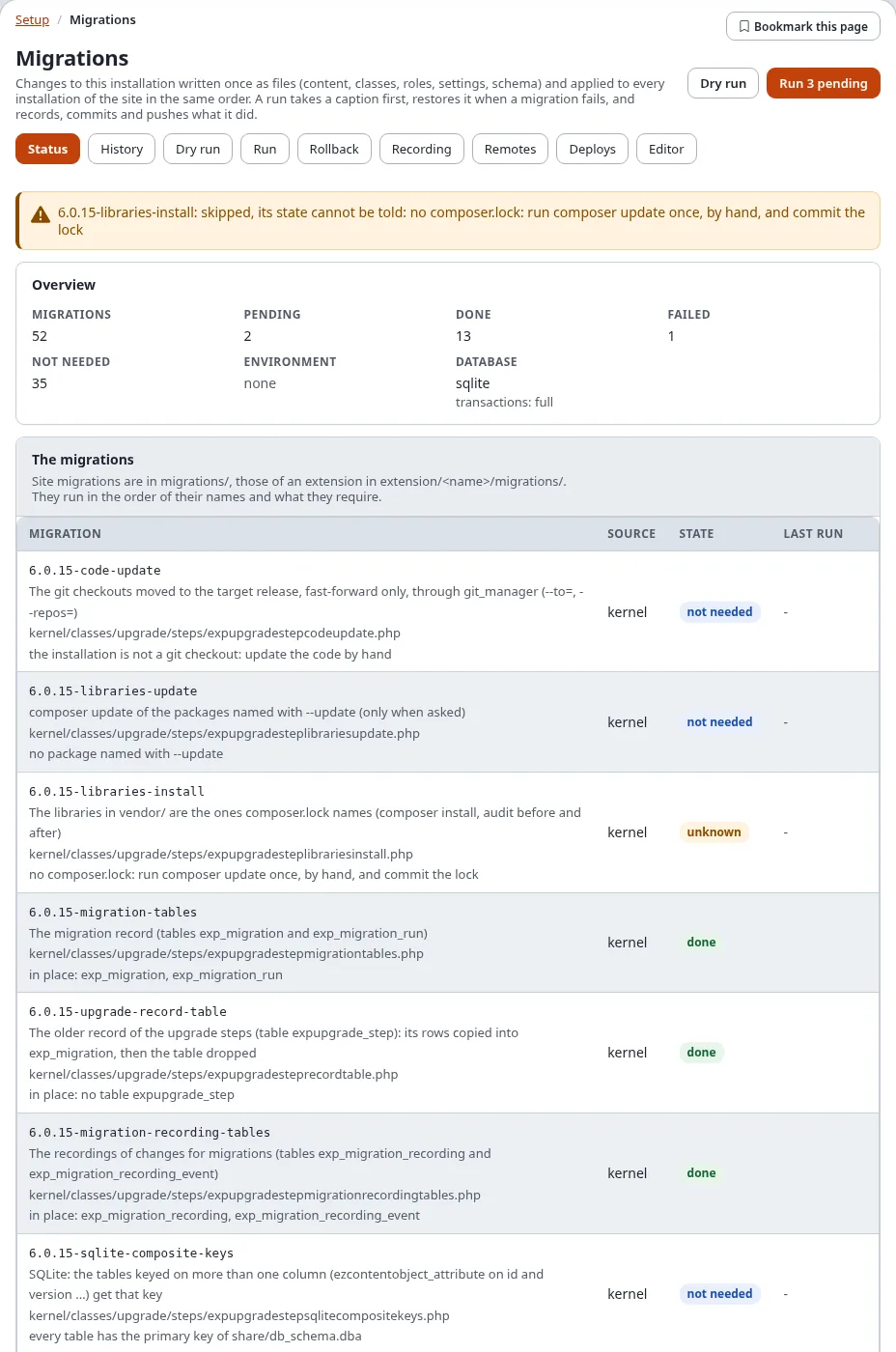
From the top:
| Part | What it shows |
|---|---|
| The heading | Dry run, and Run N pending when migrations are pending and you have migration/run |
| A run going on | A run is going on: what was started (run, resume or rollback), by whom and when, with Follow it to its page |
| The lock | The installation is locked: another run holds the lock, an upgrade or a run on the console, with who holds it |
| Errors and warnings | what exp:migration:status reports: an id found twice, a missing requirement, a file changed after it was applied, migrations recorded whose file is gone (orphans), pushes that wait |
| Overview | the number of migrations, pending, done, failed, not needed; the environment; the database and how much of a failed migration its transactions undo (full, data, none) |
| The migrations | every migration with its id, description and file, its source (site, extension:<name>, package:<name>), its state and the run that applied it (a link to that run's page). A migration whose file changed after it was applied says The file changed after it was applied. |
| The latest runs | the five newest runs with their state, start and user; Every run opens the history |
The states are those of the console: done, pending, not needed (not for this environment or database engine), failed and unknown.
The kernel's upgrade steps come first in the list (source kernel); the site's own migrations follow, here three
done, one failed and two pending, each with the run that applied it or tried to:

To check the state of an installation, step by step:
- Open the status. Read Overview: Pending and Failed should be 0 after a deploy.
- A failed migration: click its last run and read the report (When a migration fails).
- Pending migrations: open Dry run to see what they would change, then Run them (Run, dry run and rollback).
- A warning such as "The file changed after it was applied." needs a decision before the next run (Run).
When the tables of the migrations do not exist yet, the page says so: ./console exp:upgrade --apply makes them.
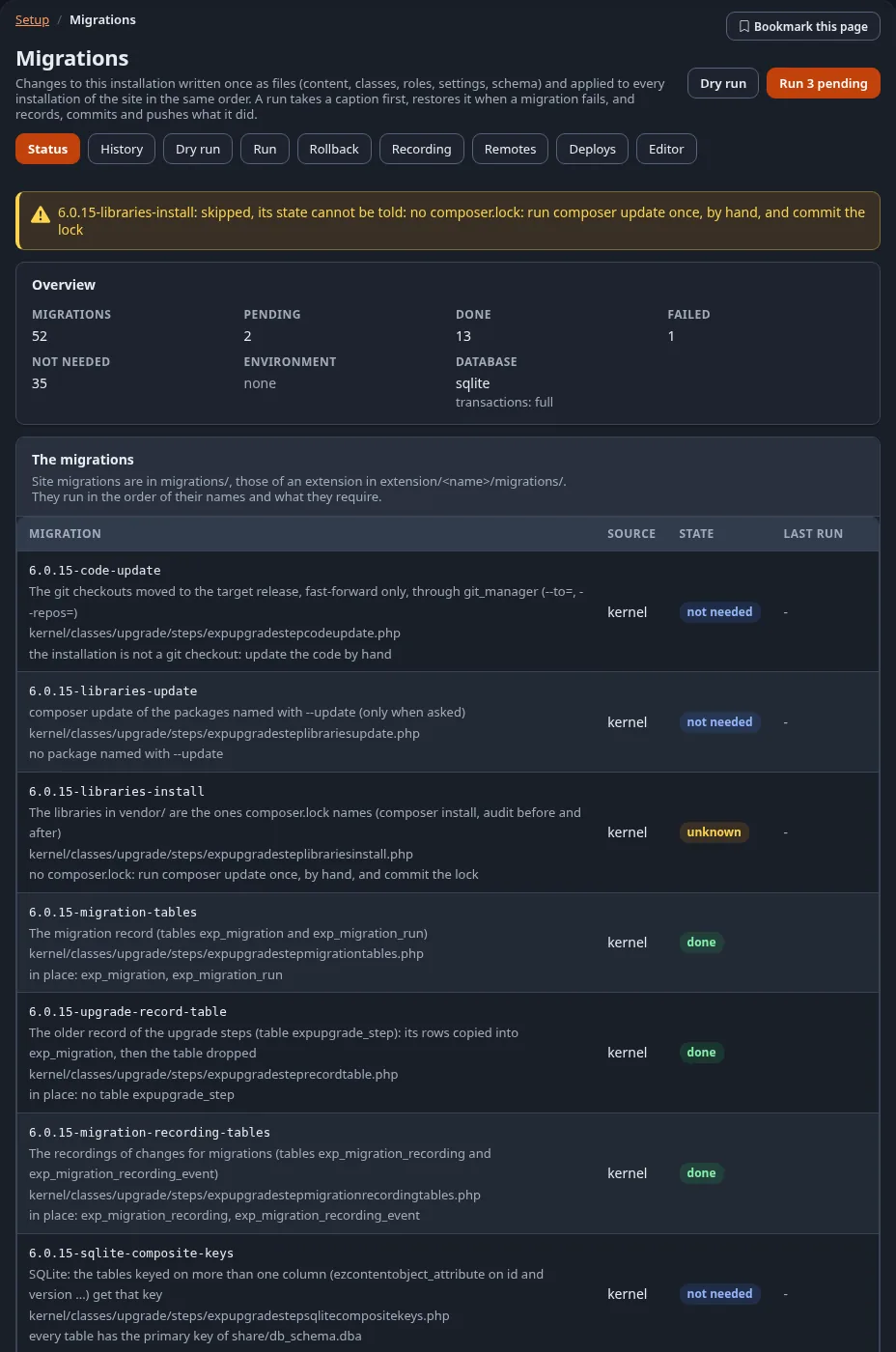
The page shows the same as ./console exp:migration:status; the dark mode shows the same page:
The history
History (/migration/history) lists the runs, newest first (at most 200).

- Show filters them: All, running, done, failed, rolled back, each with its number. The filter
is part of the address (
/migration/history/(state)/failed), so a filtered list can be bookmarked. - Runs: each run with its id (a link to its page), its environment and message, its state, when it started, who ran it, its Captions (before and after) and its Repository columns (the commit, the tag and the push state).
- The buttons of a run: Resume for a failed or interrupted run (with
migration/run, while no run is going on) and Roll back for a run with a caption taken before it (withmigration/rollback). Both lead to Run, dry run and rollback. - Started here: the runs, resumes and rollbacks started on these pages, with who started them and their result. A rollback has no run of its own, so it is listed only here.
The page of a run
Click a run's id anywhere in Setup > Migrations to open its page, /migration/log/<run id>.
| Part | What it shows |
|---|---|
| Progress | for a run started in the administration: who started it and when, its phase (Checking the code and taking a caption before the run, Running ... (n of m), the caption after the run, the commit, tag and push, or Restoring the caption), and a bar of the migrations done |
| Report | when it has ended: each migration with its result and time, and what the run printed as errors |
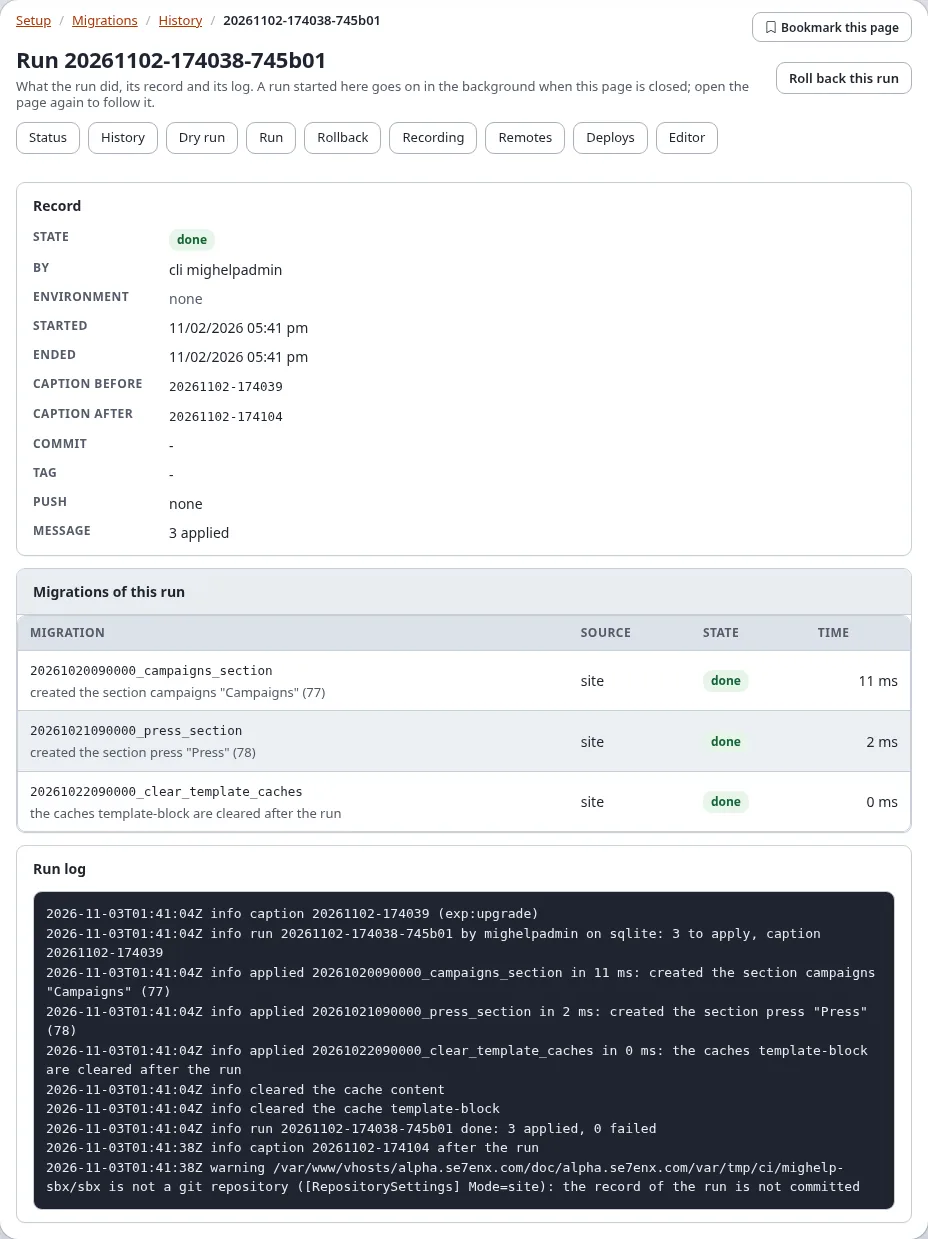
| Record | the run's row: state, user, environment, start and end, the captions before and after, commit, tag, push, message |
| Migrations of this run | the migrations the run recorded, with their source, state and time |
| Run log | the end of the run log (migrations/runs/<run id>.log); only the last 256 KB are shown, as set by migration.ini [AdminSettings] LogBytes |
A run that passed: its record with the captions before and after, the migrations of the run and the run log.
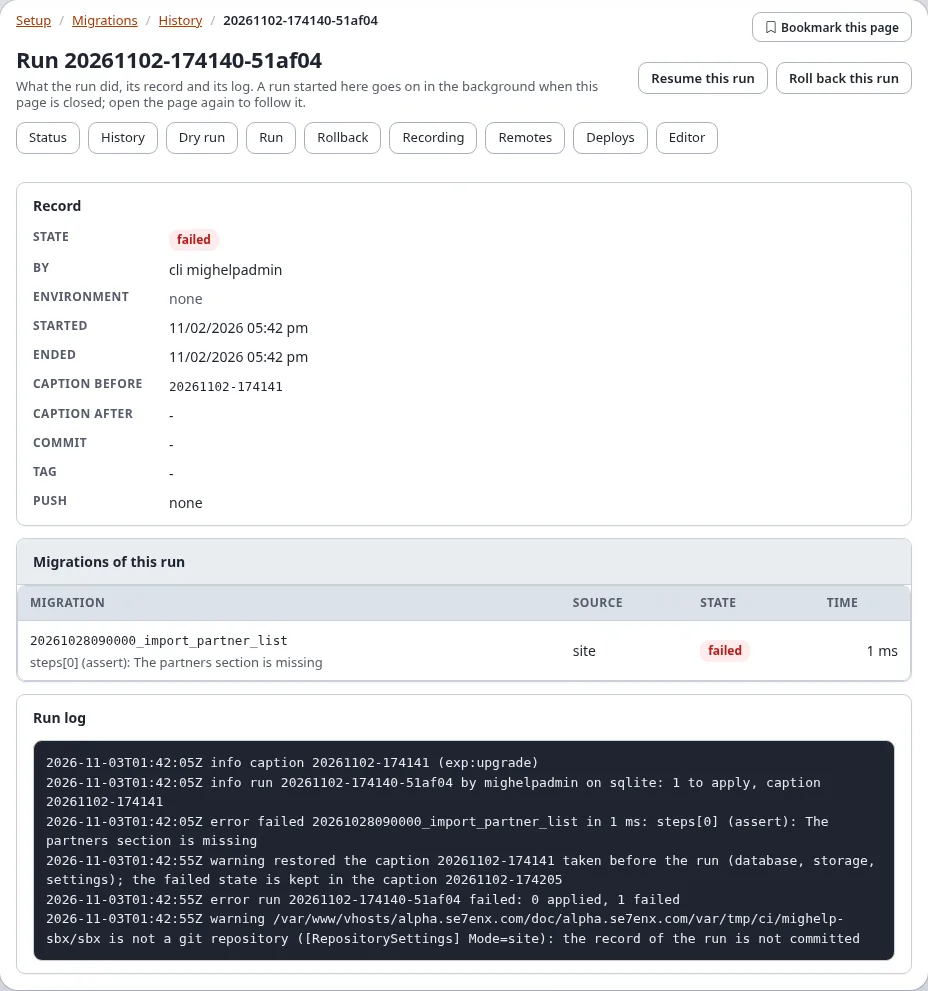
A run that failed: the migration that failed, its message, the caption that was restored, and Resume this run.
While a run goes on, the page follows it as it goes: the progress, the bar and the log grow without a reload, and the page reloads itself with the report when the run has ended. Without JavaScript, Reload shows how far it is.
A run started here is a process of its own on the server. Closing the page, or signing out, does not stop it: open the page again (from the dashboard, the status or the history) to follow it.
The heading has Resume this run (a failed or interrupted run, with migration/run) and Roll back this run (a
run with a caption before it, with migration/rollback).
The dashboard block
The dashboard of the administration has a Migrations block for users with migration/read. It shows:
- Pending, Failed and Orphans (migrations recorded whose file is gone), as numbers;
- Last run: when it started, as a link to its page, with its state;
- a note when migrations failed, when a run is going on (with a link to follow it) or when the installation is locked;
- All migrations, a link to the status.
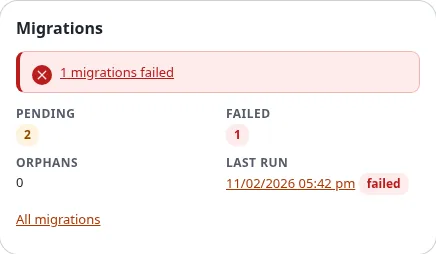
Users without the policy do not see the block. Its place and policy are settings: dashboard.ini [DashboardBlock_migrations].
When something is wrong
| You see | What to do |
|---|---|
| The tables of the migrations do not exist yet | run ./console exp:upgrade --apply on the server |
| The installation is locked | another run or an upgrade is going on; wait for it. A lock left by a process that has ended is taken over by the next run (Troubleshooting) |
| a migration failed | open the run's page and read its report and log; fix the migration and Resume the run |
| The file changed after it was applied | put the file back, or accept the change when you run (Run, dry run and rollback) |
| the page of a run stops following it | reload the page; the run goes on regardless |
Related pages
- Migrations: the hub, All recipes, Frequently asked questions
- The guide, the tutorial, PHP migrations, Rollback and captions, The migrations repository
- In the administration, Commands, Settings, Policies, views and events
- The file format, The feature
- When a migration fails, Troubleshooting messages
- Migrations versus migrating a site
- Run, dry run and rollback
- Migrations in the website sidebar
- The views of the module migration and its policies