Migrations: add a remote step by step
A remote is another installation of the same site that this installation deploys its migrations to: a dev server, a staging server, production, a second production node. You add each one once in Setup > Migrations > Remotes; afterwards a deploy only needs to tick it (Deploy step by step).
Who may do this: users with the policy migration/remotes (Administrator in a new installation). Saving and
removing a remote ask "Verify it's you". The list is visible with migration/read.
Contents
- Before you start
- The list of remotes
- Step 1: the remote
- Step 2: the connection
- Step 3: the credential
- Step 4: the host key
- Step 5: test, review and save
- Edit or remove a remote
- FTP-only hosts and the trigger
- Self-healing
- When something goes wrong
- Related pages
Before you start
Have these ready for the host you add:
- The installation there: the same site, on the same kernel version, with its migrations tables (
./console exp:upgrade --applythere) and captions switched on (migration.ini [CaptionSettings]), so a failed deploy can be taken back. - How to reach it: the host name, the port, the user, the path of the installation, and the PHP command line
there (for example
/opt/plesk/php/8.4/bin/php). - The credential as a secret: an SSH private key or a password, stored in Setup > Secrets under a name such as
deploy_production1(or an environment variable of the server process). The remote's settings only ever hold that name. For an SSH key, put its public key into~/.ssh/authorized_keysof the user there. - Optionally the host key fingerprint: on the remote,
ssh-keygen -l -E sha256 -f /etc/ssh/ssh_host_ed25519_key.pubprintsSHA256:....
The list of remotes
Open Setup > Migrations and choose the tab Remotes (/migration/remotes).
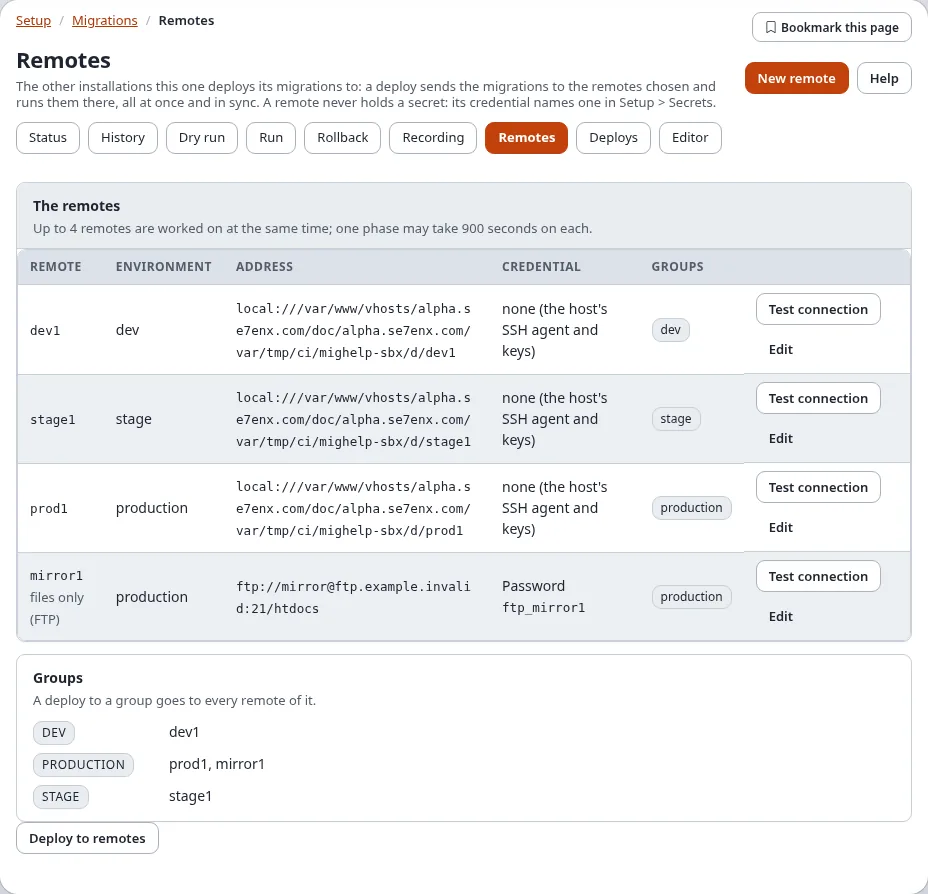
| Column | Shows |
|---|---|
| Remote | its id; files only (FTP) for an FTP remote without the trigger; settings to fix with what is wrong |
| Environment | dev, stage, production ...; a staged deploy goes through them in this order |
| Address | transport://user@host:port/path |
| Credential | the kind and the name of the secret, never a value |
| Groups | the groups it belongs to; Groups below lists every group with its remotes |
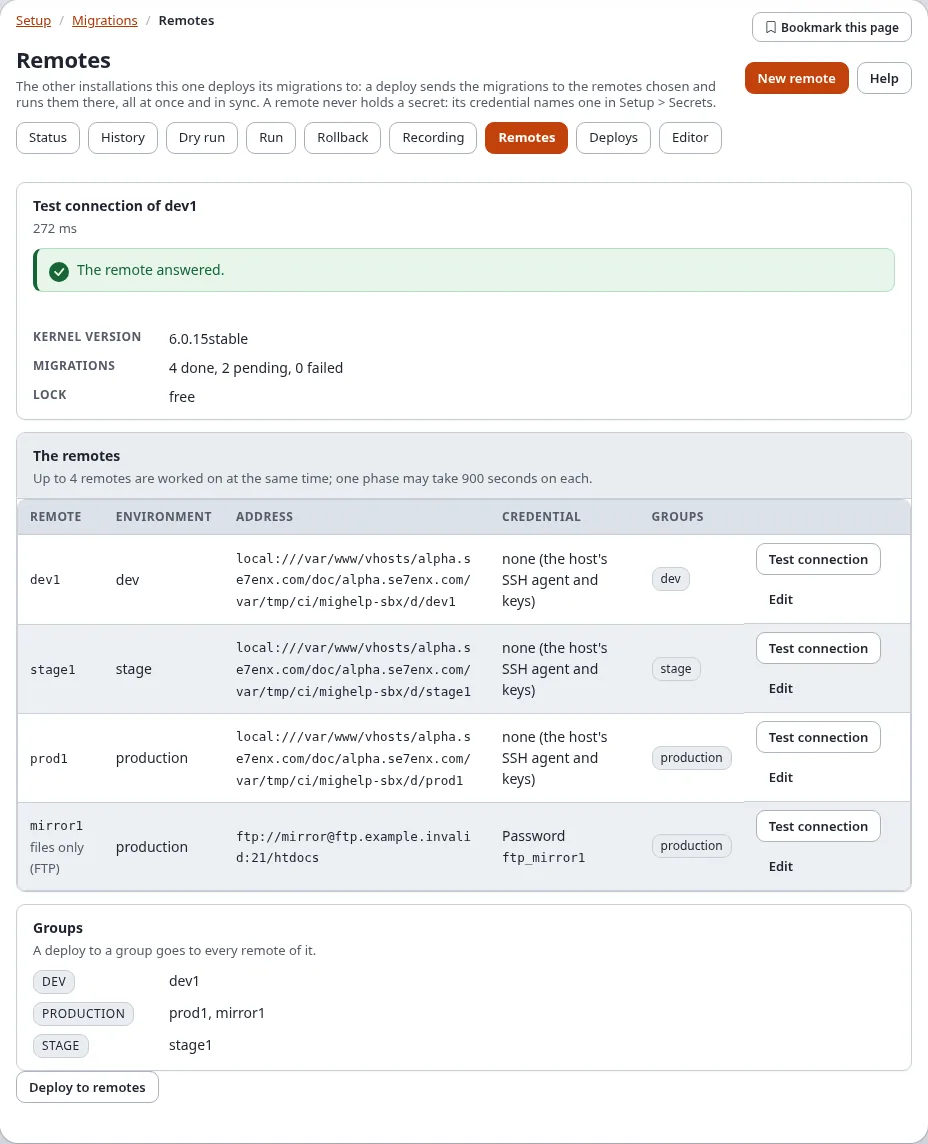
Each row has Test connection and Edit. Test connection reaches the remote once and changes nothing; the answer shows at the top of the page: the kernel version there, how many migrations are done, pending and failed, and whether a run holds its lock.
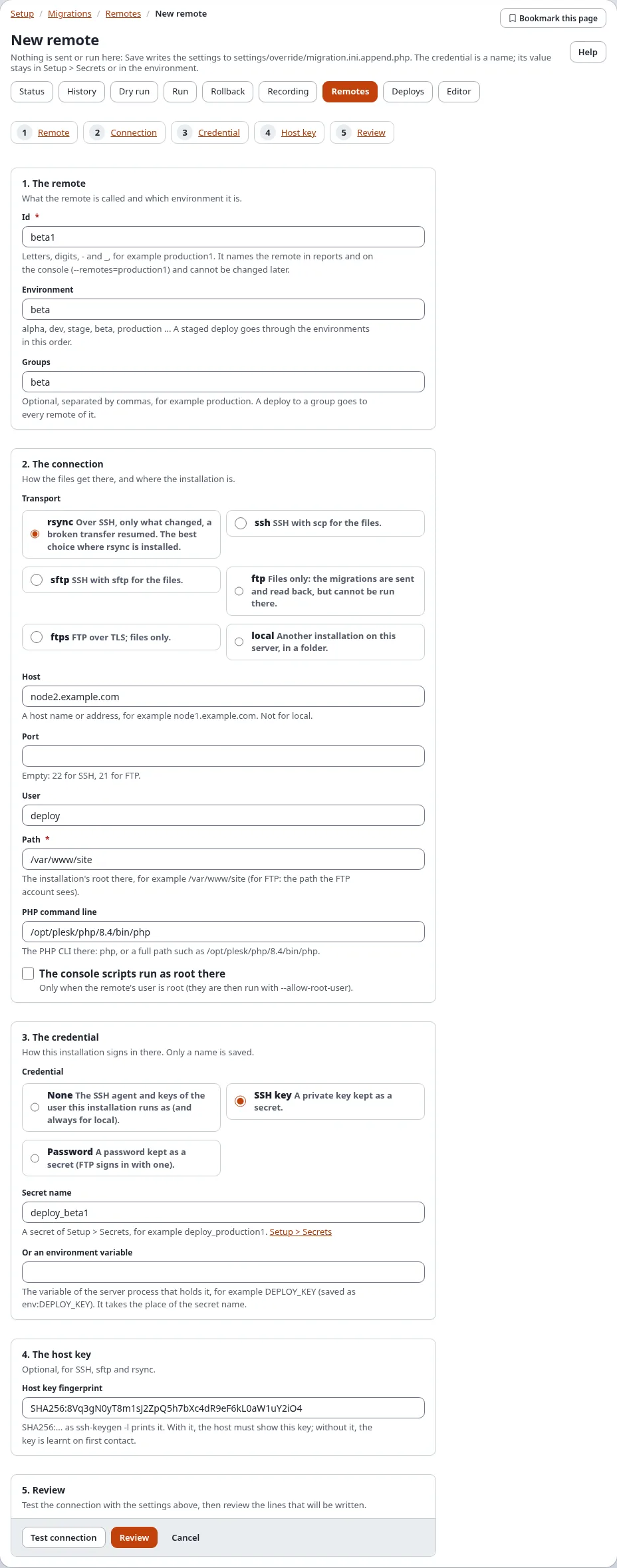
Press New remote (top right) to start the wizard. The wizard is one page with five steps; the whole page:
Step 1: the remote
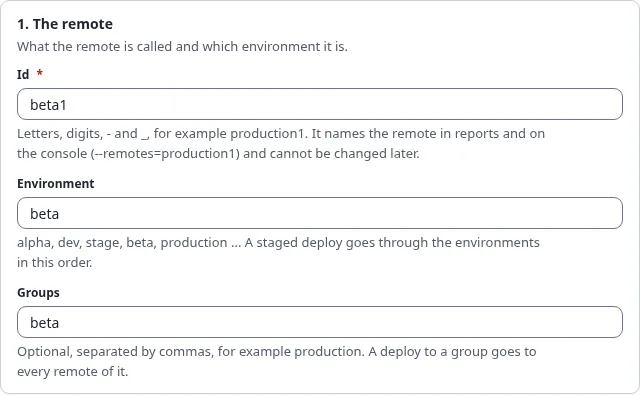
- Remote: the id, letters, digits,
-and_, for exampleproduction1. It names the remote in reports and on the console (--remotes=production1) and cannot be changed later. - Environment:
alpha,dev,stage,beta,production... A staged deploy goes through the environments in the order of[RemoteSettings] StageOrder[]. - Groups (optional): names separated by commas, for example
production. A deploy to a group goes to every remote of it.
Step 2: the connection
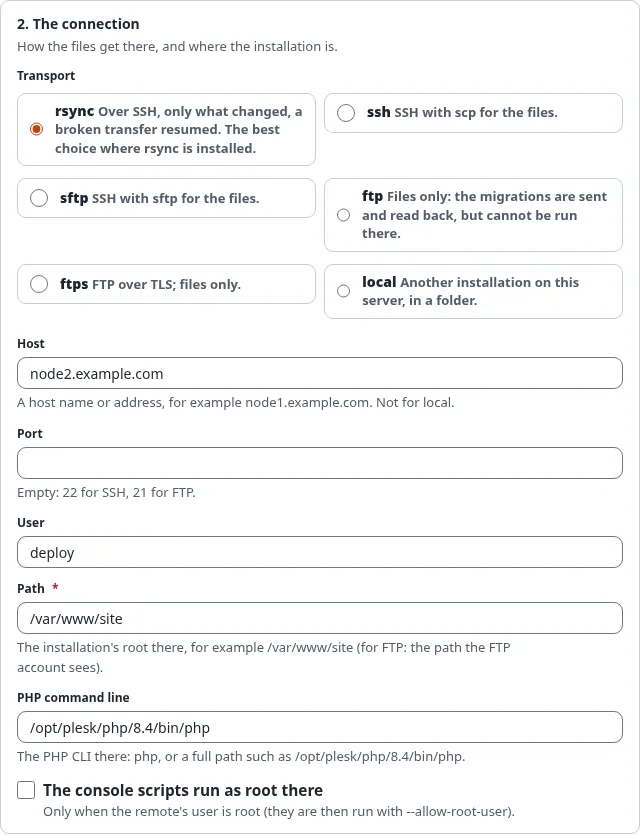
Transport, how the files get there:
Choice Use it when rsync the remote has rsync: over SSH, only what changed, a broken transfer resumed. The best choice ssh SSH with scp for the files sftp SSH with sftp for the files ftp files only: the migrations are sent and read back, but cannot be run there (unless the trigger is set up) ftps FTP over TLS; files only local another installation on this server, in a folder Host: a host name or address (not for local). Port: empty means 22 for SSH, 21 for FTP. User: the account there.
Path: the installation's root there, for example
/var/www/site(for FTP: the path the FTP account sees).PHP command line:
php, or a full path.The console scripts run as root there: tick only when the user there is root (the scripts then run with
--allow-root-user).
Step 3: the credential
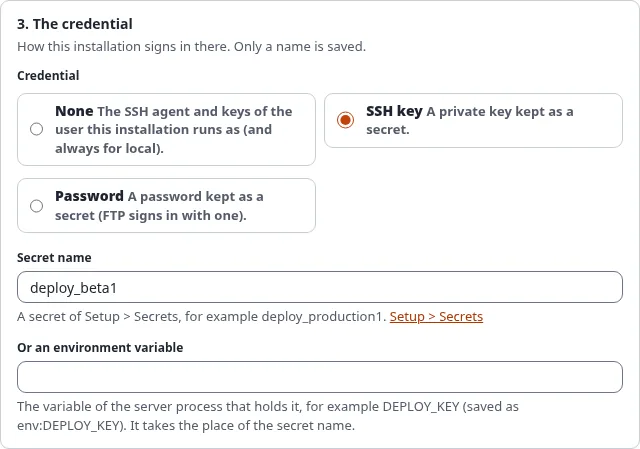
- Choose the kind:
- None: the SSH agent and keys of the user this installation runs as (and always for local).
- SSH key: a private key kept as a secret.
- Password: a password kept as a secret (FTP signs in with one).
- Type the Secret name as it is in Setup > Secrets (the link opens it), or Or an environment variable:
the variable of the server process (saved as
env:VARIABLE).
Only the name is saved. A password or key typed anywhere in the form is never written.
Step 4: the host key
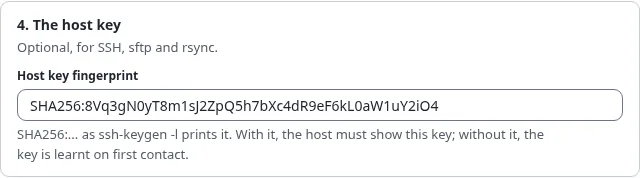
Optional, for SSH, sftp and rsync: paste the Host key fingerprint (SHA256:...). With it the host must show this
key; without it the key is learnt on first contact.
Step 5: test, review and save

Press Test connection. The settings are tried as entered, not saved yet, and the answer shows above the form:
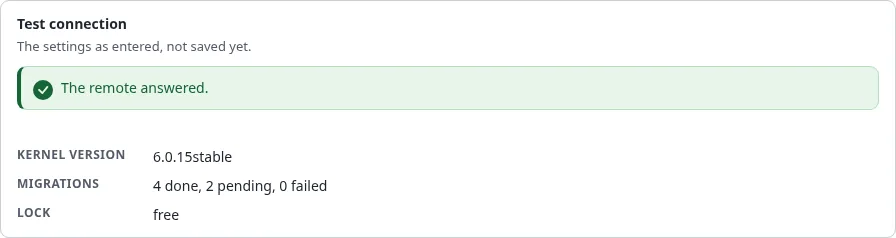
The answer of Test connection in the wizard: the settings as entered, the remote answered Press Review. The settings are checked and the lines that will be written to
settings/override/migration.ini.append.phpare shown as a difference:
Review: the settings are valid, the lines that will be written Press Save (or Change to go back to the form, Cancel to leave). Confirm "Verify it's you". The lines are written, a backup of the file is kept, the change is audited as
system.migration.remote, and the list of remotes opens with the new remote.
The remote can now be chosen on the Deploys page. Press Test connection in the list once more to see it from there.
Edit or remove a remote
- Edit in the list opens the same wizard with the remote's settings (the id cannot be changed). Change what you
need, Review, Save. Settings the wizard does not show (
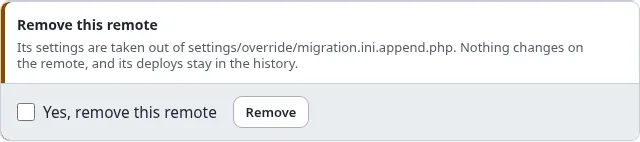
Trigger,TriggerSecret) are kept. - Remove this remote, at the bottom of the wizard of an existing remote: tick Yes, remove this remote and press Remove (Verify it's you). Its settings are taken out of the override file. Nothing changes on the remote, and its deploys stay in the history.
FTP-only hosts and the trigger
A host reached only by FTP cannot run commands, so a deploy can only send the files there (Transfer only). When
the installation there offers the signed HTTP trigger, it is deployed like any other remote. Set up, in
settings/override/migration.ini.append.php:
On the remote (the FTP host):
[TriggerSettings]
Trigger=enabled
Secret=migration_trigger
AllowedAddresses[]
AllowedAddresses[]=203.0.113.10
Php=/usr/bin/php8.4
On this installation, in the remote's section (after saving it with the wizard):
[Remote_webspace]
Trigger=https://www.example.com/migration/trigger
TriggerSecret=migration_trigger
Both secrets name the same value (at least 16 characters), stored in Setup > Secrets on each side. Test connection then reads the remote's migration status through the trigger. Details and every answer of the trigger: FTP remotes with the HTTP trigger.
Self-healing
A deploy can fix small problems on a remote by itself, each only when listed in [RemoteSettings] SelfHeal[] of this
installation:
| Fix | What it does |
|---|---|
stale-lock | removes a run lock whose process has ended (older than StaleLockAge, 7200 seconds) |
paths | makes a missing migrations folder |
modes | adds missing file permissions on the migration folders |
caches | clears the ini and template override caches there after the run |
[RemoteSettings]
SelfHeal[]
SelfHeal[]=stale-lock
SelfHeal[]=paths
SelfHeal[]=caches
Every fix made is listed under the remote on the deploy's page ("heal caches: cleared the caches tagged ini"). PHP or extension versions that differ are never fixed, only reported.
When something goes wrong
| What you see | Why, and what to do |
|---|---|
| settings to fix in the list | the remote's section is incomplete or has a value the wizard refuses; Edit it and Review |
| "the secret ... is not set" | the secret name has no value in Setup > Secrets on this installation; add it there |
Test connection: not reachable or no migration status (exit 255) | SSH could not connect or sign in: host, port, user, key, or authorized_keys there |
Permission denied (publickey) | the public key is not in authorized_keys of the user there |
the host key ... does not have the fingerprint | the fingerprint does not match; check it on the remote |
an FTP remote cannot run the migrations | deploy with Transfer only, or set up the trigger |
Test connection with "status":403 or 401 | the trigger refused: the address is not in AllowedAddresses[], the secrets differ, or the clocks differ by more than Lifetime |
| New remote is missing | you do not have migration/remotes |
More: Troubleshooting.