Migrations: the migration editor
Setup > Migrations > Editor writes YAML migrations in the browser: you build the steps with forms made from each
step type, check the migration as exp:migration:check would, look at the YAML and save it into a migrations folder.
The saved file is an ordinary migration: it shows as pending on the status page and is run, deployed and committed
like a migration written by hand.
Who may use the editor: users with the policy migration/edit (only Administrator in a new installation). The
file is written by the web server, so the migrations folder must be writable for it.
Contents
- Create a new migration
- The form of a step
- The list of steps
- Check and preview
- Save
- Change a migration
- A migration that has run
- When something goes wrong
- Related pages
Create a new migration
- Open Setup > Migrations and choose the tab Editor (
/migration/editor). The page New migration opens. - Type the Name of the migration: letters, digits and
_, for examplearchive_section. The file will be<date and time>_<name>.yml, so migrations run in the order they were made. - Choose Where it goes: The site (the site's
migrations/folder) or an active extension that has a migrations folder. - Optionally change the header lines at the top of YAML:
# description:is what the status page shows next to the migration;# requires:,# environments:and# engines:are explained in the file format. - Add the steps, with the form below the list (The form of a step) or typed into YAML.
- Check, then Save.
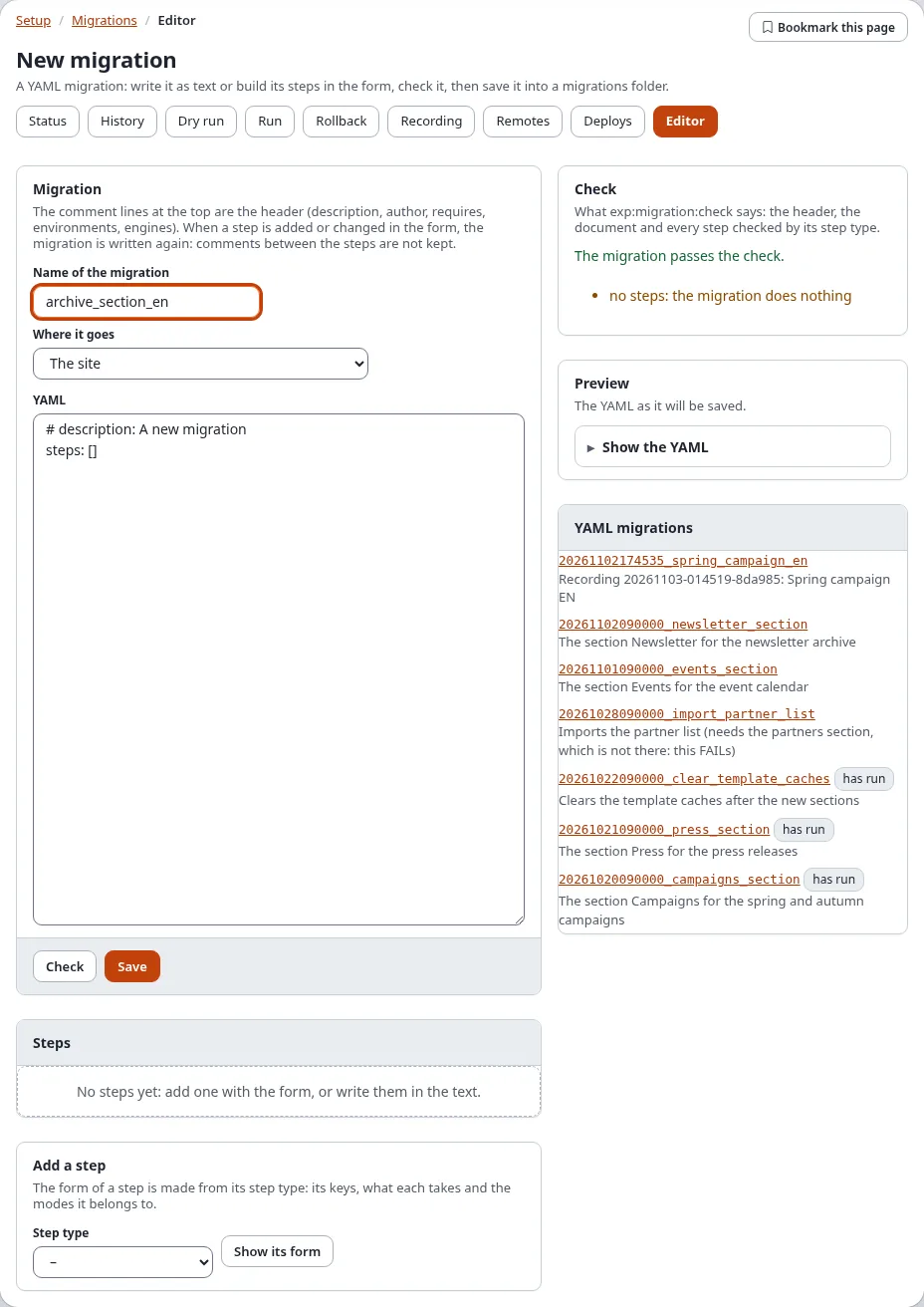
The column on the right lists YAML migrations: every YAML migration of the searched folders, newest first, with has run next to those that ran. Click one to open it in the editor.
The form of a step
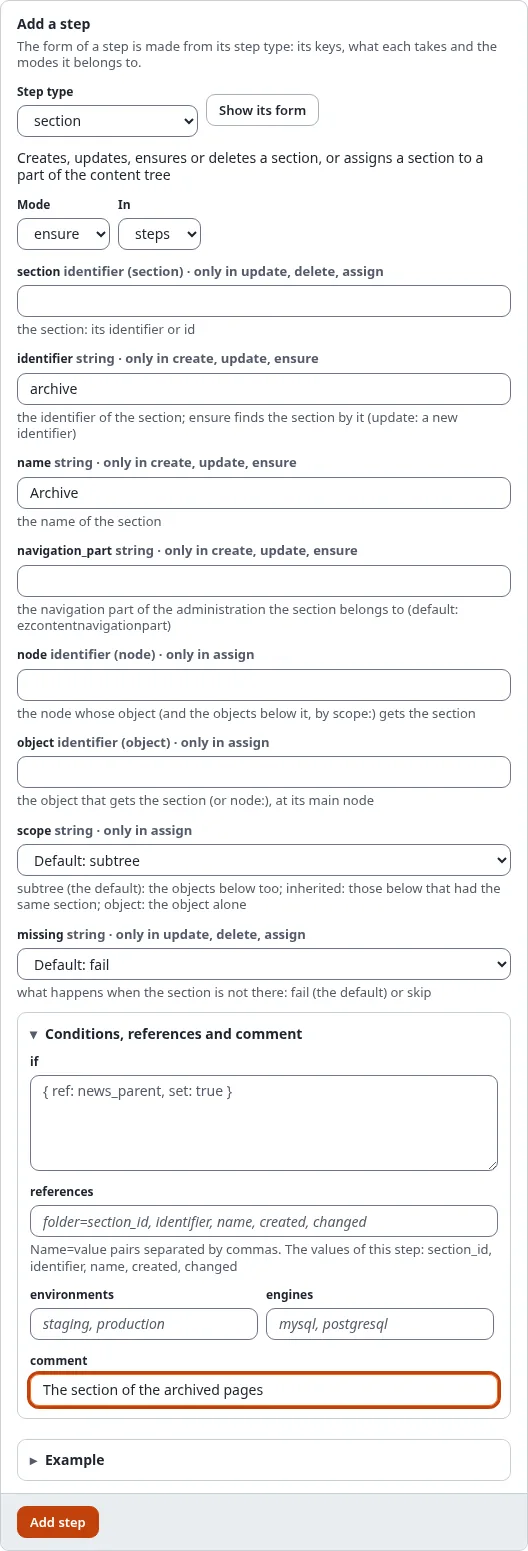
- In Add a step, choose the Step type (for example
section,content_class,role,settings,cache) and press Show its form. - The form is made from the step type's own description. Choose the Mode (
create,update,ensure,delete... as the type offers;ensurecreates what is missing and changes what differs) and In (steps, ordownfor the steps that undo the migration). - Fill in the keys. Each field names the key, its kind (text, a whole number, true or false, a node or object identifier, a list or map written as YAML), the modes it belongs to ("only in update, delete, assign"), its default, and what it does. Fields of other modes can stay empty.
- Conditions, references and comment (fold it open) holds
if(a condition),references(name=value pairs, with the values the step gives listed),environments,enginesand acomment. - Example shows a complete step of the type.
- Press Add step. The step is added at the end of
steps(ordown), and the YAML text is written again.
Loops (foreach) and steps of a type this installation does not have cannot be built in the form: write them in the
YAML text. The reference of every step type is in the migration steps.
The list of steps
Steps lists every step with its number, its type and mode, and its keys:
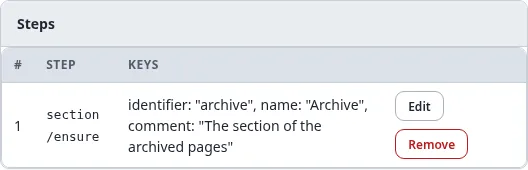
| Button | What it does |
|---|---|
| Edit | loads the step into the form; change it and press Change step to put it back in its place |
| Move up, Move down | change the order (shown when there is more than one step) |
| Remove | takes the step out |
When a step is added or changed through the form, the YAML text is written again from the parsed migration: the header lines stay, comments between the steps do not.
Check and preview
- Check runs what
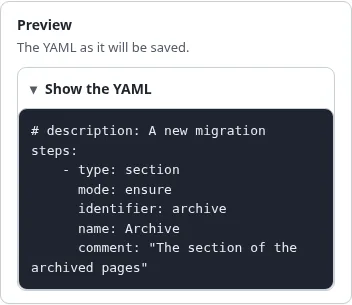
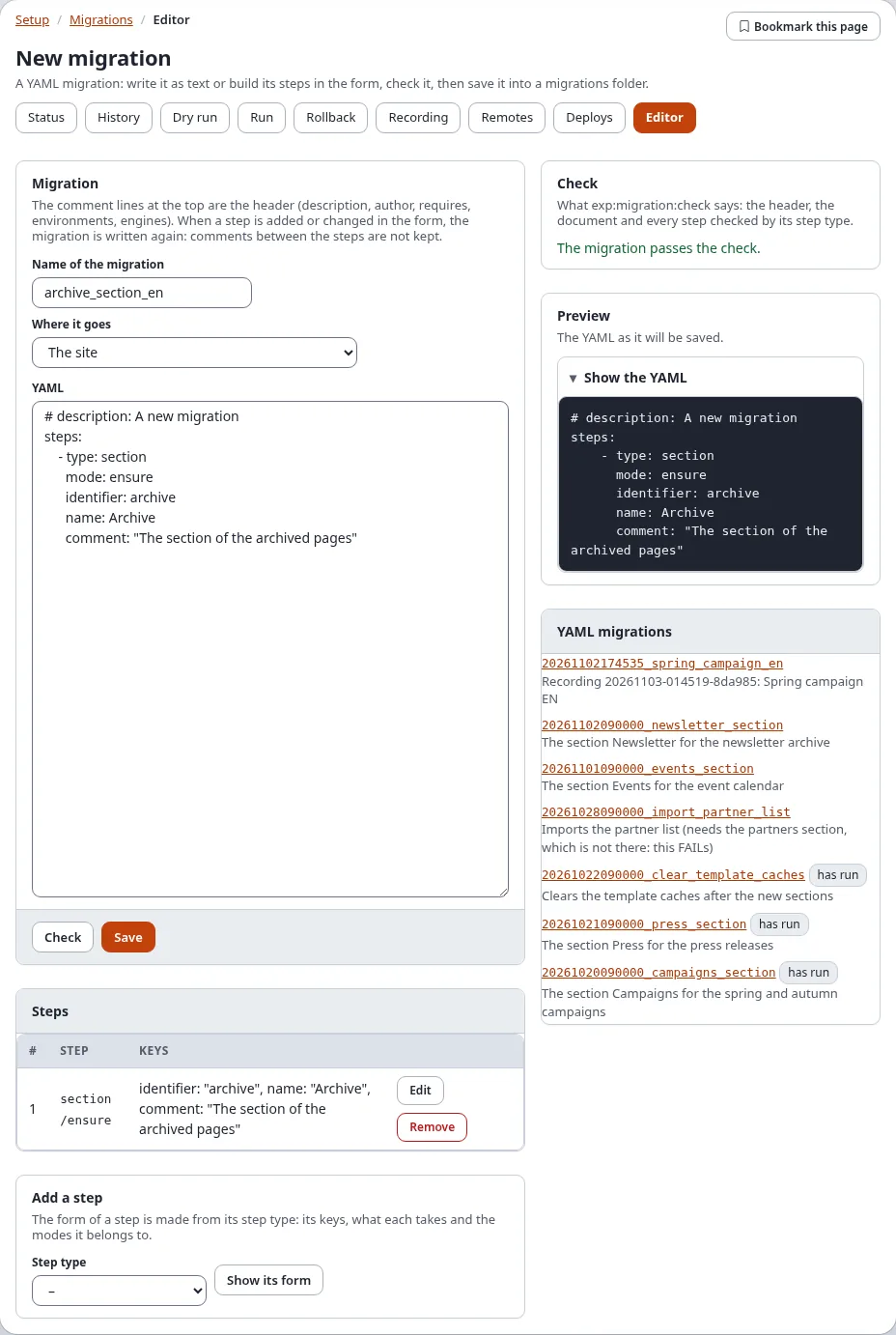
./console exp:migration:checkruns: the header, the document and every step through its step type. The card Check says The migration passes the check., or lists every problem with the step it is in. A warning (such as "no steps: the migration does nothing") does not stop a save. - Preview shows the YAML exactly as it will be saved (Show the YAML).
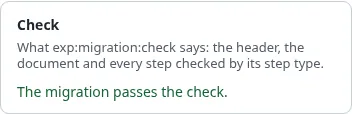
The whole editor after a check:
Save
Press Save. When "Verify it's you" asks for your password, give it. The editor writes the file and opens it:
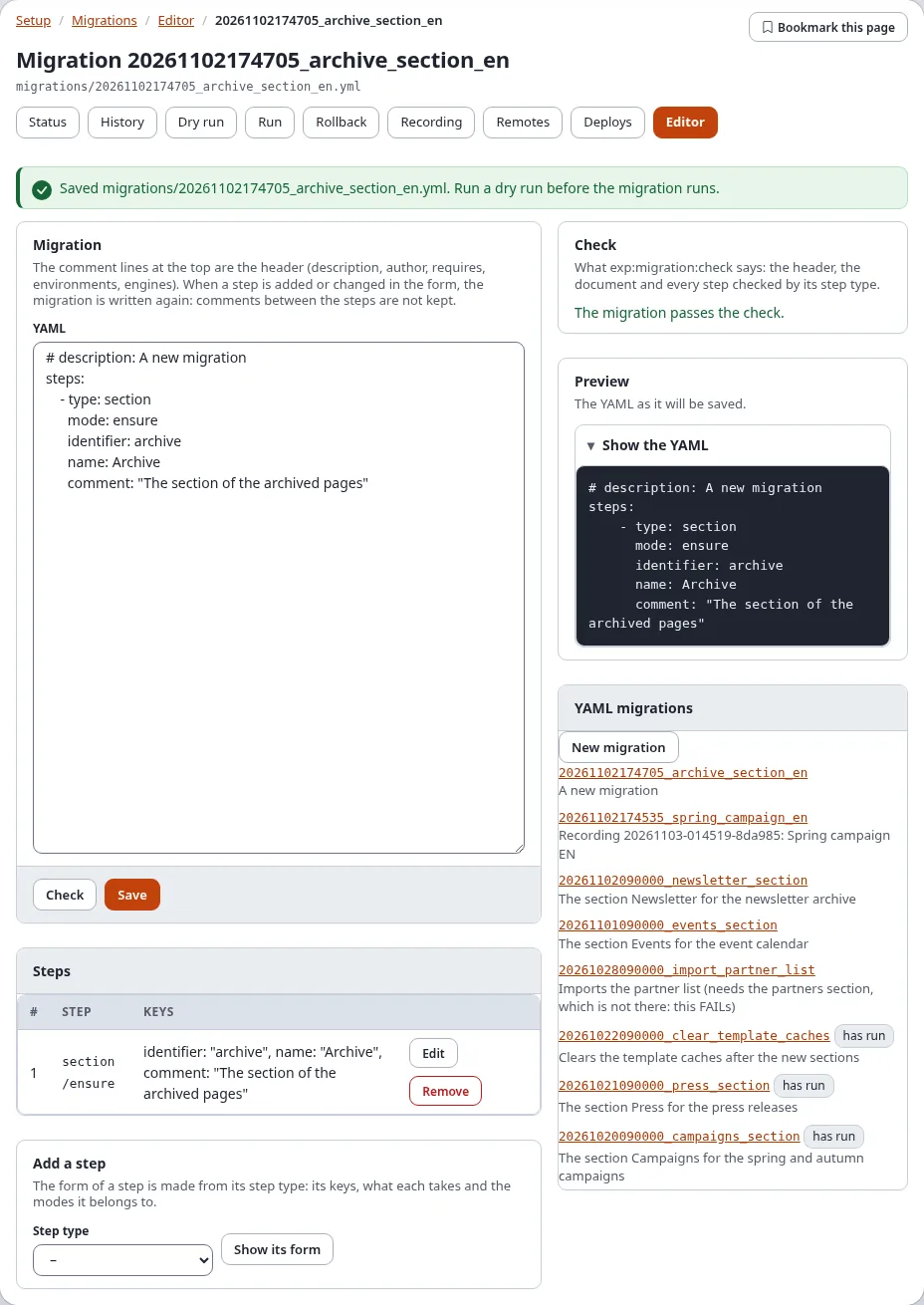
- A new migration is written as
<now>_<name>.ymlinto the site's migrations folder (the first[MigrationSettings] DirectoryListentry) or the extension's migrations folder. An existing file is never overwritten by a new one. - A text that does not pass the check is not saved; the problems are listed instead.
- The editor writes nothing outside the migration folders.
What next: the migration is now pending on the status page. Open Dry run to see what it will change, then Run (Run, dry run and rollback). Commit the file with the rest of the site so the other installations get it, or deploy it (Deploy step by step).
Change a migration
- Choose the migration in YAML migrations on the right, or open
/migration/editor/<migration id>. - Change the text, or the steps with Edit, Move up, Move down and Remove.
- Check, then Save: the file is written in place.
A migration that has run
A migration that has run is shown, but not saved again:
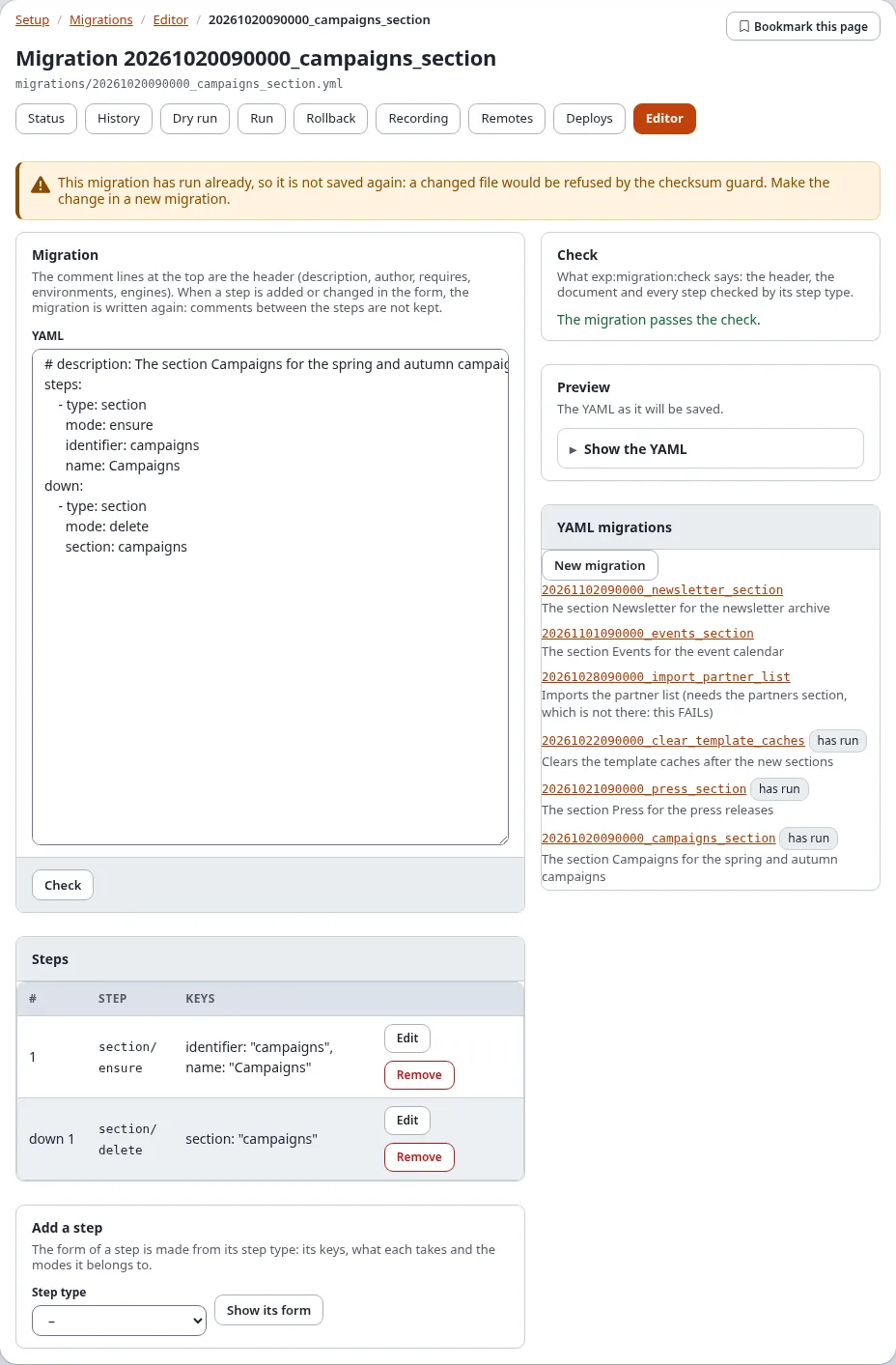
The notice says: "This migration has run already, so it is not saved again: a changed file would be refused by the checksum guard. Make the change in a new migration." Every installation that applied it keeps the checksum of the file it ran; a changed file would stop the next run there. Write the change as a new migration instead (it may undo or extend the old one).
When something goes wrong
| What you see | Why, and what to do |
|---|---|
| "The file cannot be written by the web server." | The migrations folder is not writable for the user PHP runs as. Fix the folder's permissions, or write the migration on the console. |
| The check lists a problem | Fix the key named in the problem; the step type's page in the migration steps has every key. |
| "The step has keys its type does not know" | The step was written for another version of the step type. The keys named are left out when the step is changed in the form; change it in the text to keep them. |
| A step type is missing in the list | The extension that gives it is not active. |
| The Editor tab is missing | You do not have migration/edit. |