Lesson 7.3: Troubleshooting which layout a page gets
"I published, and the page still looks the same." Every layouts team hears it. This lesson turns the troubleshooting table of the documentation into a drill: the trainer breaks something on the training site, the learners find it.
At a glance
| Course | Exponential Layouts |
| Module | Module 7: Mapping rules |
| Duration | 45 minutes (10 presenting, 35 exercise) |
| Level | Intermediate |
| Audience | Site builders and senior editors |
| Prerequisites | Lesson 7.2 |
Learning objectives
After this lesson, learners can:
- list the five usual causes of "the page shows the wrong layout";
- check them in a fixed order: mappings, publish state, caches, targets, conditions;
- fix each cause;
- explain when a cache clear is needed and who does it.
Trainer's notes
How to present it
Sources: Layout rules: Troubleshooting and Exponential Layouts: Troubleshooting.
The table (6 minutes). Project it:
Symptom Check The page shows the old layout a higher-priority mapping matches first; the layout is not published; the page cache still holds the old page A mapping applies to too many pages a misspelled condition type matches everything; the target is a broad subtree A mapping stopped working after a rename it uses a path target; switch to node or subtree Nothing changes after publishing the content view cache and, where the site uses one, the web server's response cache Caches (4 minutes). The layouts resolver caches which layout a request gets. After changes made in the editor and mapping screens, the editor clears or offers to clear caches; the mapping's More actions has a cache clear for one mapping. After changes made outside the editor (an import, a script), an administrator clears the caches as the extension's documentation says.
Common questions
Why does it work signed in but not signed out? Visitors may get a cached copy; the editor's own view is fresh.
May editors clear caches? Some roles may (the right column's Clear cache box, or the mapping's cache clear); otherwise ask an administrator.
How do I see which mapping won for a page? Work through the list in priority order as in lesson 7.1; the first enabled match wins.
Pitfalls
- Clearing caches first. It hides the real cause when the cause is a priority problem. Check mappings first.
- Fixing someone else's mapping. Learners fix only the problems on their own test pages.
- Changing priorities wholesale. Change one mapping at a time and check.
Hands-on exercise
Use the training installation. Before the exercise, the trainer breaks each learner's test page in one of these ways (written on a card the learner does not see):
- a new enabled mapping with a higher priority and another layout, matching the learner's test page;
- the learner's course layout has unpublished changes that the learner expects to see;
- the learner's mapping is disabled;
- the learner's mapping uses a path target and the test page was renamed.
- Open your test page on the site in a private window. Describe what is wrong.
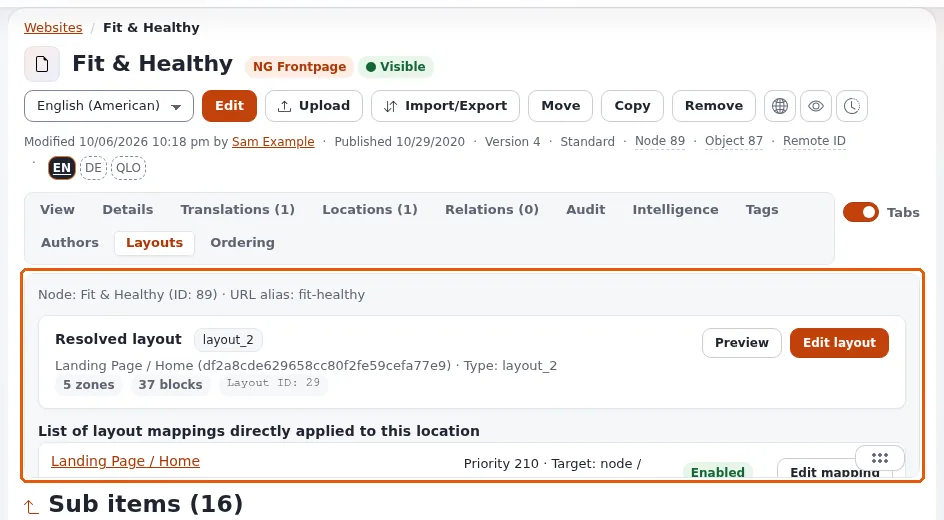
- Open Layout mappings and read every mapping that could match your page, in priority order.
- Check whether your own mapping is enabled.
- Check whether your course layout has a draft with unpublished changes (open it; the editor offers your draft).
- Check your mapping's target type: node, subtree or path?
- Fix the cause you found: disable or lower the competing mapping (if it is a training mapping made for you), publish your layout, enable your mapping, or change a path target to a node target.
- Use the mapping's cache clear (or ask the trainer) and reload the page signed out.
- Compare with the trainer's card.
Expected result
- Each learner found and fixed the cause on their card, and their test page shows their course layout again.
- The learner can name the five usual causes in order.
- The trainer checks by reading the cards aloud and asking each learner how they found it.
Quiz
- Name three causes of a page showing the old layout.
- In which order do you check: caches, mappings, publish state?
- A mapping suddenly applies to the whole site. What do you suspect?
- Why should you not clear caches first?
- A mapping stopped working after a page was renamed. What is the fix? A. Clear the cache B. Change the path target to a node target C. Raise the priority D. Republish the layout
Answers
- Any three of: a higher-priority mapping matches first; the layout is not published; the page's cached copy; a path target after a rename; a disabled mapping.
- Mappings, then publish state, then caches.
- A misspelled condition type (it matches everything) or a broad subtree target (Layout rules).
- It hides a priority or publish problem that would come back.
- B.
Further reading
Related pages
- Module 7: Mapping rules
- Exponential Layouts: course overview
- Trainers: start here
- Free documentation: this page is free to copy, translate and improve under the GNU FDL 1.3.
Become an Exponential Partner
Partners share their information, provide funding, contribute back and develop the products with us, and that is how Exponential grows. A partner website and dashboard are planned for mid-2027: please become a partner today to speed up our growth rate and land new features faster.