Footer links from the content tree
The second line of the Fit & Healthy footer is built from content: every Menu item in the folder Footer links is one link. This is the one menu of the theme that editors change entirely in the content tree.
Contents
- Open the folder
- Create a menu item
- Fill in title and URL
- Publish and check
- Order, hide, remove
- Special URLs
- Where the folder is set
1. Open the folder
In the administration open Media, then Configuration > Footer links. It is a folder sorted by priority and holds seven menu items on the Fit & Healthy site: Login, Signup, Cart, Edit, Tagcloud, Sitemap and Forgot Password.
2. Create a menu item
Press Create new above the list of sub items and choose Menu item (group Netgen). Choose the language (English (American) is preselected) and press OK.
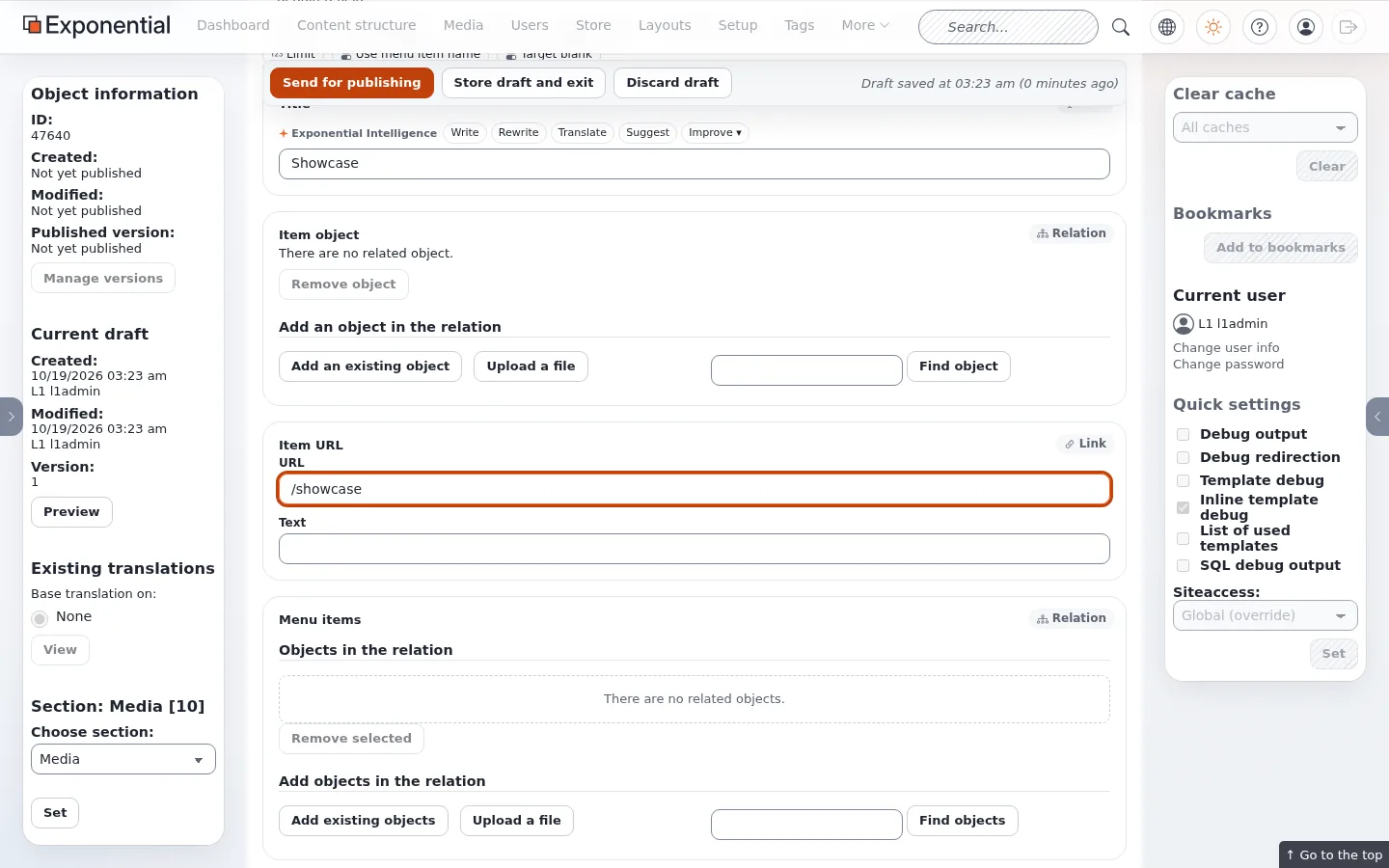
3. Fill in title and URL
| Field | Enter | Used by the footer |
|---|---|---|
| Title (required) | The link text, for example Showcase | yes, the link text |
| Item URL > URL | The address: a path of the site (/showcase) or a full URL (https://...) | yes, the link |
| Target blank | Tick to open the link in a new window (target="_blank" rel="noopener noreferrer") | yes |
| Item object, Menu items, Parent node, Class filter, Max depth, Limit, Use menu item name | other uses of the class | not by this footer |
A menu item without a URL is skipped by the footer.
4. Publish and check
Press Send for publishing. The folder now lists the new item.

On the test copy no cache had to be cleared: the next page already showed the link, first in the second line, because a new item gets priority 0 and the others have 10 to 70.

Order, hide, remove
- Order: the folder sorts by priority. Change the numbers in the Priority column of the sub items list (or on the Ordering tab) and save: lower numbers come first.
- Hide: hide the menu item (its menu in the list, or the visibility button). The footer lists only what the visitor may see.
- Remove: move it to the trash.
Special URLs
The footer rewrites three URLs so the same items work on every site:
| URL in the item | The footer links to |
|---|---|
/content/edit | the edit form of the page being viewed; for anonymous visitors the sign-in page |
/content/view/sitemap | the site map of the siteaccess' home node ([SiteSettings] IndexPage) |
/content/view/tagcloud | the tag cloud of the home node |
Where the folder is set
The footer finds the folder by its remote ID: menu.ini [SiteInfo] FooterLinksRemoteID, default
media-o-footer-links. To use another folder (for example one per site), give that folder's remote ID in the
siteaccess' menu.ini. Only children of the class ng_menu_item are shown.
Related pages
- Footer menu items
- How the footer is built
- Free documentation: this page is free to copy, translate and improve under the GNU FDL 1.3.
Become an Exponential Partner
Partners share their information, provide funding, contribute back and develop the products with us, and that is how Exponential grows. A partner website and dashboard are planned for mid-2027: please become a partner today to speed up our growth rate and land new features faster.