Migrations: recording changes
Setup > Migrations > Recording keeps what you change in the administration as the steps of a migration: content you publish, classes you store, roles you assign, sections, settings you write. When you are done, stop the recording, look at what it captured, and generate a migration that makes the same changes on staging and production. How the recording works, its commands and the steps it records are in the guide Migrations: generators and recording changes.
Who may use this page: users with the policy migration/edit. In a new installation only the Administrator role
has it. Opening the site-wide window asks "Verify it's you" first.
Contents
- The Recording page
- Record your own changes
- The Recording bar
- The site-wide window
- What a recording captured
- Generate the migration
- Discard a recording
- On the console
- What is never recorded
- When something goes wrong
- Related pages
The Recording page
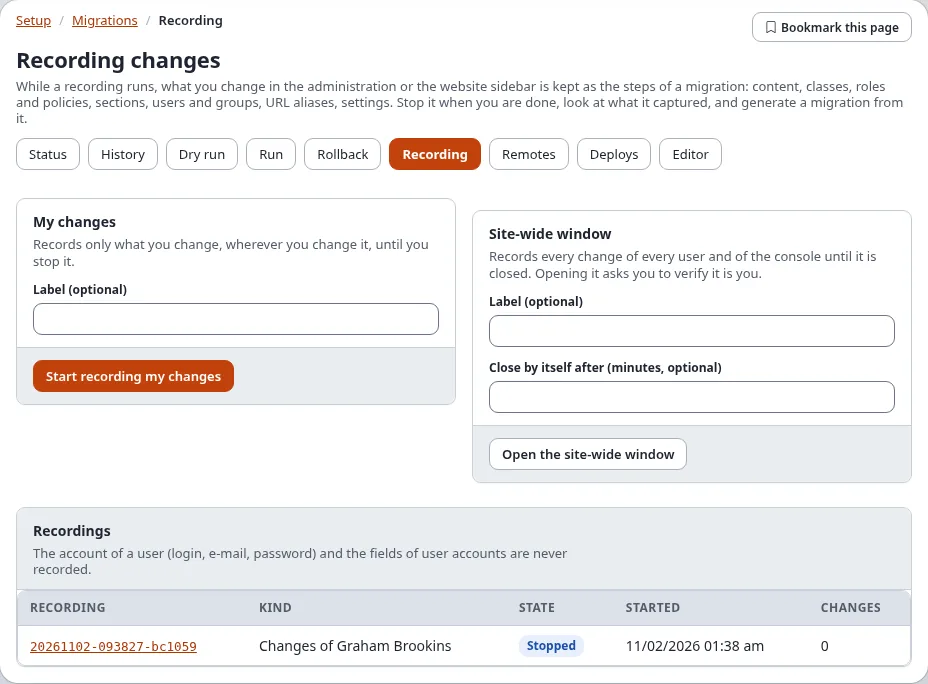
Open Setup > Migrations and choose the tab Recording (/migration/recording). It has two cards, My
changes and Site-wide window, and the list Recordings below.
Record your own changes
The card My changes records only what you change, wherever you change it (in the administration, in the website sidebar, or in a command run as you), until you stop it.
In Label (optional), say what the recording is for, for example
Spring campaign. It becomes the name of the generated migration.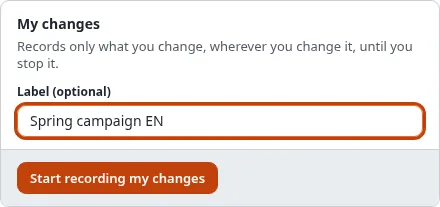
My changes: the label filled in and Start recording my changes Press Start recording my changes. The card now says Recording since ..., N change(s) so far, with Show what it captured and Stop recording:

My changes while recording: since when, how many changes, Show what it captured and Stop recording Make your changes as usual: create the section, change the class, assign the role.
Press Stop recording in the Recording bar, in the card, or on the recording's page.
You can look at a recording while it runs (Show what it captured); its page then has Stop recording at the top.

The Recording bar
While a recording of yours runs, or a site-wide window is open, a red Recording… bar is shown at the top of every page of the administration:

- Show opens the recording.
- Stop recording stops it and brings you back to the page you were on.
The website sidebar shows the same with its Record my changes and Stop recording buttons (Migrations in the website sidebar).
The site-wide window
The card Site-wide window records every change of every user, and of the console, until it is closed. Use it when several people prepare a release together.
Type a Label (optional), for example
Release 6.1 preparation.In Close by itself after (minutes, optional), type how long the window stays open, for example
60. Empty: it stays open until someone closes it. A window is at most 31 days long.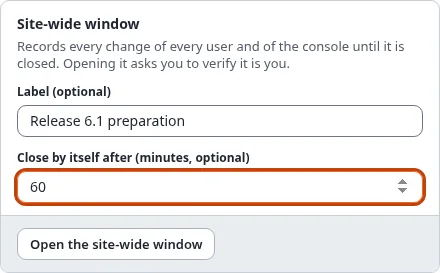
The site-wide window: the label, the minutes and Open the site-wide window Press Open the site-wide window and confirm "Verify it's you".
The card says Open and It closes by itself at <time>. Every user of the administration now sees the Recording bar, because their changes are recorded too.
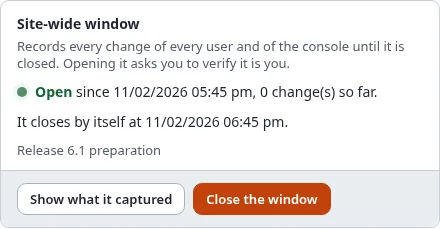
The site-wide window while it is open: it closes by itself at the time shown, Close the window Close it earlier with Close the window (holders of
migration/edit, here or in the bar). At its end it closes by itself: nothing is recorded after the end, and its end stays the time it stopped.
Only one site-wide window and one recording of your own changes can run at a time. A change made while both run is in both.
The list Recordings shows every recording: its kind (Site-wide or Changes of a user), its state (Recording or Stopped), when it started and how many changes it has. Click one to open it.

What a recording captured
Open a recording from the list, from Show in the bar, or with Show what it captured.
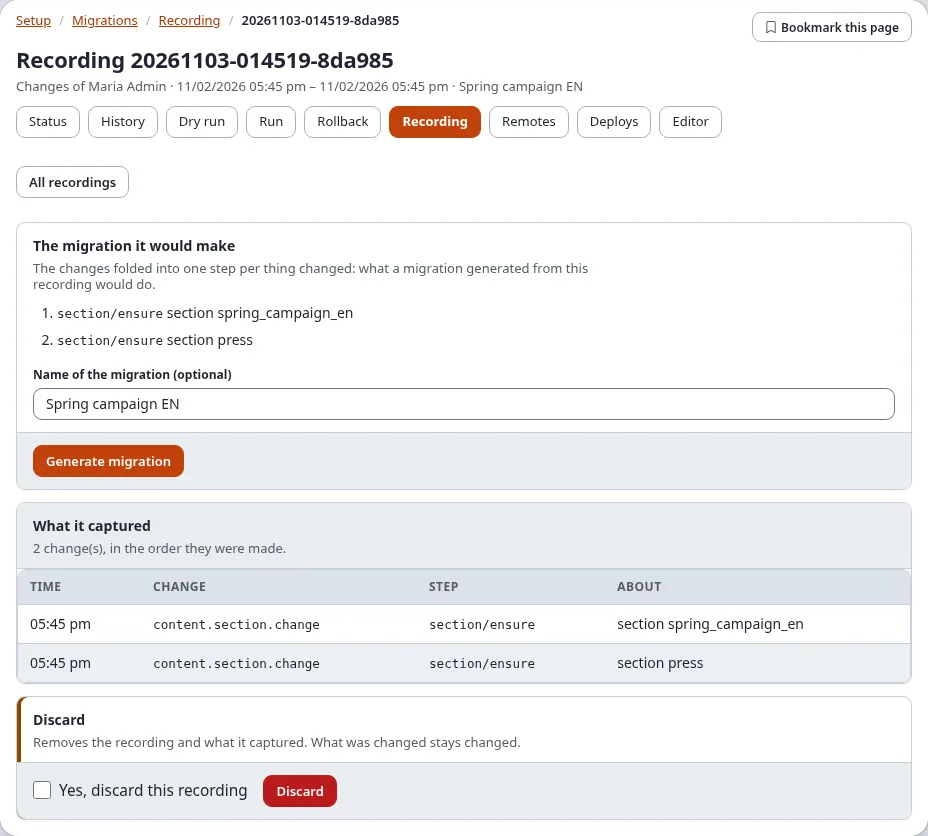
The migration it would make: one step per thing changed, in the order they were first changed. A thing created and changed is one step that creates it with its last values; a thing created and removed again is left out. Left out on purpose names what a migration must not carry (accounts, secrets).
What it captured: every change in the order it was made: the time, the change (the audit event, for example
content.section.change), the step it stands for and what it is about, by remote id or identifier, never by a number that differs between installations. The page lists the first 1000.
What it captured: two content.section.change events with the steps they stand for
Generate the migration
- Stop the recording.
- In The migration it would make, type a Name of the migration (optional) (the label is the default).
- Press Generate migration. The message names the file written into the site's migrations directory,
migrations/<time>_<name>.yml, and that changes no step can make are named at the top of the file, to be made by hand (a swap of two locations, a workflow trigger, a secret setting).
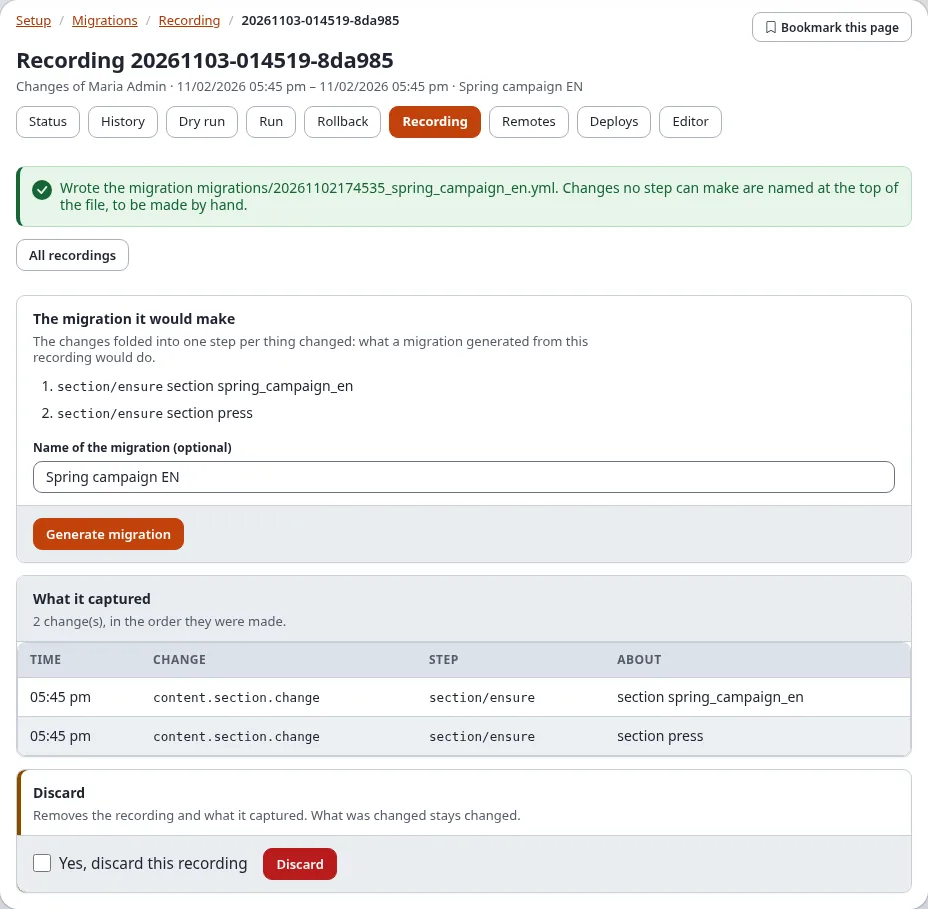
The new migration is pending on the status page. Check it with Dry run, then commit or deploy it; on the
installation where it was recorded the migration finds everything in place (mode ensure). When an extension that
gives a step type the migration needs is not active, a note names the step types instead of the button. More ways to
get a migration: Generating migrations.
Discard a recording
At the bottom of a recording's page: tick Yes, discard this recording and press Discard. The recording and what it captured are removed. What was changed stays changed.
On the console
| Command | Does |
|---|---|
./console exp:migration:record:start --label="news section" --apply | starts a recording of your changes (--user=<login> for another user) |
./console exp:migration:record:start --site-wide --for=120 --apply | opens a site-wide window for 120 minutes |
./console exp:migration:record:start --site-wide --until="2026-11-20 18:00" --apply | opens a site-wide window until that time |
./console exp:migration:record:status | what is recording now |
./console exp:migration:record:stop --apply | stops your recording (--site-wide closes the window, <id> stops that recording) |
./console exp:migration:record:show <id> | every change of a recording |
./console exp:migration:generate --from-recording=<id> --apply | generates the migration |
./console exp:migration:record:discard <id> --apply | discards it |
--for and --until work for a recording of your own changes too.
What is never recorded
- The account of a user (login, e-mail address, password) and the fields of user accounts: a recording keeps only that a user was created or changed, its groups and whether it is enabled. "Left out on purpose" names what was left out.
- The value of a setting whose name says it is a secret.
- Who made a change, in the migration: a generated migration names nobody. A user it creates is named by secrets (Setup > Secrets) for the login, the e-mail address and the password, set on each installation before the run.
- Reading, searching, signing in and clearing caches: they change nothing.
- The changes a migration run makes: they are a migration already.
When something goes wrong
| What you see | Why, and what to do |
|---|---|
| "The recording tables do not exist yet" | The installation has not run the upgrade that makes them: ./console exp:upgrade --apply (step 6.0.15-migration-recording-tables). |
| "Recording is switched off in migration.ini" | [RecordingSettings] Recording=disabled; switch it on in settings/override/migration.ini.append.php. |
| "A recording of this kind is running already" | You are recording already, or a site-wide window is open. Stop it first. |
| The bar shows on a page but no recording is listed | The file of running recordings in var/ is out of date: ./console exp:migration:record:status writes it again. |
| A recording says it stopped adding at a number of events | [RecordingSettings] MaxEvents was reached. Stop it and start a new one. |
| The site-wide window closed before you were done | Its minutes ran out. Open a new window; generate a migration from each recording. |
| "Nothing was recorded." | No change was made while it ran, or only changes that are never recorded. |
| The Recording tab is missing | You do not have migration/edit. |