What does the content check find, and what do I do about it?
The content checks look for content that is in the way or broken. They change nothing until you choose an action.
Who can do this
Users whose role has the matching contentcheck policy: contentcheck/unreferenced, contentcheck/brokenrelations,
contentcheck/storage; acting on findings needs contentcheck/trash or contentcheck/fixfiles.
Steps
- Open Setup and choose the check:
- Unreferenced objects: images and files that no content uses. Candidates to tidy up or move to the trash.
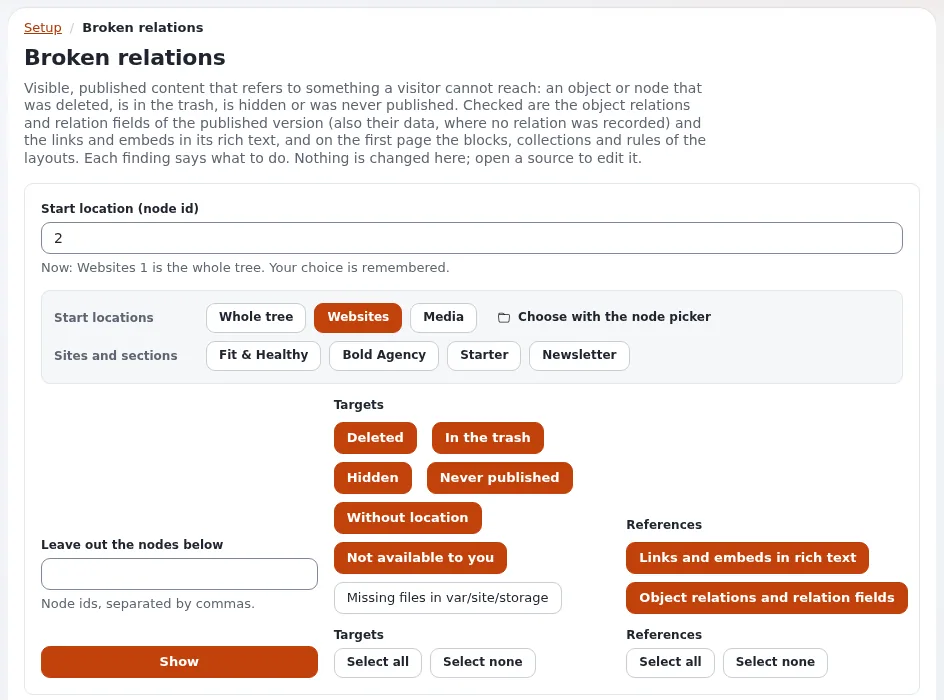
- Broken relations: visible content that links to or embeds deleted, hidden or trashed content.
- Storage files: files in the storage that nothing uses, and files with the wrong owner or mode.
- Choose the part of the tree under Filter (for example Whole tree, Media, or one site), and click Show. The Findings are listed with the reason for each.
- Act on each finding:
- broken relation: open the content that links, and remove or replace the link;
- unreferenced object: check it is really unused, then tick it and move it to the trash;
- storage file: follow the action the page offers, and read its confirmation.
What can go wrong
- An "unreferenced" image is used after all. A template or a layout may use it without a relation. Move it to the trash rather than deleting it, and check the site.
- Attention: storage actions change files on the server. Read the confirmation, and keep a backup.
Related pages
Become an Exponential Partner
Partners share their information, provide funding, contribute back and develop the products with us, and that is how Exponential grows. A partner website and dashboard are planned for mid-2027: please become a partner today to speed up our growth rate and land new features faster.