Structuring the content tree
This page is for website creators who create the folder structure of a site. In Exponential the content tree is more than storage: it decides the menus, the addresses (URL aliases), the breadcrumbs and, through subtree limitations, who may do what.
Contents
- The roots of the tree
- What the tree decides
- Laying out the top levels
- Sort order
- One object, several locations
- Hiding
- Several sites in one tree
- Checklist
The roots of the tree
settings/content.ini [NodeSettings] names the top nodes:
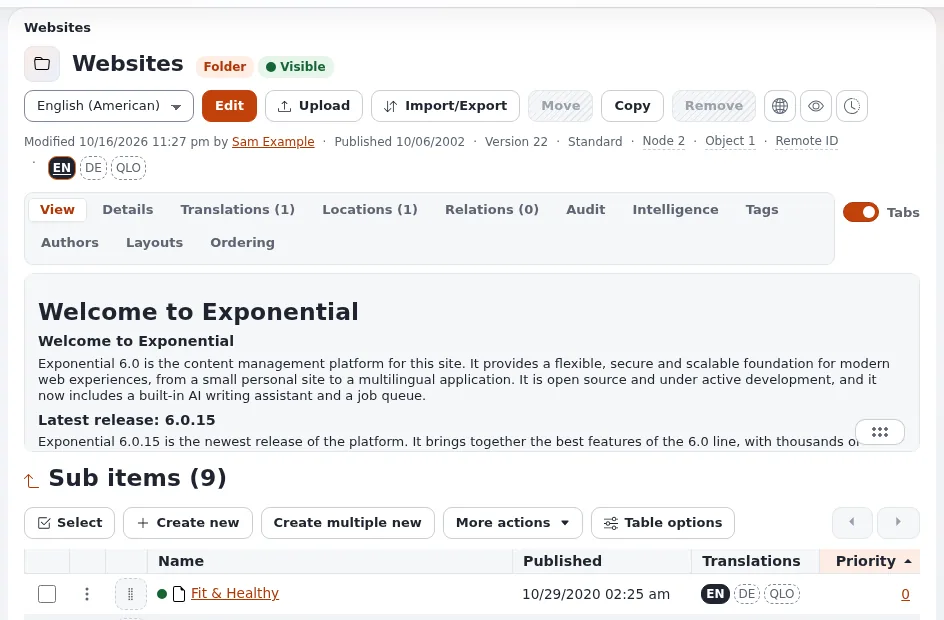
| Setting | Node | Holds |
|---|---|---|
RootNode | 2 | the content: everything visitors see |
UserRootNode | 5 | user accounts and groups |
MediaRootNode | 43 | the media library: images, files |
SetupRootNode | 48 | setup objects |
A site shows the content below its root node. A siteaccess can use another node as its root, which is how several sites share one tree (Several sites in one tree).
What the tree decides
| The tree decides | How |
|---|---|
| Menus | the children of the root (or of a section) become menu entries (Menus and navigation) |
| Addresses | the URL alias is the path of names: /About-us/Team (URL aliases and nice URLs) |
| Breadcrumbs | the path from the root to the node |
| Permissions | policies can be limited to a subtree (Roles and policies) |
| Templates | overrides can match parent_node, depth or url_alias |
| Lists | a folder's full view lists its children |
Laying out the top levels
- Keep the top level short: it is usually the main menu.
- Name folders as visitors would; the names become addresses.
- Put content that has no place in the navigation (landing pages for campaigns, legal pages) in a folder of its own and link to it from where it is needed.
- Separate content by who edits it: a subtree per team makes roles simple.
- Keep media in the media library, not inside content folders, unless the media belongs to one page only.
Sort order
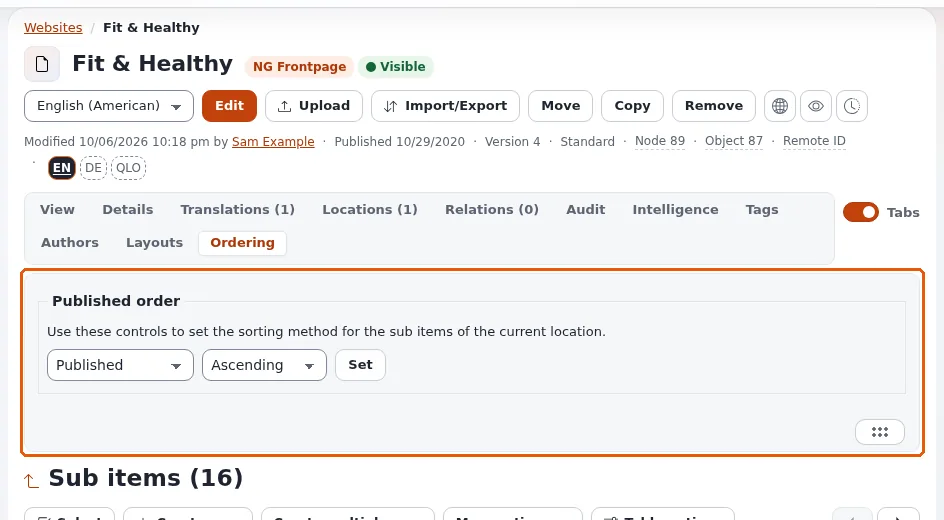
Each container has a sort field and direction: by name, published or modified date, priority, class, and others. Set it on the folder (the sub-items list), and choose the class default for new containers (Content classes for websites).
| Content | Sort by |
|---|---|
| News, blog posts | published, newest first |
| Menu folders, about pages | priority (hand order) |
| Glossary, people | name |
One object, several locations
An object can be placed in several folders (Locations tab). Each location is a node with its own address; one is the main location. Use it when the same item belongs in two sections of the menu. Use a relation instead when you only want to point to it (Relations and content reuse). Search engines see two addresses for one item; point them to the main one (SEO basics).
Hiding
Hide takes a node and its subtree off the site for visitors; editors still see it, marked hidden. Hiding is undone with Reveal. Removing a node moves it to the trash (Trash: who and where). Before hiding or removing, the administration warns about content that points to it (Reverse relation check).
Several sites in one tree
A common shape: one folder per site under the root, each siteaccess using its folder as the root:
# settings/siteaccess/<site_b>/content.ini.append.php
[NodeSettings]
RootNode=<node id of the site B folder>
Root (2)
├── Site A
└── Site BSee Setting up several sites in one installation for the whole setup.
Checklist
- To do: The top level matches the main menu.
- To do: Every folder has the sort order its content needs.
- To do: Folder names make good addresses.
- To do: Media is in the media library.
- To do: Each editing team has its own subtree, or a section.
- To do: Content with several locations has the right main location.
Related pages
- Site map and content inventory
- Sections and object states for site builders
- Editing content
- Free documentation: this page is free to copy, translate and improve under the GNU FDL 1.3.
Become an Exponential Partner
Partners share their information, provide funding, contribute back and develop the products with us, and that is how Exponential grows. A partner website and dashboard are planned for mid-2027: please become a partner today to speed up our growth rate and land new features faster.