Shared layouts: header, footer and prefooter
This page is for website creators who want one header and one footer for every page built with the layouts editor. A layout marked shared is not mapped to pages by a rule; it exists to be borrowed. Any zone of another layout can be linked to one of its zones and then shows that layout's blocks instead of its own (Shared layouts and linked zones).
Contents
Why shared layouts
Without them, every page layout carries its own copy of the footer, and a new phone number means editing every layout. With them, the footer is defined once; change it, publish, and every page follows.
Build it
- Create the shared layout. Layouts > Create, a layout type whose zones fit (for example
layout_2withheader,post_header,main,pre_footer,footer), identifiersite_header_footer, and mark it shared. - Fill its zones: the logo, menu and search in
header; contact details and legal links infooter; a newsletter teaser inpre_footer. - Publish it. Only published shared layouts can be linked.
- Link the zones of each page layout. Open a page layout, choose its
headerzone and link it to theheaderzone ofsite_header_footer(a tour of this step: Admin tour). Do the same forfooterandpre_footer. - Publish the page layout and check a page.
Rules to know
- A zone links to a zone of a published shared layout, never to a draft.
- A linked zone ignores its own blocks while the link is in place; unlinking restores them.
- A zone needs both the layout and the zone name to be linked; the editor sets both.
- Blocks of a published shared layout cannot be changed from a linking layout; open the shared layout, draft it and edit there.
- The form-based screen Shared layouts (
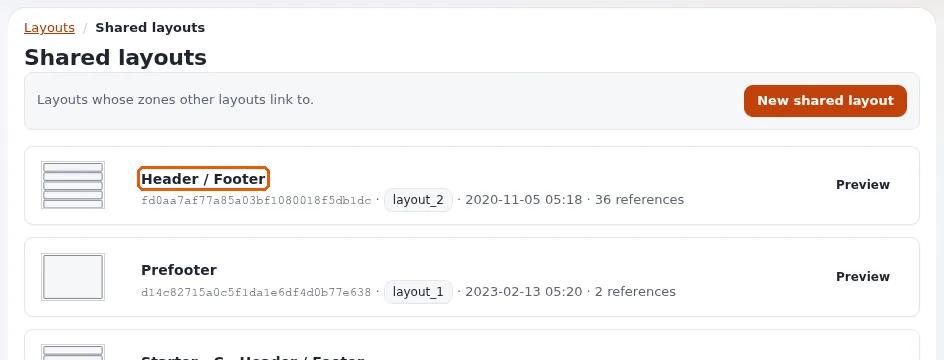
/explayouts_ui/dashboard) lists each shared layout with the number of zones that link to it.
Changing and removing
| You want | Do |
|---|---|
| Change the footer everywhere | draft the shared layout, edit, publish |
| One page without the shared footer | unlink that zone in that page's layout |
| Retire a shared layout | check its link count first; unlink every zone, then delete |
Checklist
- To do: One shared layout per site (or per brand on a multisite).
- To do: Every page layout links its header and footer zones.
- To do: Editors know where the footer is edited.
- To do: After publishing, the content cache and Velocity's response cache are clear, so every page shows the change.
Related pages
- Landing pages with the layouts editor
- Layout types, zones and blocks
- The layouts editor (for editors)
- Free documentation: this page is free to copy, translate and improve under the GNU FDL 1.3.
Become an Exponential Partner
Partners share their information, provide funding, contribute back and develop the products with us, and that is how Exponential grows. A partner website and dashboard are planned for mid-2027: please become a partner today to speed up our growth rate and land new features faster.